
Check the demo video for the detailed live explanation.
Selection of a Storage Mode:
The three different types of storage modes you can choose from:
1.Import – Import mode is the default while importing your data
2.Direct Query- you are creating a direct connection to the data source. Instead of slowing down performance by having to load large amounts of data into Power BI, you can use DirectQuery to create a connection to the source, solving data latency issues as well.
3.Live connections – Establish live connect while working with SQL Server Analysis Services database.
The most popular way to use data in Power BI is to Import it into a Power BI dataset.
Importing the data means that the data is stored in the Power BI file and gets published along with the Power BI reports.
Select the correct storage mode for your data:
Do you require that visuals interact quickly but don’t mind possibly refreshing the data when the underlying data source changes?
If so, select Import to import data into Power BI.
If you prefer to see updates to data as soon as they happen at the cost of interactivity performance, then choose Direct Query for your data instead.
When connecting to SQL Server Analysis Services database, you can choose “Connect live”.
You should import data to Power BI wherever possible. Importing takes advantage of the high performance query engine of Power BI
Import in Power BI Desktop:
You should import data to Power BI wherever possible. Importing takes advantage of the high performance query engine of Power BI.
| Pro & Cons Import in Power BI Desktop |
| With this method, you have a limitation on the size of the model. Your Power BI model (or let’s say the file) cannot be more than 1GB If not in premium license ( 100GB) |
| Data loaded into the memory of the server, and less queries generated. Hence No lags or slowness with this method |
| Power BI Full Functional – here will be no limitation in the functionality of Power BI with this method. You can use all components. |
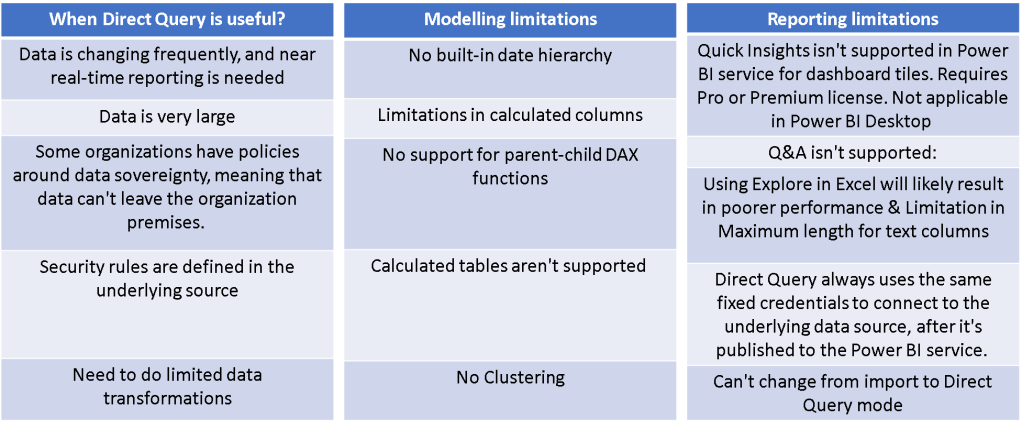
Direct Query in Power BI Desktop:
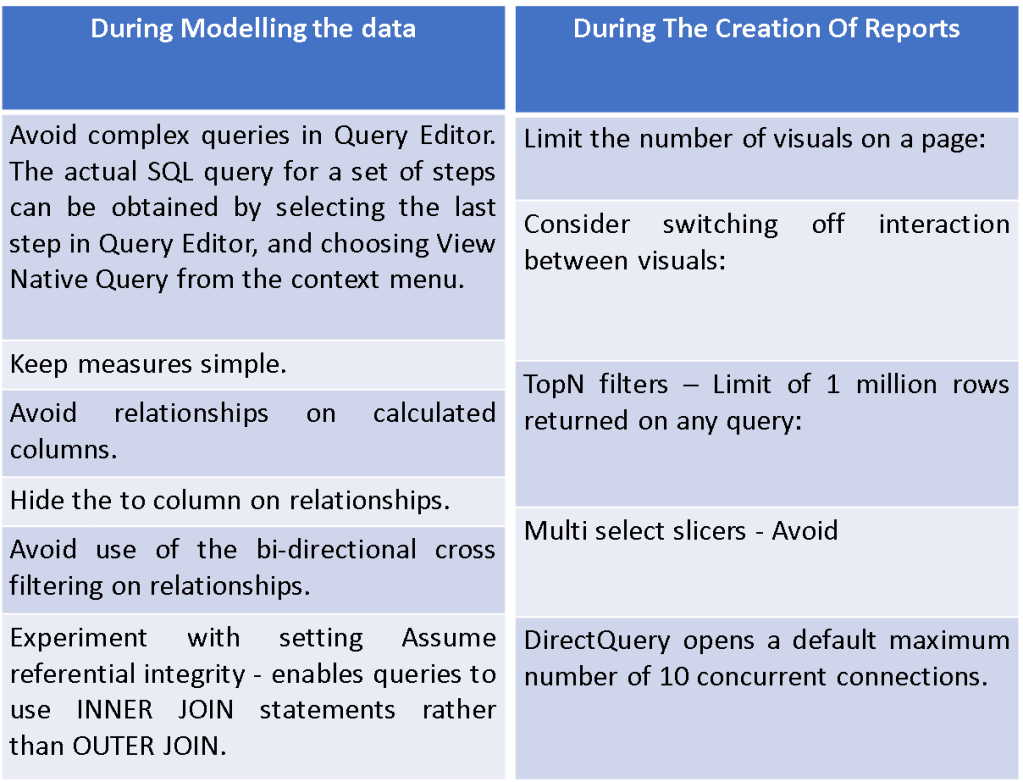
Guidance for using DirectQuery successfully:
Hope you found the post informative. Your valuable feedback, question, or comments about this post are always welcome by leaving me message on contact form is truly appreciated.
Addins (3) Advanced Excel (18) Agile (23) Blog (21) business (1) Clarity (3) Cloud Computing (3) Confluence (3) Dashboards (21) Data Analytics (17) Data modelling (9) DAX (17) Downloads (2) excel (1) GenAI (8) Jira (12) kanban (1) KPI (2) Loop (1) Motivation (3) MS Project (1) MS Teams (3) OneNote Tutorial (2) Outlook (1) PMO (72) Power BI (50) Power BI Dashboards (1) Power BI Desktop (28) Power BI service (2) Powerpoint (5) Power Query (3) Product Development (2) Productivity Tips & Tricks (59) project-management (4) Project Governance (2) Project Online (1) Ravindrapandian (1) Roadmap (2) scrum (5) scrum-master (2) Sharepoint Online (2) Smartsheet (5) Sway (1) Team Bonding (1)
Discover more from LR Virtual Classroom
Subscribe to get the latest posts sent to your email.
 LR Virtual Classroom