
Before understanding the key elements and functionality of the Smartsheet, its very important to know the key features of the sheet. Before scrolling down, don’t forget to checkout my other posts on Smartsheet here.
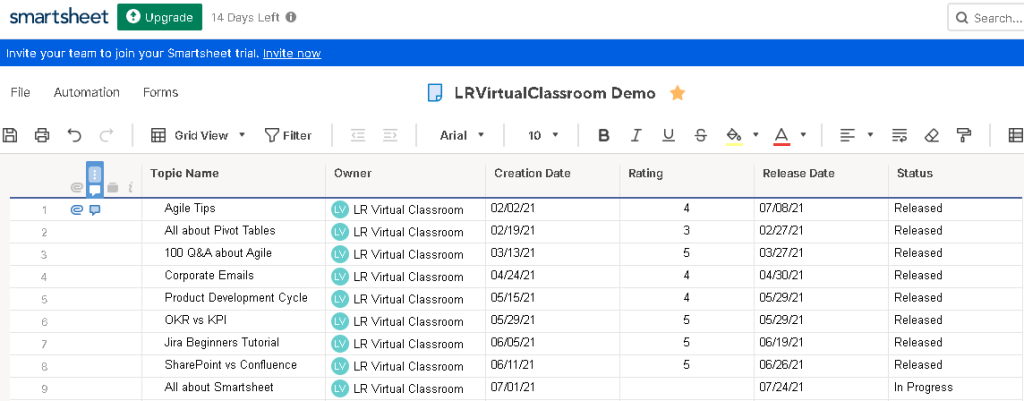
As the name says, all the information is organized in rows and columns (of course sheet !) in the Smartsheet. Let’s see the key features and functionality in the Smartsheet.
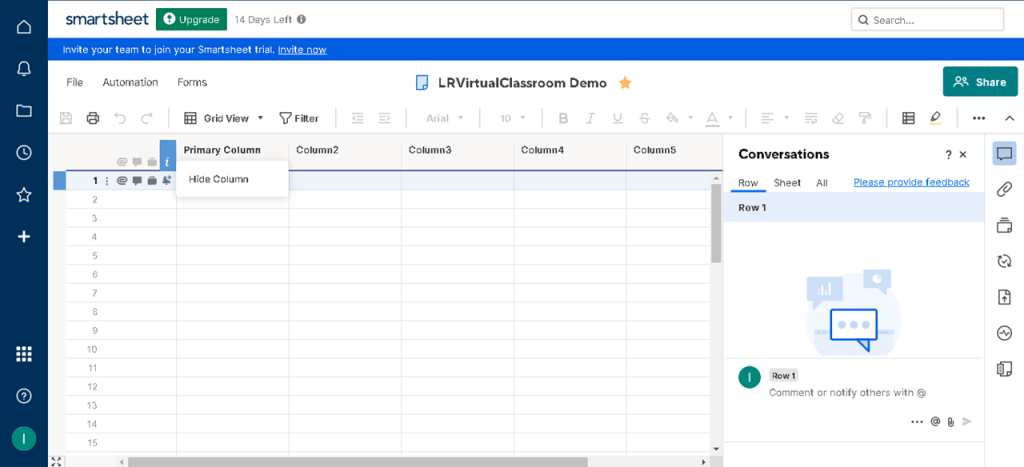
Let’s see the basic ROW features:
- You can embed attachments, add comments, add a proof, and set up reminders.
- It allows you to build hierarchy by creating Indent or Outdent Rows, and easily organize, track, and move data.
- Just like in MS Project, when you add indents, dependencies are enabled on a project sheet, parent rows reflect a roll-up summary of the start date, end date, duration, and % complete values entered for the indented child rows.
Let’s see the basic COLUMN features:
- You have default columns (cannot be changed or removed; it can be either text or number category) and configurable columns as listed below:
- Text/Number
- Contact List
- Date
- Dropdown List (Single Select)
- Dropdown List (Multi Select)
- Checkbox
- Symbols
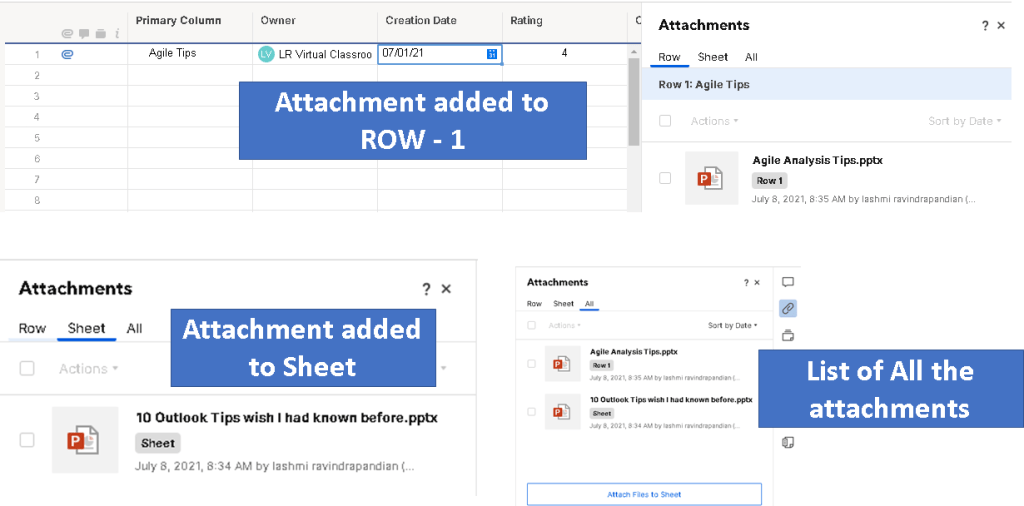
Let’s see the ATTACHMENT features:
You can add Attachments either to individual rows or to the whole sheet. For example, if you have list of orders in the sheet, then you can add Purchase Orders in each row. Likewise, for use in the projects, you can add the sign-off evidence for each tasks/milestone in the project plan sheet.
| File type | Examples of extensions |
|---|---|
| Most image formats | .jpg, .png, .gif |
| Portable Document Format | |
| Microsoft Office Suite | .docx, .pptx, .xlsx |
| User or upload type | Maximum file size |
|---|---|
| Licensed user | 250 MB |
| Free user | 30 MB |
| Trial user | 250 MB |
| Anyone uploading files from a Smartsheet form | 30 MB |
| Smartsheet Mobile app (iOS and Android) | 30 MB |
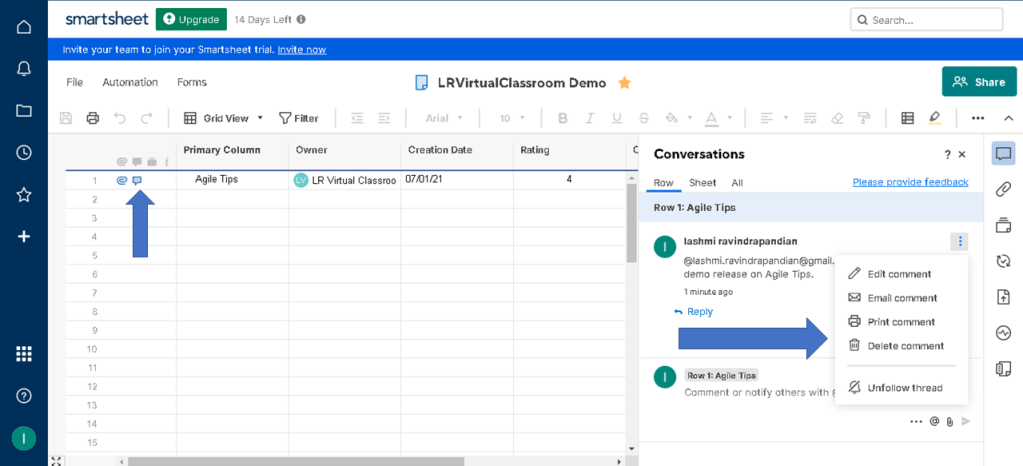
Let’s see the CONVERSATION features:
Just like in confluence, you can add comments in Smartsheet. Conversations allow anyone to manage and track critical communication. Conversations can be updated at the row level, the sheet level, or the workspace level in Smartsheet.
Let’s see the CONDITIONAL FORMATTING features:
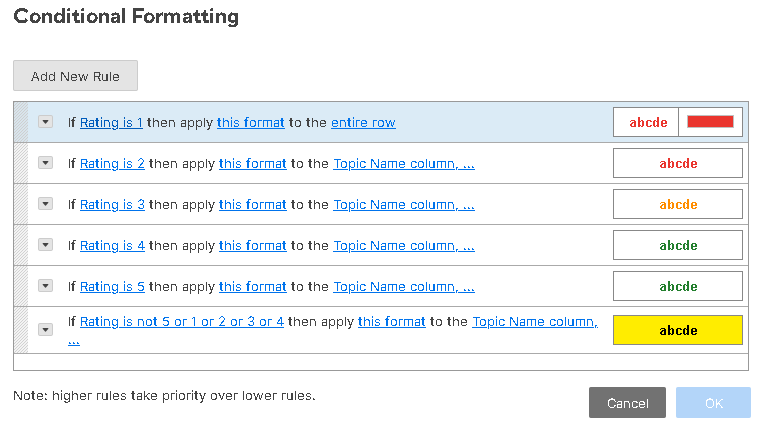
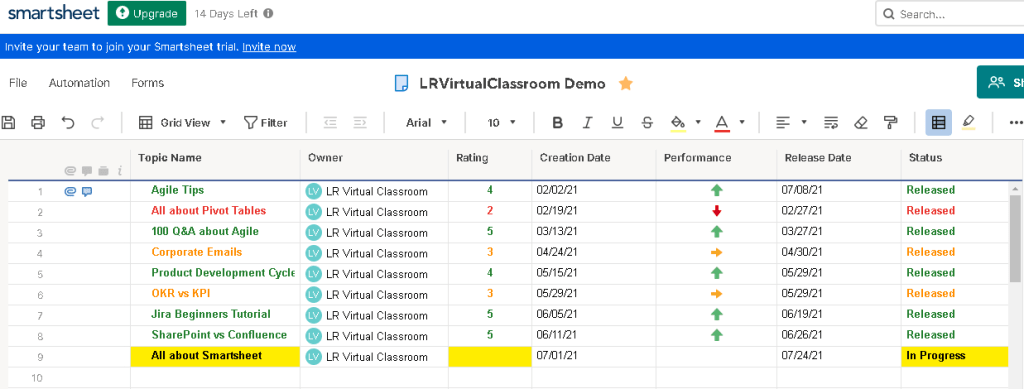
Just like in Excel, you can add conditional formatting in Smartsheet. You can create rules on your sheet, whereby the formatting of individual cells or entire rows will update when certain criteria are met.
- Click Conditional Formatting
on the toolbar to display the Conditional Formatting window.
- Click Add New Rule to create a new, blank conditional formatting rule.
- You can even clone the rule for ease. You can also apply formatting to specific field or entire column.
Let’s see the FORMULA features:
Formulas and functions allow you to perform calculations and lookups within a single sheet or across multiple sheets. Formulas also allow you to automate symbols and drop-down fields.
- Easy way to add formulas is to Set Formulas for All Rows with Column Formulas. It will automatically apply the formula to the new rows.
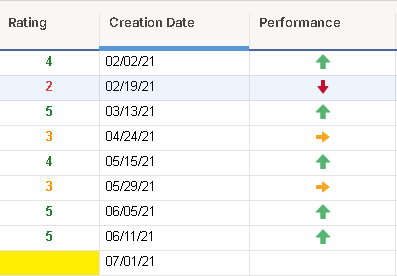
- You can even automate the symbols based on conditions. For example, the performance field is automated using the formula based on the rating field.
Additional Features in Smartsheet:
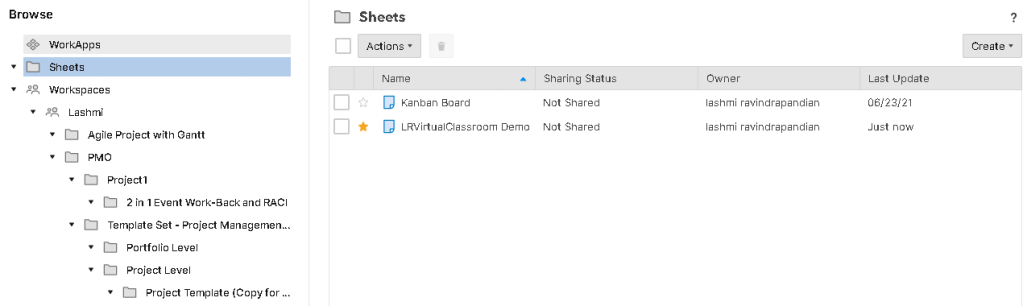
- You can create workspace, folders and subfolders to arrange the sheets.
- You can share the sheet to anyone with your contacts added to the sheet.
- Just like a distribution list, you can create a group of email list like Sales Team. This enables to quickly share the information to all at once.
Stay tuned to the future post.
Discover more from LR Virtual Classroom
Subscribe to get the latest posts sent to your email.
 LR Virtual Classroom