My recent acquaintance about SMARTSHEET. In order to broaden my horizon in the latest project management related tools, I started to subscribe for a free trial on Smartsheet and got the hands-on self-training. Let me share about the tool in layman terms. Don’t forget to checkout my other posts on Smartsheet here.
What is Smartsheet?
- It is the cloud based platform that can help teams to track projects, standardize a project process say order management, sign-off / approval process, create instant dashboard from the datasheet for analysis and improve collaboration with automated workflow options and lot more.
- You can create sheet and share inside-outside the organization and collaborate in real-time.
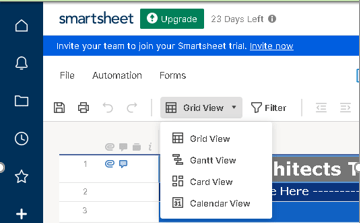
- Data can be sorted using Card, Grid, Gantt chart, and Calendar view.
- Smartsheet easily integrates with Microsoft Office 365 to streamline work processes which means you can import from excel or MS Project. Smartsheet works with Microsoft with single sign-on using your Microsoft credentials.

4. One-stop solution for all your project & organization needs.
How Smartsheet works:
- The sheet is the foundation of your work in Smartsheet. Set it up as sheet and view in different ways, set up workflows and get things done. You can view a sheet as a grid, Gantt chart, calendar, or in a card view.
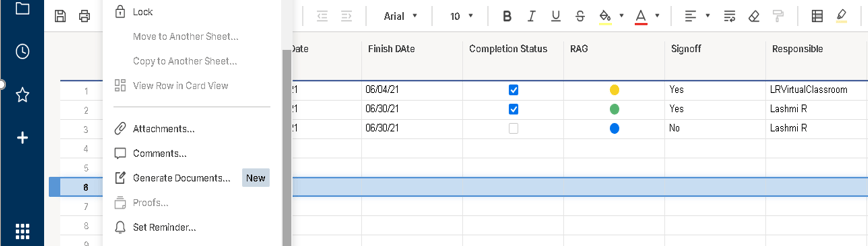
2. Columns are customisable and track specific data. Things like contacts, dates, drop-down, symbols, check boxes, created by , modified by etc. can be created, whereas Rows help you to group tasks into hierarchies and keep the team organized with attached files, links and conversations.
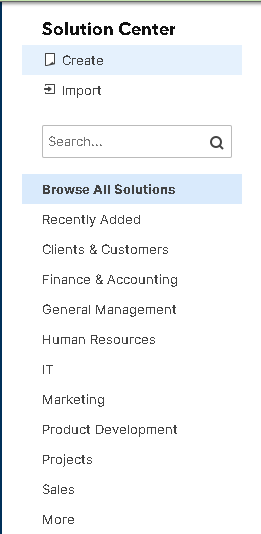
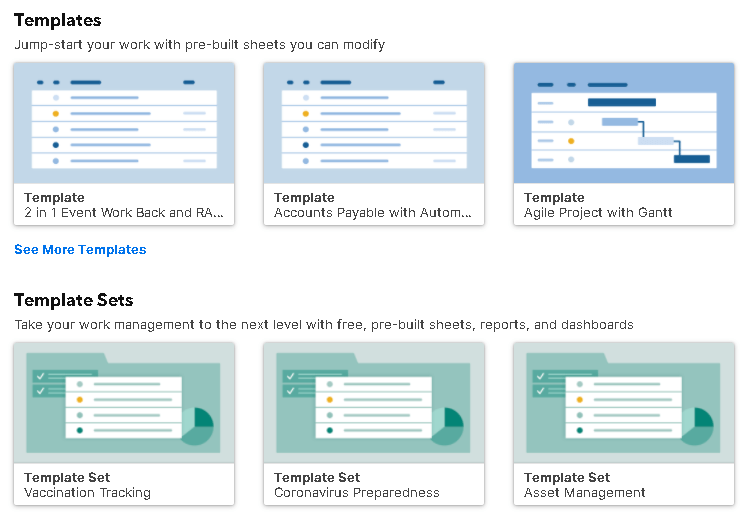
3. Various kinds of ready-made templates to start with in all categories to chose from. Either you can start from scratch or use these pre-built templates.
4. Instant workflow set up and immediate update. For example, the below screenshot shows the approval status for the completed tasks based on the owner. The fields are updated instantly upon approval.
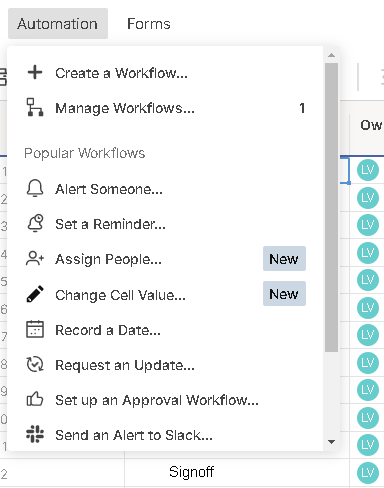
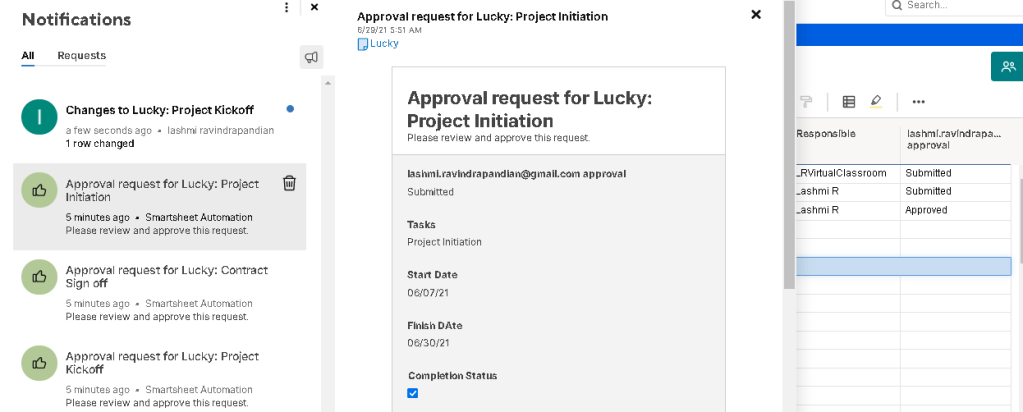
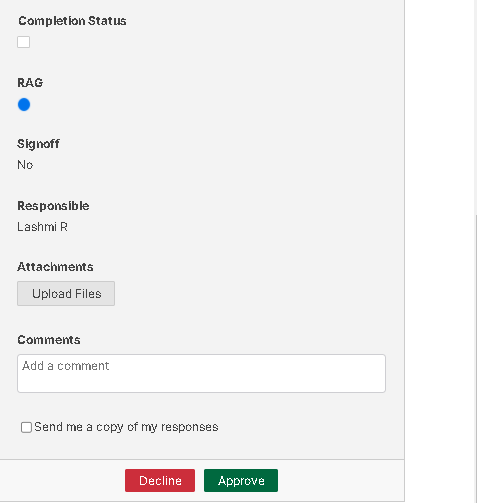
5. Instant request approval and live update using the best in class cloud technology. In this way, the project is updated hassle-free and provide the up-to-date data for effective tracking. You get email notification based on the workflow set up.
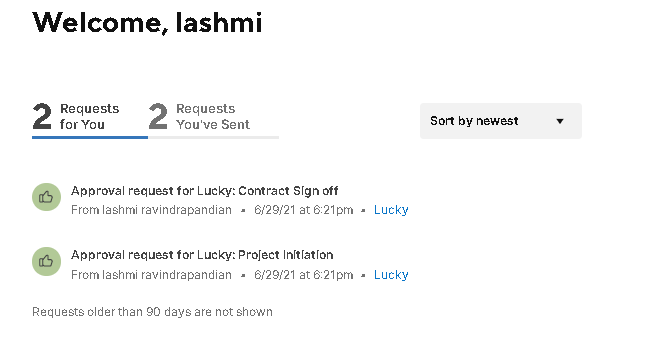
6. Instant update on the workflow status in the homepage as shown below sample.
4 types of Views in Smartsheet:
Sheet View: Typically consists of rows and columns which can be flexed into other views. The default sheet view is the familiar-looking grid, which you can easily customize with multiple column types, hierarchies, attachments, comments etc.
Gantt View: It is good for looking at tasks and dependencies.
Card View: To clearly visualize and prioritize your views
Calendar View: Lets you see all of your tasks over timeline.
Additional Features in Smartsheet:
Forms: Create forms to collect/capture the data from team members easily and accurately and feed right into the sheet. One of the significant features of the Smartsheet.
Automation: To set up notifications and reminders to keep work moving.
Dashboards: Create customized dashboards across your organization.
No-code Apps: Easily create No-code apps to fit to your teams workflow.
Don’t forget to check out the Smartsheet tag for more tutorials.
Discover more from LR Virtual Classroom
Subscribe to get the latest posts sent to your email.
 LR Virtual Classroom
2 thoughts on “Introduction to SMARTSHEET”
Comments are closed.