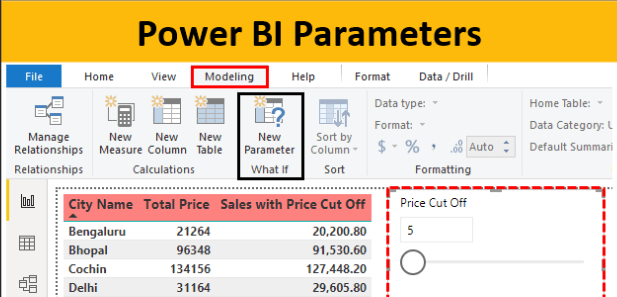
1. A parameter serves as a way to easily store and manage a value that can be reused.
2. Parameters give you the flexibility to dynamically change the output of your queries depending on their value, and can be used for:
- Changing the argument values for particular transforms and data source functions.
- Inputs in custom functions.
3. Power Query provides two easy ways to create parameters:
- select the Manage Parameters option inside Manage Parameters in the Home tab.
- From an existing query: Right-click a query whose value is a simple non-structured constant, such as a date, text, or number, and then select Convert to Parameter.
5. You can also convert a parameter to a query by right-clicking the parameter and then selecting Convert To Query.
6. Apart from the name of the parameter and the value that it stores, it also has other properties that provide metadata to it
- Name: Provide a name for this parameter that lets you easily recognize and differentiate it from other parameters you might create.
- Description: The description is displayed next to the parameter name when parameter information is displayed, helping users who are specifying the parameter value to understand its purpose and its semantics.
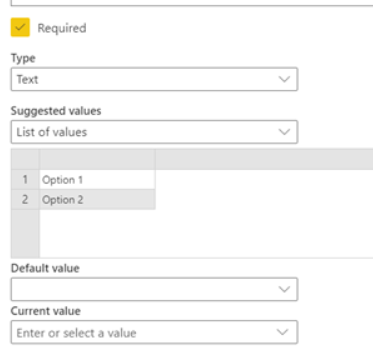
- Required: The checkbox indicates whether subsequent users can specify whether a value for the parameter must be provided.
- Type: Specifies the data type of the parameter. We recommended that you always set up the data type of your parameter. To learn more about the importance of data types, go to Data types.
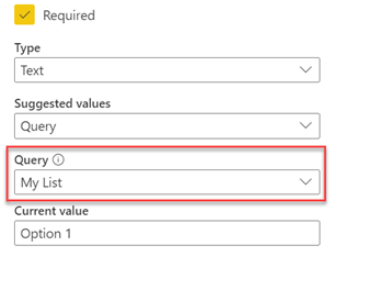
- Suggested Values: Provides the user with suggestions to select a value for the Current Value from the available options:
- Any value: The current value can be any manually entered value.
- List of values: Provides you with a simple table-like experience so you can define a list of suggested values that you can later select from for the Current Value. Default value field enabled.
- Query: Uses a list query (a query whose output is a list) to provide the list of suggested values that you can later select for the Current Value.
7. A parameter can be used in many different ways, but it’s more commonly used in two scenarios:
- Step argument: You can use a parameter as the argument of multiple transformations driven from the user interface (UI).
- Custom Function argument: You can create a new function from a query and reference parameters as the arguments of your custom function.
8. Step argument
To enable this feature, first go to the View tab in the Power Query editor and select the Always allow option in the Parameters group.
9. Custom function argument – With Power Query, you can create a custom function from an existing query with a simple click.
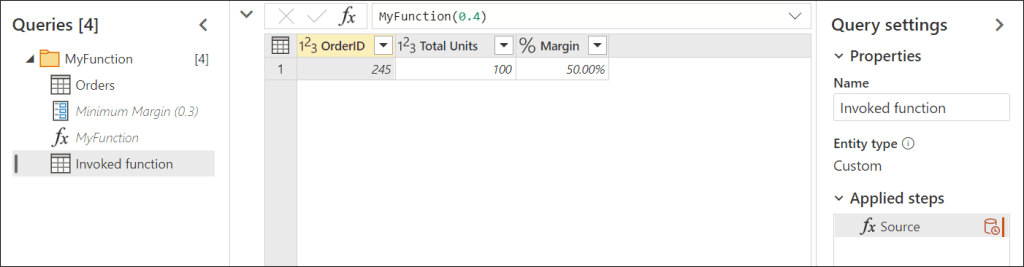
You can name this new function however you want. For demonstration purposes, the name of this new function is MyFunction. After you select OK, a new group is created in the Queries pane using the name of your new function. In this group, you’ll find the parameters being used for the function, the query that was used to create the function, and the function itself
10. To test this new function, enter a value, such as 0.4, in the field underneath the Minimum Margin label. Then select the Invoke button. This creates a new query with the name Invoked Function, effectively passing the value 0.4 to be used as the argument for the function and giving you only the rows where the margin is above 40%.
11. Multi-value or list parameters –
Following the previous example, change the current value for Minimum Margin from 0.3 to 0.1. The new goal is to create a list parameter that can hold the order numbers of the orders that you’re interested in analyzing. To create the new parameter, go to Manage Parameters dialog and select New to create a new parameter. Fill in this new parameter with the following information:
- Name: Interesting Orders
- Description: A set of order numbers that are interesting for a specific analysis
- Required: True
- Type: List
12.List parameters can work with either the In or Not in options. In lets you filter only by the values from your list. Not in does exactly the opposite, and tries to filter your column to get all values that are not equal to the values stored in your parameter.
13.By default though, Parameters are not loaded to the Data Model, so users have to right-click on a parameter and select “Enable Load” if they want to have them loaded to the Data Model.
14. After Query Parameters have been referenced from other queries as needed, users can hit “Close & Apply” in the Query Editor ribbon to get their data and parameters loaded into the data model.
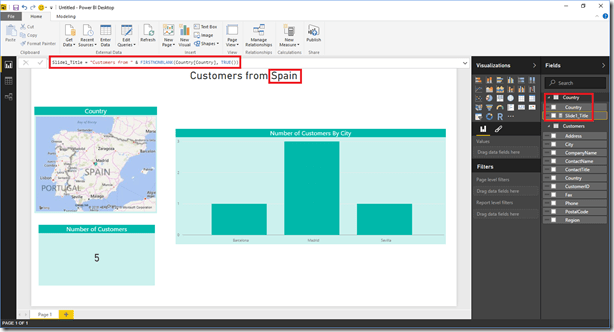
15. At that point, they can start creating the report and even reference these parameters from DAX expressions, such as the one in the following screenshot.
15.
16. Define one or more parameters and associated metadata (name, description, etc.)
Apply restrictions to the values that a parameter can have, including a Data Type as well as the ability to provide a finite list of values accepted for that parameter.
In the future, we will also provide the ability for that “list of values” to be dynamically calculated. We will also allow users to select more than one value from that list, as opposed to today’s single value selection.
Query Parameters can be referenced via the UX dialogs for most common operations in Power BI Desktop’s “Get Data” & “Query Editor” experiences: Data Source connection dialogs, Filter Rows and Replace Values.
In the future, we will add support for referencing parameters from more dialogs. As a temporary workaround, you can reference parameters via the M code for any step in your queries.
17.
Discover more from LR Virtual Classroom
Subscribe to get the latest posts sent to your email.
 LR Virtual Classroom