During my tenure in Cyient in 2017, I first got introduced to the mind-blowing tool called MS Visio. At first, it was very overwhelming to crack the tool.
Over a period of time, I got so connected with the tool for its amazing features to create project artifacts in a visually appealing and intuitive representation.
What is Visio?
Microsoft Visio is one of the most popular diagramming software that empowers Diagramming, Data visualization, Timelines, Org chart, Flowchart creation, Layouts, Floor plans, Swimlanes, Process flow diagrams, and many more.
Major Features of Visio:
- An array of templates that to ready to use for your project needs.
- A variety of built-in shapes allow the creation of virtually any diagram of
any complexity. - Visio also allows users to define their own shapes and import them into
the drawing. - The key advantage is its Import function – Integration with other Microsoft Office products such as Word, Excel, and Access.
- Data can be directly imported from MS Office products like Excel and converted into meaningful diagrams, which change in real-time in accordance with the excel data automatically.
- Export data from MS Products into MS Visio with real-time updates.
- Convert Microsoft Excel process map data or timeline data into Visio diagrams with Data Visualizer with a real-time update.
- Break down complex diagrams into single parts with Microsoft PowerPoint Slide Snippets.
- Automatically document your Visio process diagrams in Microsoft Word.
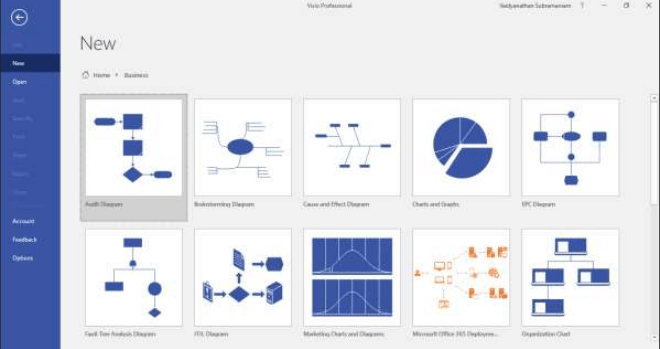
Few snippets on User Interface of the Tool:
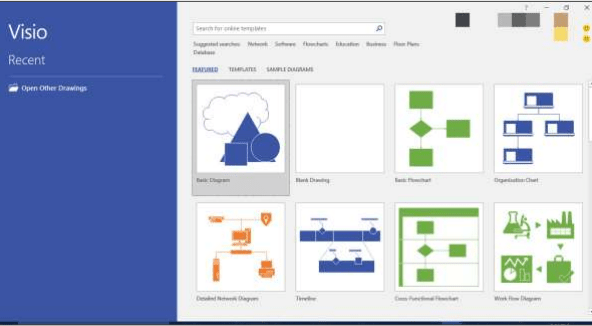
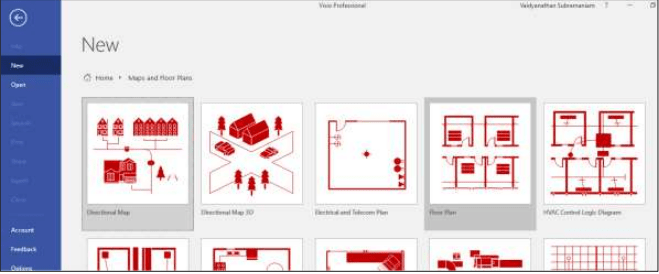
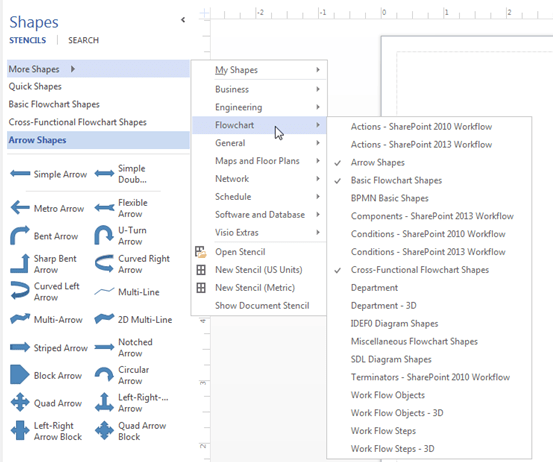
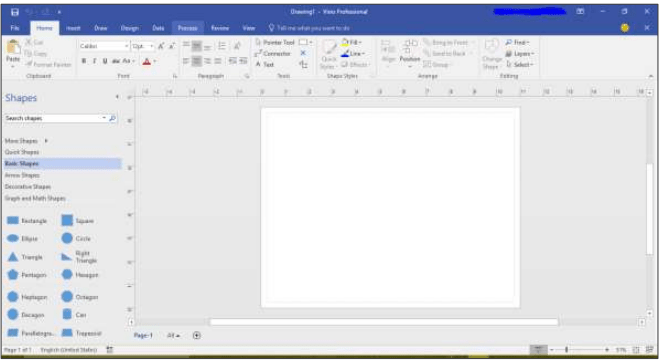
My Samples using MS Visio
Sample 1:
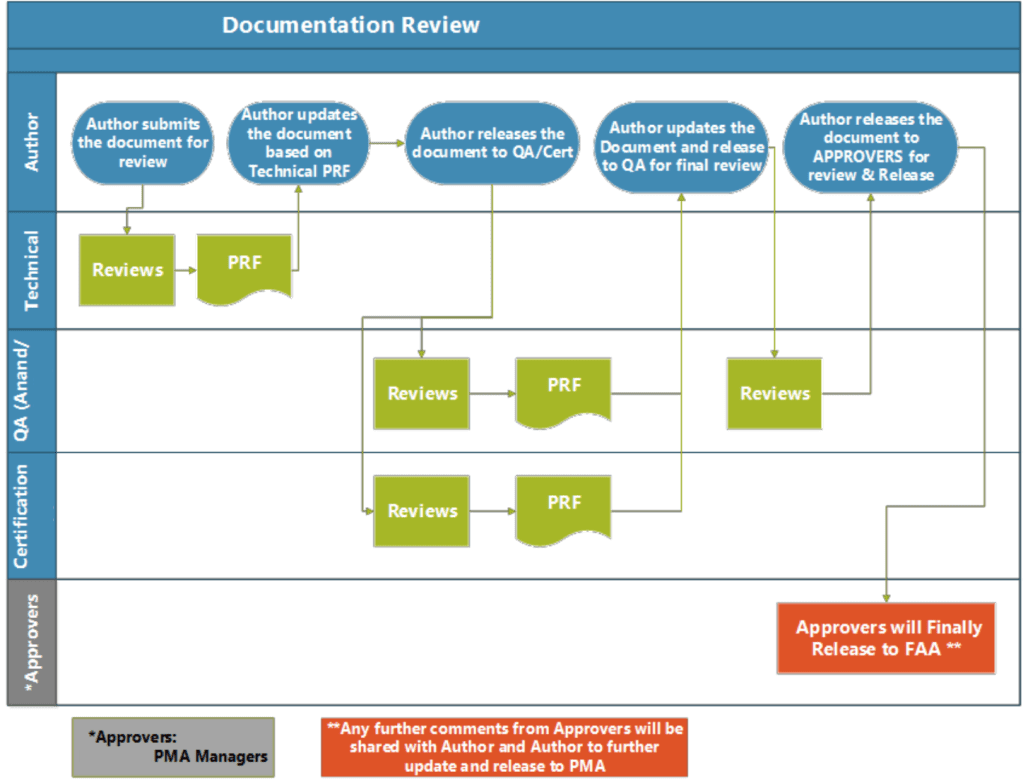
In one of the projects I worked on in Cyient, we had a lot of documents in terms of Hardware configuration plan, Quality assurance plan, Verification plan, Hardware requirements documents, BOM Obsolescene report, Assembly drawings, schematics design, etc. are to be submitted to clients for review.
Though we were submitting the documents on time, there was so much hassle for the teams during the review process.
The Author always had last-minute updates/changes, duplicate comments, etc.
In order to streamline the process, below is the documentation review process created in MS Visio.
Sample 2:
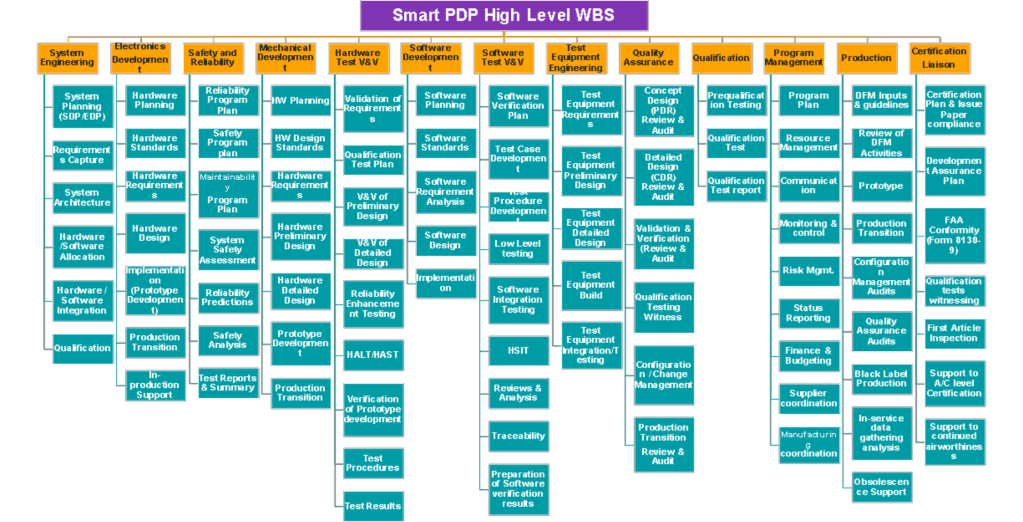
WBS is the Work breakdown structure. It is very critical document for the project which breaks down the complete scope of work.
Below is the sample WBS created in MS Visio. The technical details were provided by the Technical Manager.
This is the WBS for the complete product design, development, production and certification.
Sample 3:
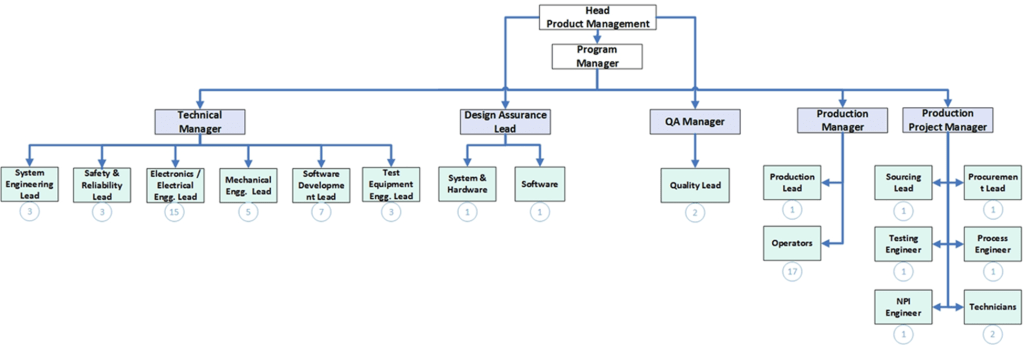
During the resource planning, the below diagram has been created to show the number of resource availability in each domains.
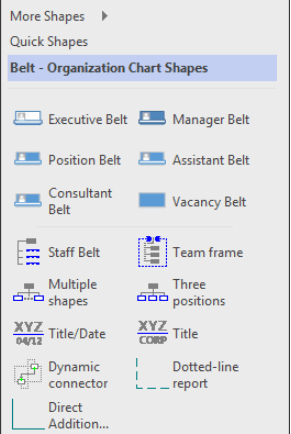
There are lots of shapes to select within Org Chart as below. You can insert pictures in the organization chart just like in Powerpoint.
- Executive Belt
- Manager Belt
- Position Blt
- Assistant belt
- Vacancy belt
- Team Frame
- Dotted Line Report
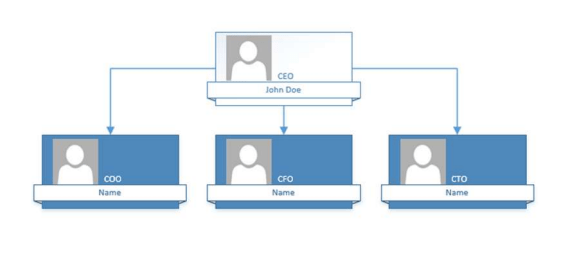
To insert a manager, simply drag the Manager Belt shape onto the Executive Belt shape. You will notice that Visio automatically connects both shapes. You can add more Manager Belt shapes onto the Executive Belt shape and Visio will automatically connect, space, and align all the shapes.
Sample 4:
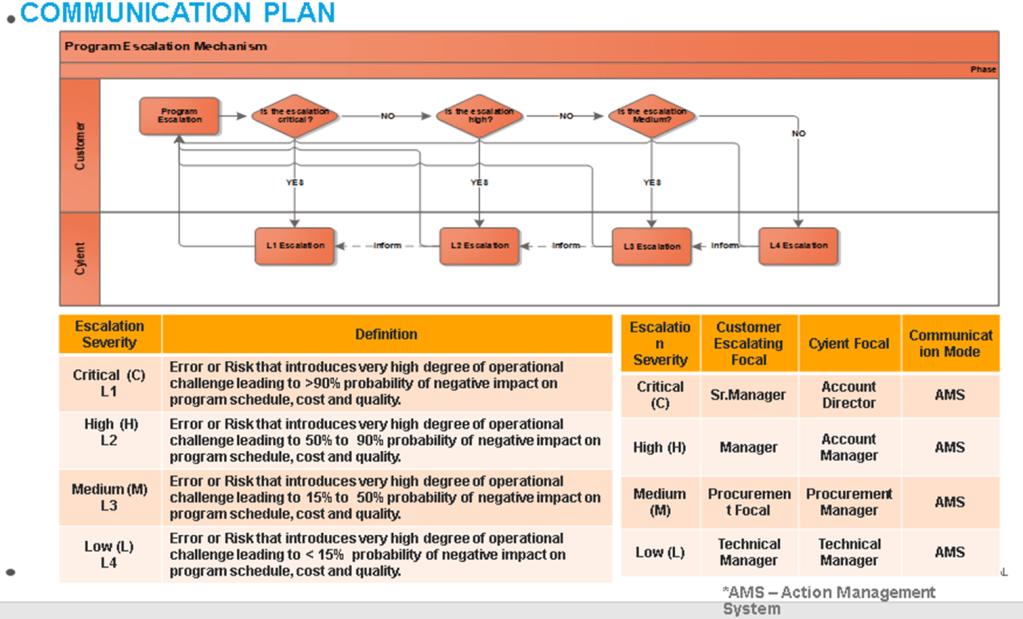
A communication and Escalation plan is one of the important artifacts to share with the customer.
Below is the sample created by the PMO Manager and I rendered my support in a few of the edits.
Sample 5:
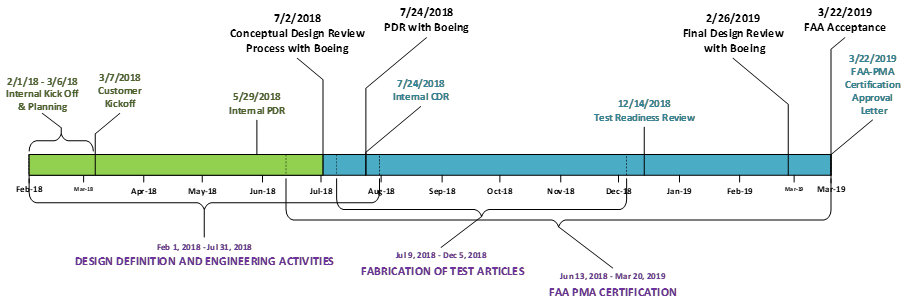
Creating timelines is very easy in MS Visio. We can also export the data to PowerPoint or import the milestones data from excel to MS Visio.
The updates can be made in excel and just refreshed. The timeline is also automatically updated based on the excel template.
Sample timeline depicting the major milestones in the project.
I’m sure, you also now getting tempted to use the Visio tool. What for waiting, just try once. Its worth knowing the tool.
Discover more from LR Virtual Classroom
Subscribe to get the latest posts sent to your email.
 LR Virtual Classroom