With Power BI Desktop, row-level security (RLS) may be utilized to limit data access for certain users.
You can set filters within roles to restrict data access at the row level.
Members of a workspace who have access to datasets in the workspace in the Power BI service will not have any impact by RLS in Power BI Desktop. This data is not restricted by RLS.
With Power BI Desktop, you can specify RLS for data models loaded into Power BI Service where users can be assigned.
RLS can also be configured on DirectQuery-based datasets, such as SQL Server.
Row-level security is configured in the model, not in Power BI Desktop, for Analysis Services or Azure Analysis Services lives connections. For live connection datasets, the security option will not appear.
Live example of RLS in Power BI Desktop:
Let’s see I have the below report created in the Power BI Desktop using import query.
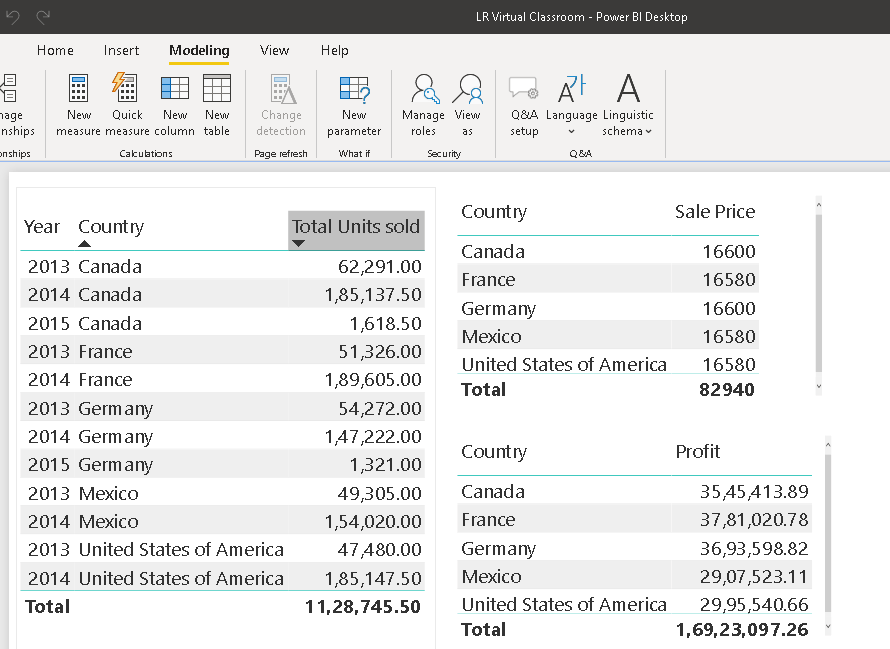
Define roles and rules in Power BI Desktop
You can define roles and rules within Power BI Desktop. When you publish to Power BI, it also publishes the role definitions.
To define security roles, follow these steps.
- Have a dataset you want to use RLS, which contains email addresses for rows of data that you want to restrict access to.
- Import data into your Power BI Desktop report, or configure a DirectQuery connection. You can’t define roles within Power BI Desktop for Analysis Services live connections. You need to do that within the Analysis Services model.
- From the Modeling tab, select Manage Roles.
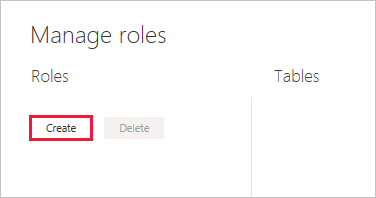
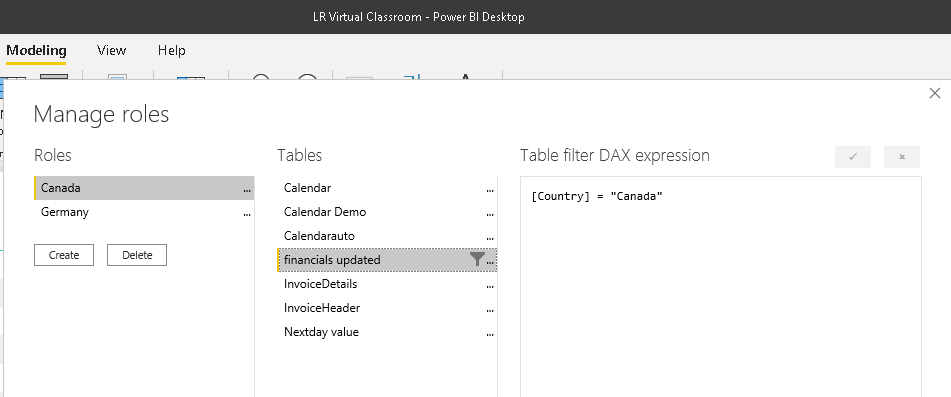
4. Under Roles, provide a name for the role. I have given Canada.
5. Under Tables, select the table to which you want to apply a DAX rule.
6. In the Table filter DAX expression box, enter the DAX expressions. This expression returns a value of true or false. For example: [Entity ID] = “Value”. [country] = “Canada”. then click save.
Similarly, I have created one for Germany as well.
Key Notes:
- You can’t assign users to a role within Power BI Desktop. You assign them to the Power BI service.
- You can enable dynamic security within Power BI Desktop by making use of the username() or userprincipalname() DAX functions and having the proper relationships configured.
- You can use username() within this expression. Be aware that username() has the format of DOMAIN\username within Power BI Desktop.
- Within the Power BI service and Power BI Report Server, it’s in the format of the user’s User Principal Name (UPN). Alternatively, you can use userprincipalname(), which always returns the user in the format of their user principal name, username@contoso.com.
- By default, row-level security filtering uses single-directional filters, whether the relationships are set to single direction or bi-directional.
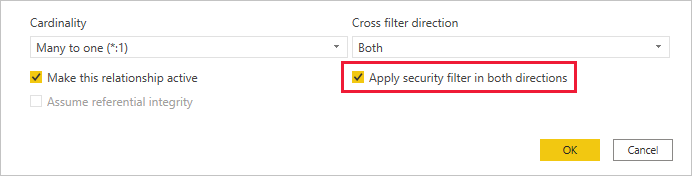
- You can manually enable bi-directional cross-filtering with row-level security by selecting the relationship and checking the Apply security filter in both directions checkbox.
- Select this option when you’ve also implemented dynamic row-level security at the server level, where row-level security is based on username or login ID.
Validate the roles within Power BI Desktop:
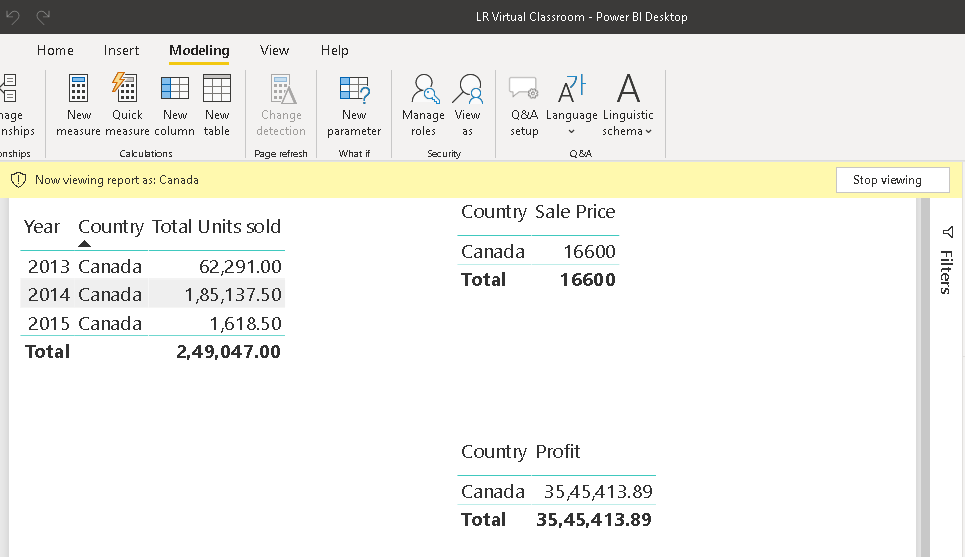
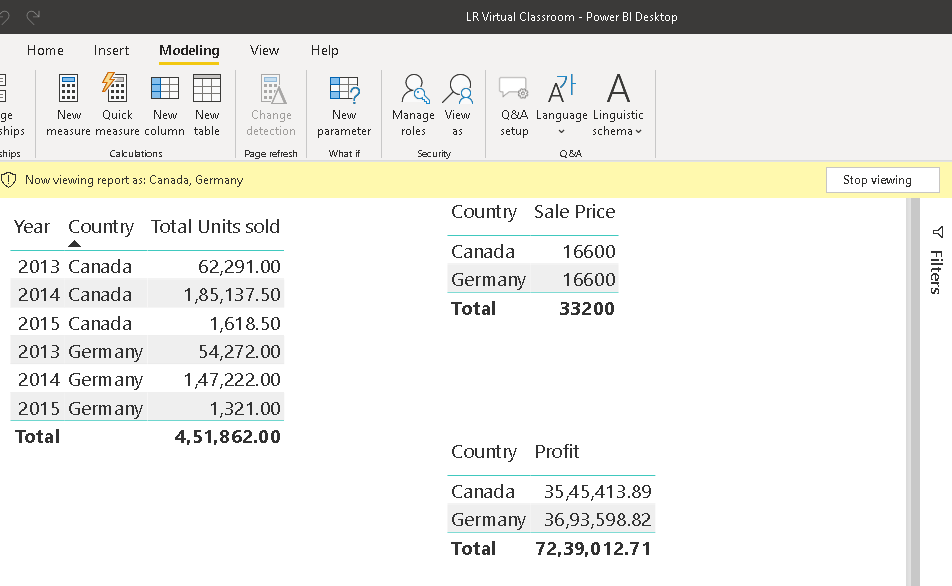
To validate the roles, click View as under the Modelling table. Select with Canada or Germany.

You can also provide the usernames as below in the Power BI desktop. But It’s best to supply the User Principal Name (UPN) as that’s what the Power BI service and Power BI Report Server use

Check the result in image 1 as below for Canada country filter and image 2 for both Canada + Germany.
Now that you’re done validating the roles in Power BI Desktop, go ahead and publish your report to the Power BI service.
Discover more from LR Virtual Classroom
Subscribe to get the latest posts sent to your email.
 LR Virtual Classroom