There are different sections in the Tenant Settings. Firstly, familiarity with tenant settings enables data analysts to work more efficiently within the Power BI environment. By knowing how to configure settings such as workspace access, data governance policies, and security protocols, analysts can ensure that they have the necessary permissions and resources to carry out their tasks seamlessly.
By understanding how settings such as tenant-level permissions, data classification, and audit logging function, analysts can provide valuable insights and recommendations to stakeholders regarding best practices for data management and security.
So, let’s deep dive into the Admin Portal. Are you ready?
1. MICROSOFT FABRIC SETTINGS
2. HELP AND SUPPORT SETTINGS
3. DOMAIN MANAGEMENT SETTINGS
4. WORKSPACE SETTINGS
5. INFORMATION PROTECTION SETTINGS
6. EXPORT AND SHARING SETTINGS
7. DISCOVERY SETTINGS
8. APP SETTINGS
9. INTEGRATION SETTINGS
10. POWER BI VISUAL
11. USING R AND PYTHON VISUALS
12. AUDIT AND USAGE SETTINGS
13. DASHBOARD SETTINGS
14. DEVELOPER SETTINGS
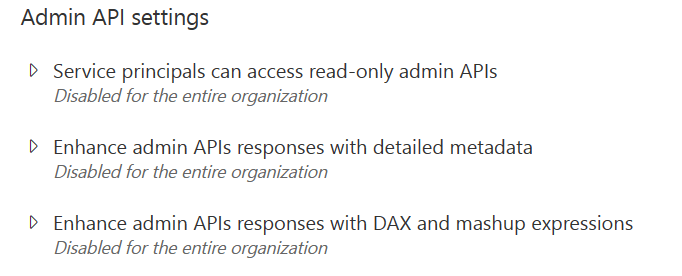
15. ADMIN API SETTINGS
16. GEN AI DATAFLOW SETTINGS
17. TEMPLATE APP SETTINGS
18. Q&A SETTINGS
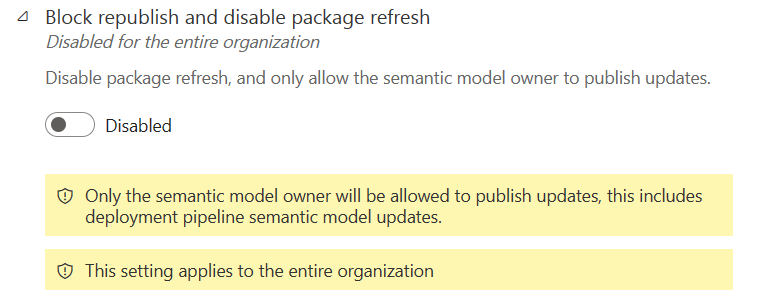
19. SEMANTIC MODEL SECURITY
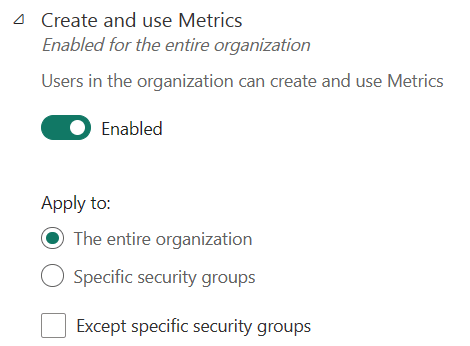
20. METRIC SETTINGS
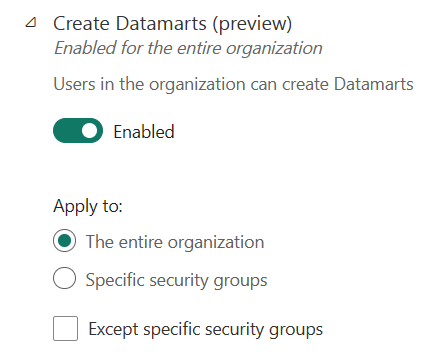
21. DATAMART SETTINGS
22. DATA MODEL SETTINGS
23. QUICK MEASURE SUGGESTIONS
24. COPILOT AND AZURE OPENAI SERVICE
1.MICROSOFT FABRIC SETTINGS
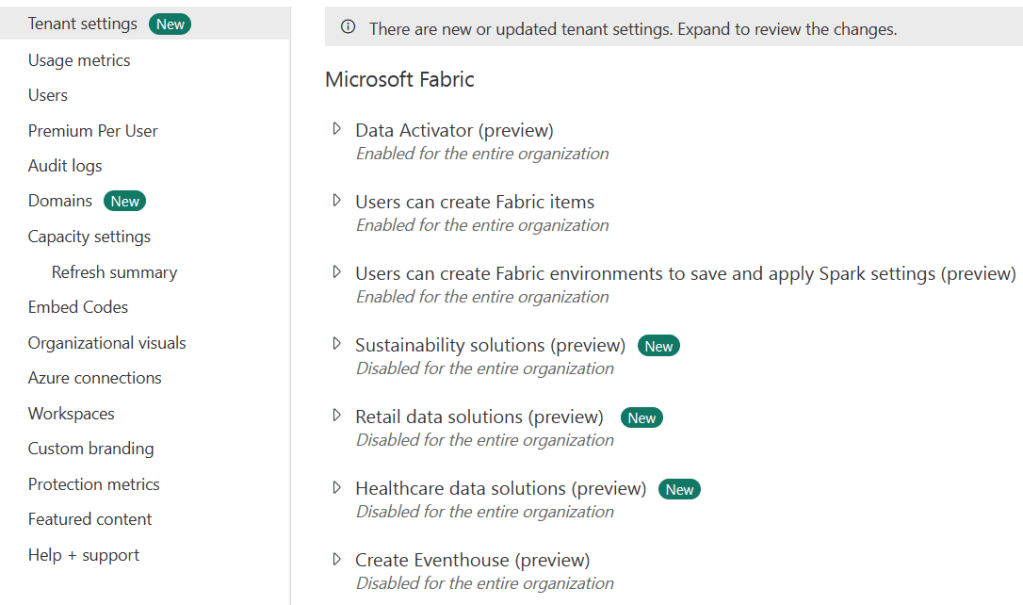
Basic settings are as below. Though they are not so expected in the exam, it is important to know that Fabric settings are available under Tenant settings.
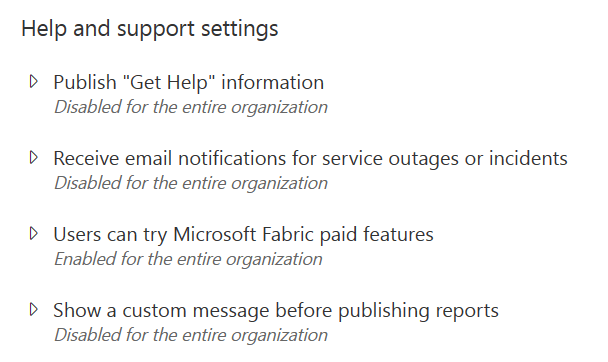
2. HELP AND SUPPORT SETTINGS
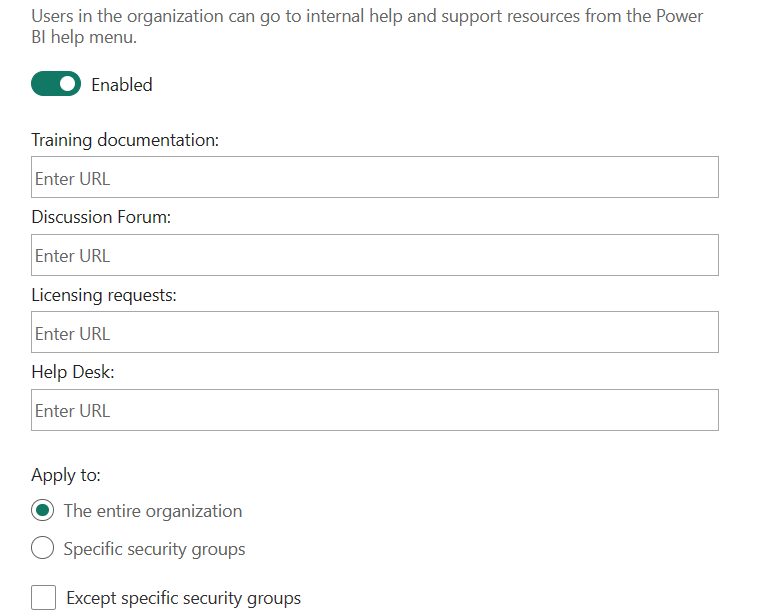
Users in the organization can go to internal help and support resources from the Power BI help menu.
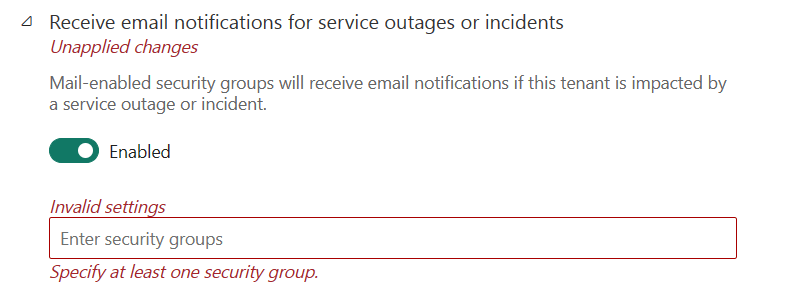
Mail-enabled security groups will receive email notifications if this tenant is impacted by a service outage or incident.
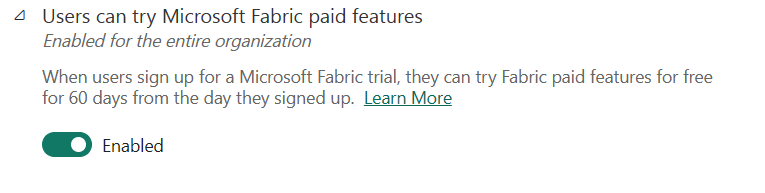
When users sign up for a Microsoft Fabric trial, they can try Fabric paid features for free for 60 days from the day they signed up. Learn More
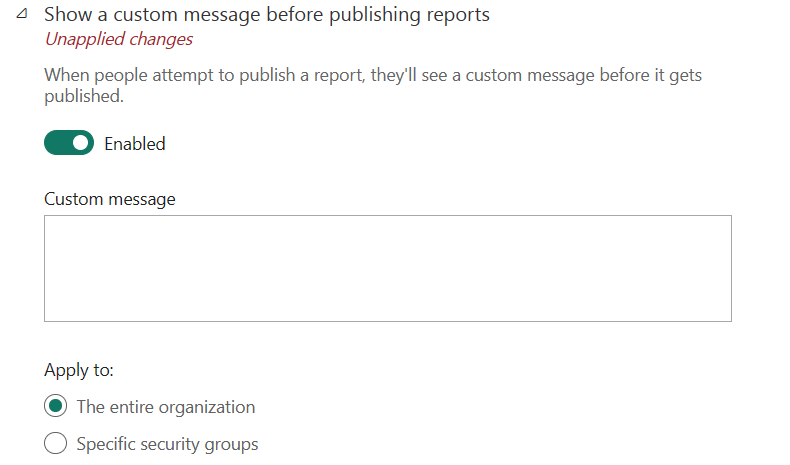
When people attempt to publish a report, they’ll see a custom message before it gets published.
3. DOMAIN MANAGEMENT SETTINGS
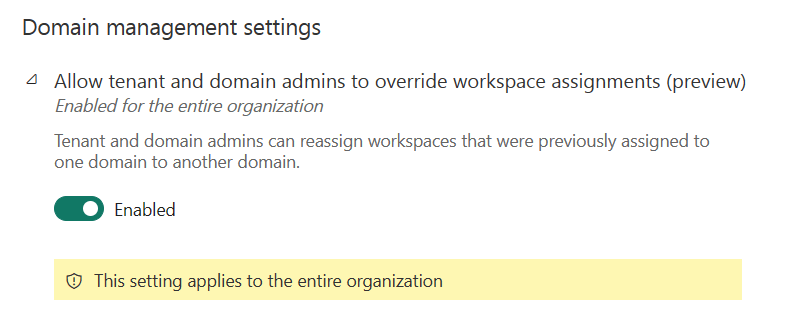
Tenant and domain admins can reassign workspaces that were previously assigned to one domain to another domain.
4. WORKSPACE SETTINGS
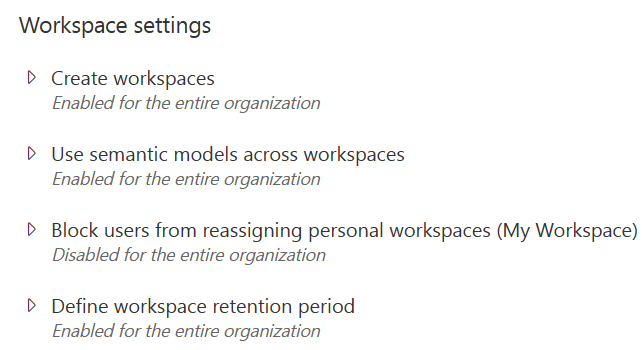
Create Workspaces
Users in the organization can create app workspaces to collaborate on dashboards, reports, and other content. Even if this setting is disabled, a workspace will be created when a template app is installed.
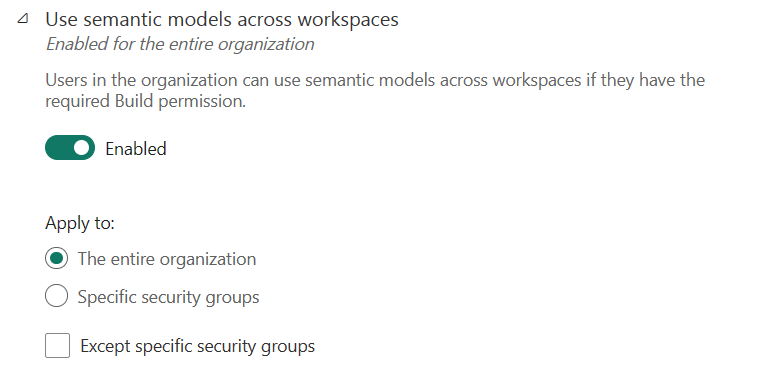
Use semantic models across workspaces
Users in the organization can use semantic models across workspaces if they have the required Build permission.
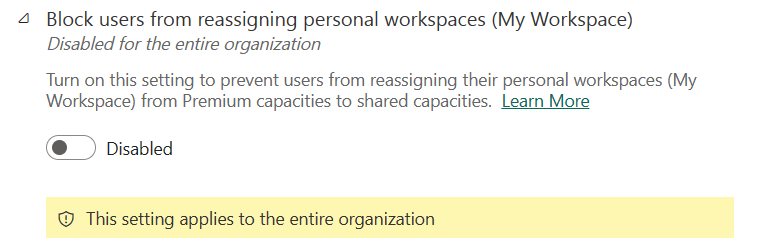
Block users from reassigning personal workspaces (My Workspace)
Turn on this setting to prevent users from reassigning their personal workspaces (My Workspace) from Premium capacities to shared capacities. Learn More
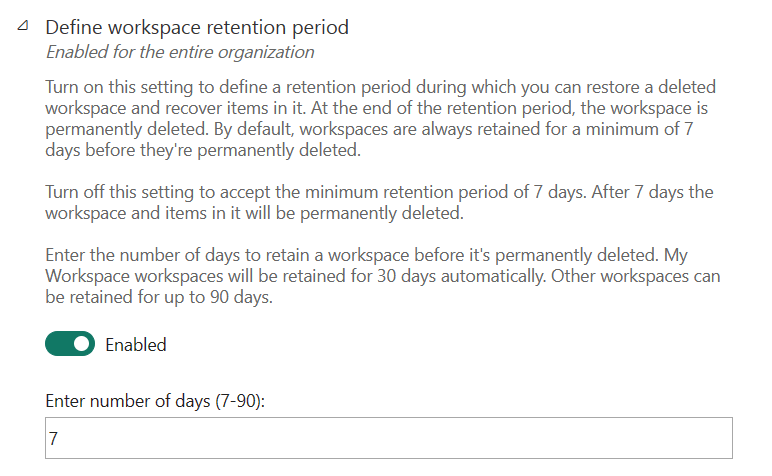
Define workspace retention period
Turn on this setting to define a retention period during which you can restore a deleted workspace and recover items in it. At the end of the retention period, the workspace is permanently deleted.
By default, workspaces are always retained for a minimum of 7 days before they’re permanently deleted.
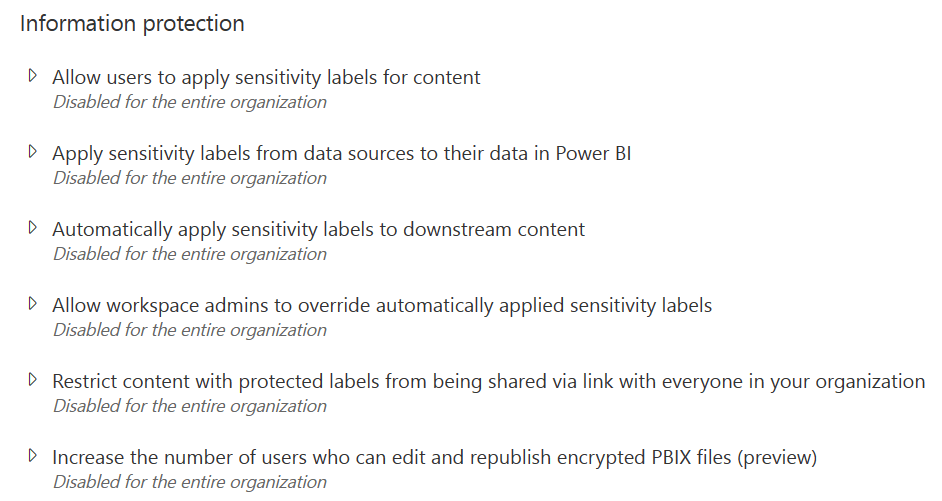
5. Information protection
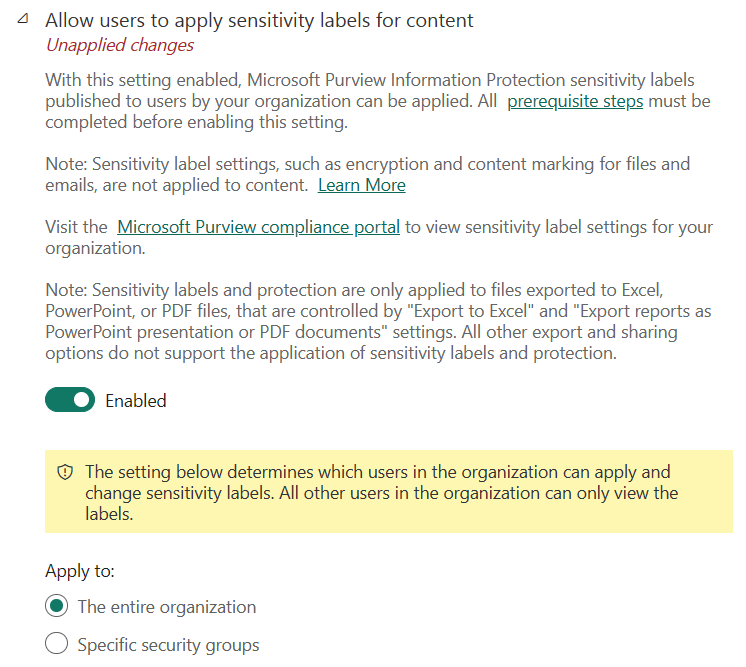
Allow users to apply sensitivity labels for content
With this setting enabled, Microsoft Purview Information Protection sensitivity labels published to users by your organization can be applied. All prerequisite steps must be completed before enabling this setting.
Before enabling sensitivity labels on your tenant, make sure that sensitivity labels have been defined and published for relevant users and groups. See Create and configure sensitivity labels and their policies for detail.
Sensitivity labels and protection are only applied to files exported to Excel, PowerPoint, or PDF files, that are controlled by “Export to Excel” and “Export reports as PowerPoint presentation or PDF documents” settings.
All other export and sharing options do not support the application of sensitivity labels and protection.
To be able to apply labels to Power BI Fabric items, a user must have a Power BI Pro or Premium Per User (PPU) license in addition to one of the Azure Information Protection licenses mentioned above.
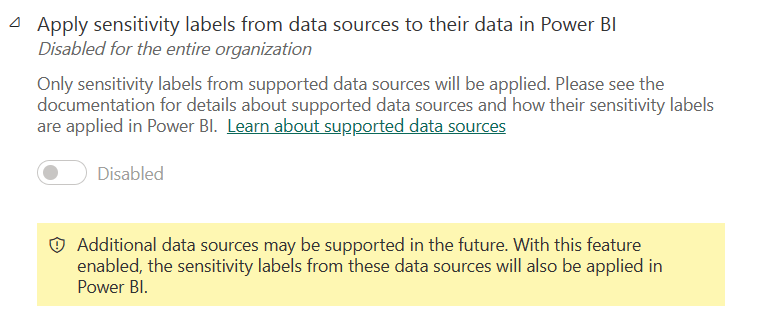
Apply sensitivity labels from data sources to their data in Power BI
Only sensitivity labels from supported data sources will be applied.
Please see the documentation for details about supported data sources and how their sensitivity labels are applied in Power BI. Learn about supported data sources
Automatically apply sensitivity labels to downstream content
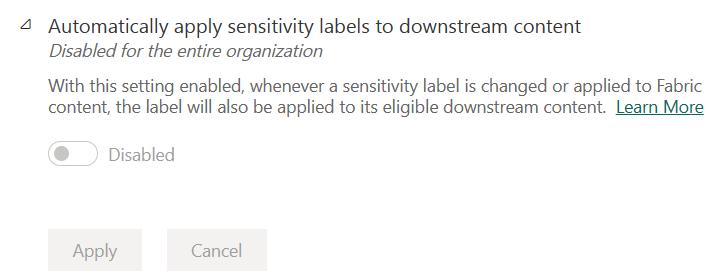
With this setting enabled, whenever a sensitivity label is changed or applied to Fabric content, the label will also be applied to its eligible downstream content. Learn More
Allow workspace admins to override automatically applied sensitivity labels
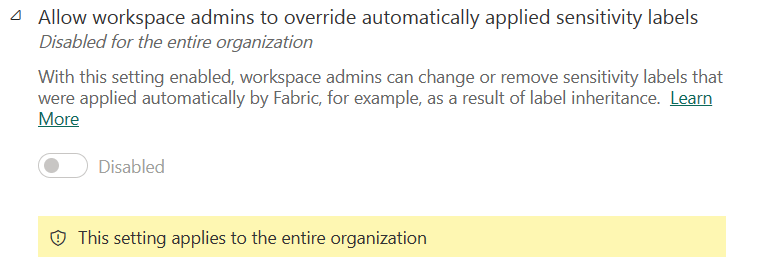
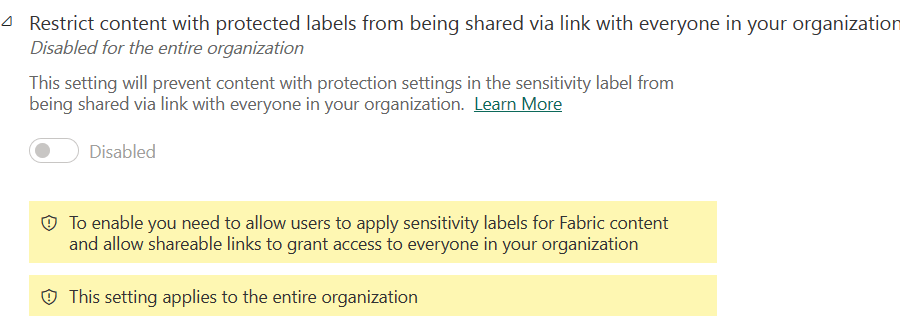
Restrict content with protected labels from being shared via link with everyone in your organization
6. Export and sharing settings
- Guest users can access Microsoft Fabric
- Users can invite guest users to collaborate through item sharing and permissions
- Guest users can browse and access Fabric content
- Users can see guest users in lists of suggested people
- Publish to web
- Copy and paste visualsEnabled for the entire organization
- Export to ExcelEnabled for the entire organization
- Export to .csvEnabled for the entire organization
- Download reportsEnabled for the entire organization
- Users can work with semantic models in Excel using a live connection
- Export reports as PowerPoint presentations or PDF documents
- Export reports as MHTML documents
- Export reports as Word documents
- Export reports as XML documents
- Export reports as image files
- Print dashboards and reports
- Certification
- Users can set up email subscription
- Guest users can set up and subscribe to email subscriptions
- Enabled for the entire organization
- Users can send email subscriptions to guest users
- Featured content
- Allow connections to featured tables
- Allow shareable links to grant access to everyone in your organization
- Enable Microsoft Teams integration
- Install the Power BI app for Microsoft Teams automatically
- Enable Power BI add-in for PowerPoint
- Allow DirectQuery connections to Power BI semantic models
- Guest users can work with shared semantic models in their own tenants
- Allow specific users to turn on external data-sharing
- Users can deliver reports to OneDrive and SharePoint in Power B
7. Discovery settings
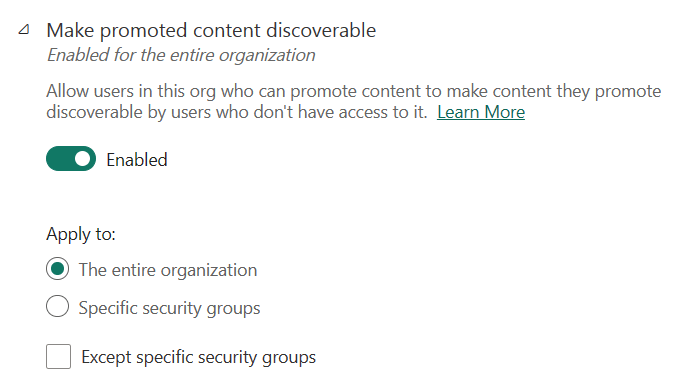
Make promoted content discoverable
Allow users in this org who can promote content to make content they promote discoverable by users who don’t have access to it. Learn More
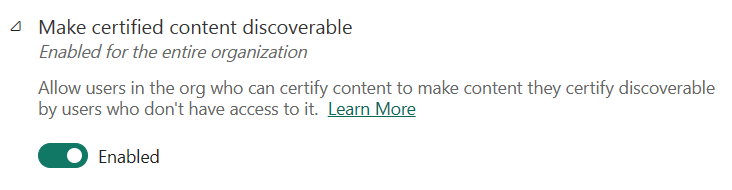
Make certified content discoverable
Allow users in the org who can certify content to make content they certify discoverable by users who don’t have access to it. Learn More
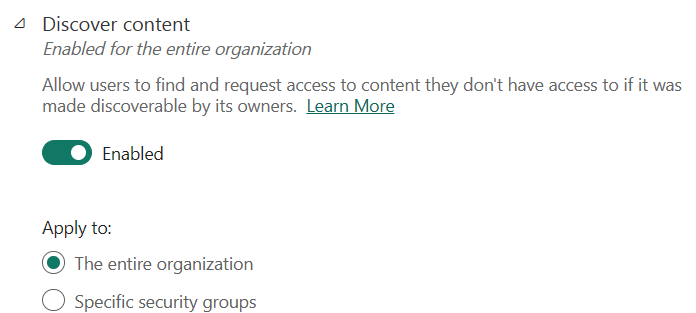
Discover content
Allow users to find and request access to content they don’t have access to if it was made discoverable by its owners. Learn More
8. APP settings
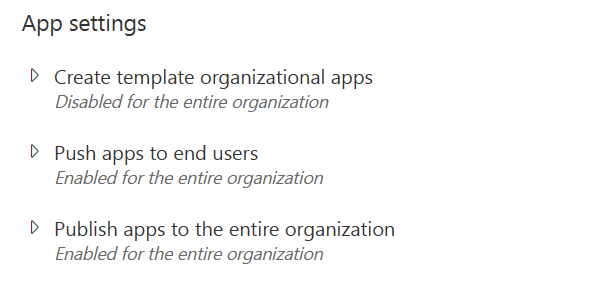
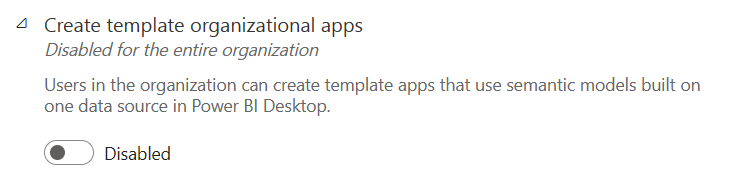
Create template organizational apps
Users in the organization can create template apps that use semantic models built on one data source in Power BI Desktop.
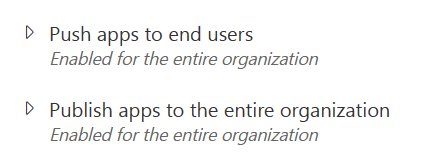
Push Apps to end users and Push Apps to entire organistion
9. Integration settings
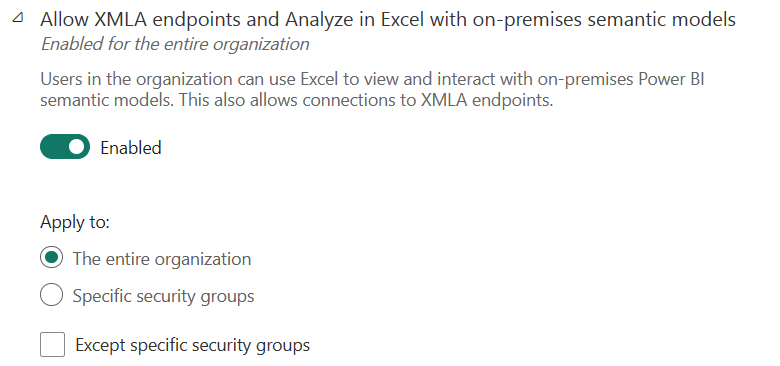
Allow XMLA endpoints and Analyze in Excel with on-premises semantic models
Users in the organization can use Excel to view and interact with on-premises Power BI semantic models. This also allows connections to XMLA endpoints.
Users who have saved Power BI files (.pbix) to OneDrive and SharePoint can share links to those files using Power BI Desktop. Learn More
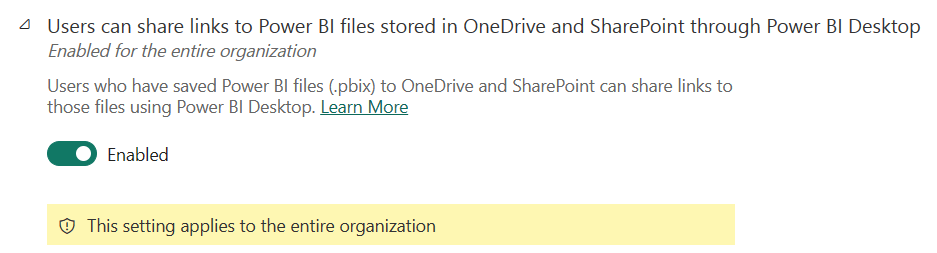
Users can share links to Power BI files stored in OneDrive and SharePoint through Power BI Desktop
Users who have saved Power BI files (.pbix) to OneDrive and SharePoint can share links to those files using Power BI Desktop. Learn More
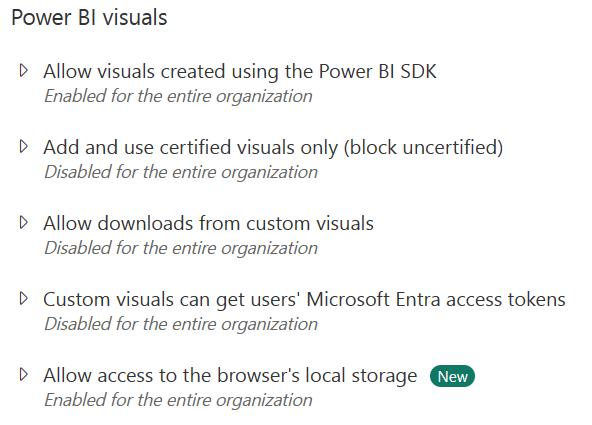
10. Power BI visuals
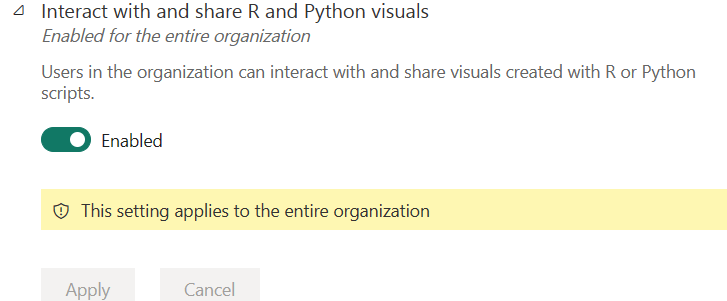
11. R and Python visuals settings
Users in the organization can interact with and share visuals created with R or Python scripts.
12. Audit and usage settings
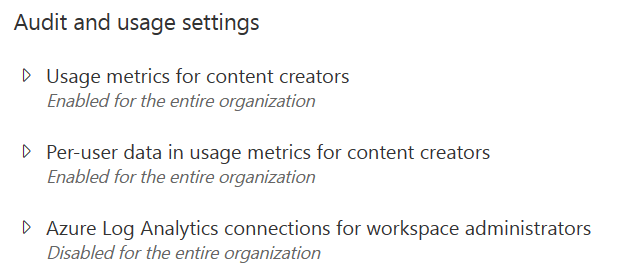
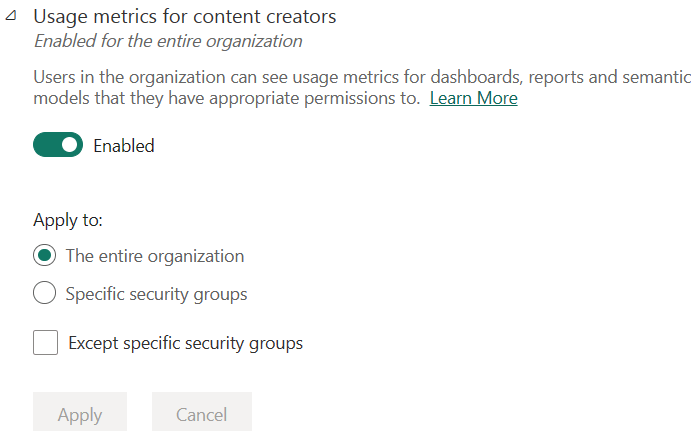
Users in the organization can see usage metrics for dashboards, reports and semantic models that they have appropriate permissions to. Learn More
Azure Log Analytics connections for workspace administrators
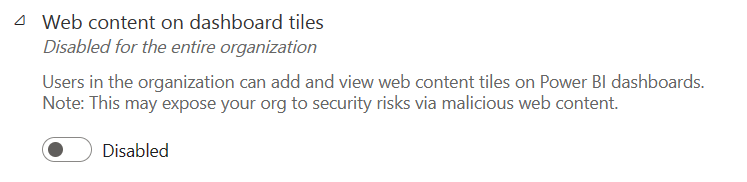
13. Dashboard settings
Users in the organization can add and view web content tiles on Power BI dashboards. Note: This may expose your org to security risks via malicious web content.
14.Developer settings
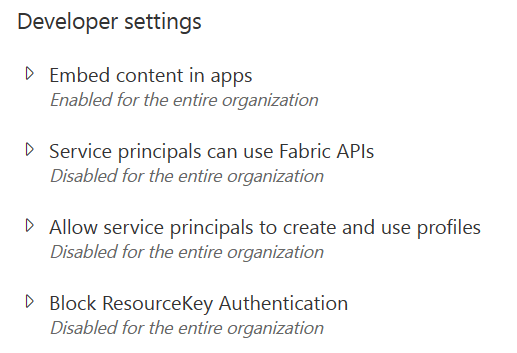
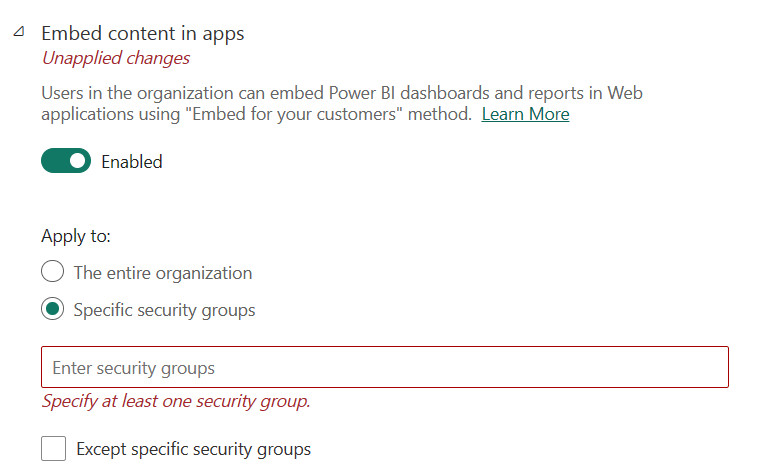
Embed content in apps
Users in the organization can embed Power BI dashboards and reports in Web applications using “Embed for your customers” method. Learn More
15.Admin API settings
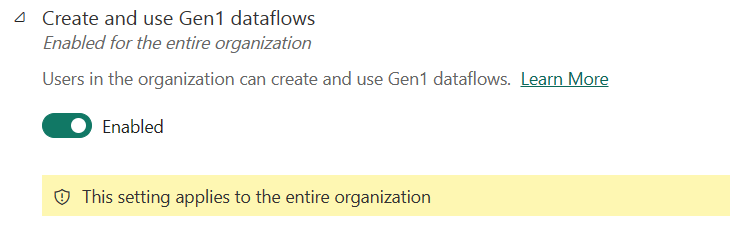
16. Gen1 dataflow settings
17. Template app settings
Publish template apps
Users in the organization can publish template apps for distribution to clients outside of the organization. Learn More.
Install template apps
Users in the organization can install template apps created outside the organization. When a template app is installed, an upgraded workspace is created. Learn More
Install template apps not listed in AppSource
Users in the organization who have been granted permission to install template apps which were not published to Microsoft AppSource. Learn More.
18. Q&A settings
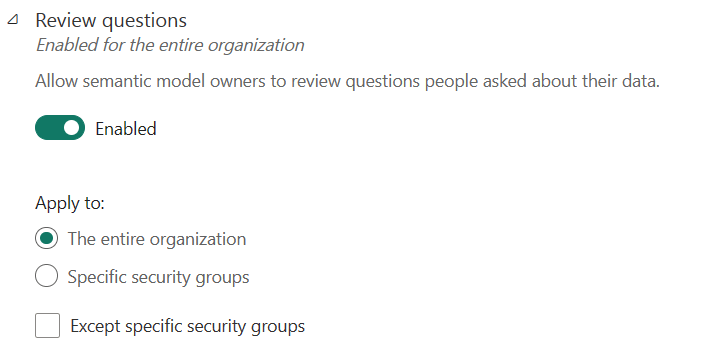
Review questionsEnabled for the entire organization
Allow semantic model owners to review questions people asked about their datA.
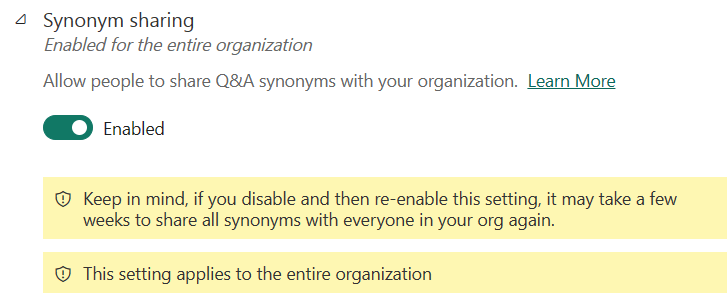
Synonym sharingEnabled for the entire organization
Allow people to share Q&A synonyms with your organization. Learn More
Keep in mind, if you disable and then re-enable this setting, it may take a few weeks to share all synonyms with everyone in your org again.
19. Semantic Model Security
20. Metrics settings
21. Datamart settings
22. Data model settings
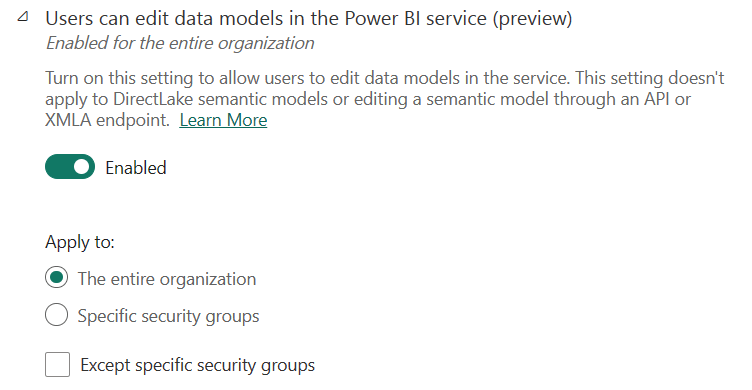
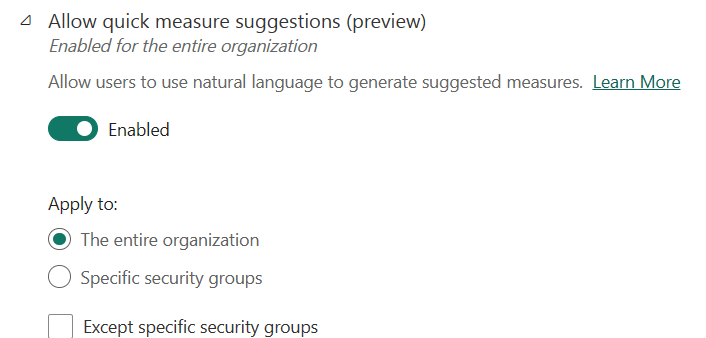
23. Quick measure suggestions
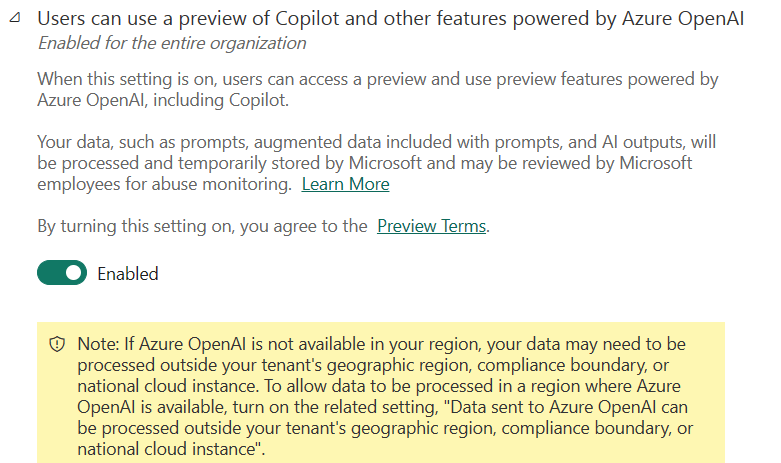
24. Copilot and Azure OpenAI Service (preview)
Discover more from LR Virtual Classroom
Subscribe to get the latest posts sent to your email.
 LR Virtual Classroom