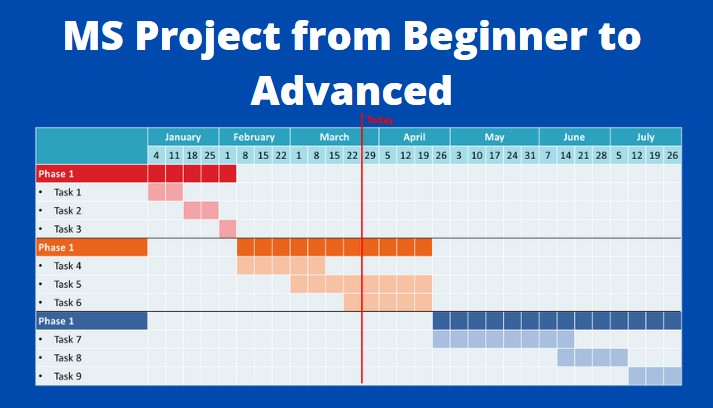
It’s been more than quite a couple of years since I put my hands on MS Project tool.
In the thirst to recap, recently I took a refresher course on MS Project on Udemy – Ultimate Microsoft Project 2016 Course – Beginner to Expert. It was a good training material for advanced MS Project Users.
The course has two bundle – Beginner and Advanced Bundle.

This is not training material with detailed explanation. Consider this as Cheat- Sheet of MS Project Features and Functions.
In the view to help anyone to recall the key features which they wouldn’t have hands-on whenever required, this post is summary of all the Key Notes from the Course Training.
Beginner Course Bundle on MS Project
General Key Points
- Quick access toolbar set up for ease of working – First set it up before starting to work. This is the must-follow step.
- Always use formatting options for visual appearance
- Customize the status bar by right-clicking on the status bar. You get many options to select for instant viewing of data. Ensure you select all the options.
- Remember Keyboard shortcuts – For eg: Activate the menu bar (F10), Open the Task dialog (Shift+F2)
- Before creating the project, use Project Options – First set up all settings before starting to work. This is the must-follow step. (Theme, Timeline type, Auto & Calculate project after each edit, autosave off, )
- You can either schedule the project from the Start date or work backward from the Project End date. To update the settings, under the Project. information dialog box – Select the “schedule from the start” or “finish date”.
- You can Open multiple projects – Use the command “Switch windows” under the View menu.
- Tired of remembering things: Record notes in the tasks information dialog box
- You can use Outline to filter the level 1 to 11 tasks.
- If you want to see only the summary in a click of the button – Then Check the project summary task checkbox in the Gant chart view.
Gantt Chart Scheduling
- In Project 2016 the duration of a summary task is the duration from the earliest start date of any of its subtasks to the latest finish date of any of its subtasks.
- ALWAYS LEAVE ONE LINE AFTER EVERY SUMMARY TASK for better readability.
- There are two types of calendars – Project & Resource Calendars. Add the holidays to the calendar without fail.
- Lag (Positive Lag) – delay – (+5 days) ; Lead – start early / before (-5 days) – Negative lag
- Review the plan from time to time and update the dates.
- Constraints and deadlines – Under Advanced in the task information
- Deadline is available in the Gant chart whereas Constraints are part of scheduling. Deadline is not used for scheduling but only as information.
- Which of these Project 2016 Constraint types does not need a Constraint date? – As late as possible
- Apply the predecessor even for the summary task if required.
- Milestones are tasks with 0 durations – It gives the Project snapshot – of project phases or define the payment timeline for the project.
- If you want to change the project start date – Select “Move the project” under the Gant format tab to move the project start date.
- Play around with the Resource view and Resource usage view. It gives different insights.
- Work, Material, Cost – Three types of Resource types.
- Adding resources gives three alerts in case of overallocation.
- Reduce duration but keep the same amount of work
- increase the amt of work but keep the same duration – Default option
- Reduce the hrs resources per day ( units) but keep the same duration and work.
- Fixed duration vs Fixed work vs Fixed units – Important to know the difference between these three task types.
- Fixed duration – Task duration will not change when changing the work or adding resources.
- Fixed Units – The resource % of work will not change when you change the task duration or work hours.
- Fixed Work: The work hours will not change when you change the duration or % of resource work.
- The default type is Fixed units with efforts driven. For the Fixed duration, uncheck effort driven. Fixed work is always effort driven.
- How do task types affect the schedule?
| Units are recalculated | If revise units | If revise duration | If revise work |
|---|---|---|---|
| Fixed units | Duration is recalculated | Work is recalculated | Duration is recalculated |
| Fixed work | Duration is recalculated | Units are recalculated | Duration is recalculated |
| Fixed duration | Work is recalculated | Work is recalculated | Units is recalculated |
Resource in MS Project
- Resource Levelling vs Resource smoothing are two important terms to know in Project Management
- Resource Levelling when there are limits in the Resource allocation/availability. Resources will be used optimally.
- Resource smoothings when there are time constraints take priority. A smoothed resource profile will be achieved by delaying some work. The idea is to finish a project on time while avoiding peaks and dips in resource demand.
- Resource leveling – Different ways of resource allocation by Manual or Automatic method.
- Manual method – Fix in task inspector or reschedule to available date
- Leveling Gant view – Leveling delay field with elapsed days – Light-colored bar will appear.
- Clear leveling under the resource tab.
- Leveling options
- Automatic leveling – day by day or week by week.
- Standard leveling option with week by week.
- Fast-tracking – This performs critical path tasks. This buys time. The prominent feature of this technique is that although the work is completed for the moment, the possibility of rework is higher.
- Crashing – This refers to assigning resources in addition to existing resources to get work done faster, associated with the additional cost such as labor, equipment, etc.
Views in MS Project
- Timescale – Three tiers option for a view of the task usage view. You can set the tier as Quarter, Month, and Day/Week.
- Create your own views for your project for each person for ease of performance.
- There are two types of split views in MS Project – Vertical and Horizontal Split Views.
- Use the horizontal split window if you want to see detailed information for the selected tasks.
- There are a lot of Zoom options. Out of which notable is the Zoom option to “zoom only the selected tasks”. This is quite handy while presenting to stakeholders.
Timelines in MS Project
- To activate timelines, under the “View” menu, tick the check box the Timeline.
- Timelines – Right-click any tasks or milestones and click “Add to timeline”
- For ex: if you want to add the milestones to the timeline, under task group, use group by option -> select milestones.
- Microsoft Project will automatically separate your milestones from the tasks and move them all high up in the sheet so you can identify them instantly.
- Select the milestones and Right-click anywhere inside the selection and then choose to Add to Timeline from the pop-up menu.
- Right click grey bar to get the timeline view.
- You can Display the tasks as “call-outs” or as “Bar”.
- Use the options to change the timeline scale in terms of days, weeks, etc.
- Use Formatting to add color, and bold to differentiate the phases.
- Copy timeline for use in presentation
- There is a feature to add a Secondary timeline.
- The timeline can be shown only with “Gantt chart views”.
Costs in MS Project
- To view the overall Costs summary – Click project information -> Statistics -> Overall summary
- The Task Usage view is best to see the cost of each task.
- Cost in task usage view – Work and cost can be shown.
- Different types of costs – Work, Actual work, Cumulative work, Baseline work, Cost, Actual cost.
- Costs are accrued at prorated, start, or end.
- There are 3 types of Costs in MS Project
- Resource cost – Labor, Material, Equipment
- Fixed cost – Not part of the resource sheet.
- Budget cost – Part of the summary tasks only – Overall Project Budget.
- You can also add fixed costs under “Cost Table”
- Important to note that Fixed costs will not be part of the resource sheet.
- Add budget cost type in the resource sheet – Ensure to click “Select the budget checkbox”.
- Budget resource costs can be added only in the project summary task only.
- The budget can be added only in the column “Budget” which is a manual entry.
Tables view in MS Project
- The table format is very convenient in MS Project.
- Select the tables under the view tab – Entry is the default table.
- Other types of tables are Cost, Schedule, Work, Variance, Summary, Work, etc.
- For formatting the table, Right click on the field name – Under field settings – Click the best fit.
Baselines & Critical Paths
- Use baseline table for Earned value management
- 11 baselines in MS Project
- View the Critical tasks in the Gant chart tab
- Red tasks are critical
- Go to views, filter -> critical tasks
- In the entry table, add the finished slack field
- Slack is 0 for critical tasks.
- Slack checkbox – shows the slack in the tasks in the Gant chart.
- The level is only within available slack to be checked when leveling.
- If you want to shorten the project, the place to start is a critical task.
Changing Baseline
- After every new task is added in the middle of the project, don’t forget to baseline it – Use selected tasks only.
- Intermin plans – when the original baseline is no longer valid, then use an interim plan.
- The interim plan only has start and finish dates. No other baseline is created.
- Use only when the project is held up and changed everything, and measure against the interim plan.
- Use an interim plan as a backup field as well. Copy the dates to Start 1 / finish 1 etc.
Custom Tables
- There are a wide variety of task and resource tables.
- You can also create custom tables for your own use.
- Use different titles for custom fields in the tables.
- To format the table fields, Use field formatting settings when you right-click any of the name fields.
- The fields “Max units” and “Baseline” must use in the resource sheet.
- If you want to save your own custom-created table click More tables -> Save fields as a new table.
- Q&A: Which of these built-in tables in Project 2016 includes the Actual Start Date and Actual Finish Date by default? – Tracking Table
Formatting Options for Gant Chart
- There are two ways to format the Gant chart.
- Manual formatting
- By using the built-in format options
- When Manually formatting – Make a copy of the Gant chart then make changes.
- Don’t ever change the standard Gant chart.
- To format the Gant chart, Gant chart wizard command is very important to use.
- To assess the Gant chart wizard, under the Quick Access toolbar, Click add more commands under the “command not in ribbon” drop-down – Find the Gant chart wizard.
- Use Text stypes in Gant chart tools to change the style for the overall project.
- Change the bar styles for tasks, milestones, etc. Lot of formatting options to explore.
- Add text, cost, duration, etc as well for each task.
- Q & A: When using the Project 2016 Gantt Chart Wizard which of these is NOT one of the options for the task information to display with the Gantt bars? – Work. It shows dates and resources.
Notes
- Use the task information dialog box to add any key Notes.
- Use notes to have all the information on why you change the data or action for you to take in the future.
- You can find all formatting options for Notes even including a bulleted list as well.
- Tasks with Notes will have the notes symbol in the icon field.
Printing & Check Spelling
- You have options to add a header and footer for the print to pdf option.
- Use page set up to format many printing options.
- Page & (Page) of &(Pages) – Format to denote the Page 1 of 10.
- Syntax for denoting the total no of pages is &(Pages)
- Don’t forget to do the spell check before SAVING. It is under Gant chart tools.
- Under project options, update the settings related to spelling.
Tracking Progress
- Use statistics under Project Information for a summary of progress and variance details.
- There are two types of dates in MS Project
- Curren date – Date when you are viewing
- Status date – a snapshot of the project. gather info until Friday and then set the status date. Then Update project button.
- By default, the status date is the current date.
- There are two ways to update the progress
- Set 0% to 100% complete – Started / midway / complete finish date – MS Project will calculate the % complete
- Manually entering the % of complete for each task – Physical % of complete.
- The Gant chart has an actual bar once the progress is updated.
- Use tracking table for actuals data – The below key fields are available
- Actual start
- Actual Finish
- % of complete
- Actual duration
- Rem duration
- Act work
- Act cost
- You can give % of complete in terms of duration and in terms of work.
- % of complete in 0, 25, 50, 75, 100%
- Use the “Tracking Gant view” to see the – > baseline and actual bar in the Gant chart.
- After updating, the actual progress, click Update project and click reschedule uncompleted work to start after the status date.
- In Project 2016 the Current Date must always be later than the Status Date – FALSE.
- Which of these Project 2016 Gantt charts shows the % complete for each task next to its bar by default? – TRACKING GANTT
Reporting
- Reporting tab – All the commands related to reporting – Different types of reports.
- You can change the design and format of the chart and table just like excel.
- Create custom reports for your own use. Change the themes, colors, fonts, and effects.
- Add your own charts and use like pivot table to edit the fields.
- The “Copy report” option under Copy will help you to copy and paste in the mail/presentations. Just copy and paste the report into the presentation.
- Make use of the “outline level” under the fields option on the right while editing the report. It controls the level of information in the report.
- CUSTOM REPORT – New report can have a chart, blank page, table, title, text box, and comparison.
- Milestone report is not part of the MS project.
Tracking Costs:
- Manual accrue the cost – Record the actual cost manually.
- Use task usage view – select the task information dialog box and update the actual cost.
- The cost table is useful and statistics for a summary of the cost overview.
Copy Views/Filters/Tables from Global template to any project
- File – > Organiser – > copy the views from global to a particular project.
- Views, reports, modules, tables, filters, calendars, and fields can be copied from the global template to any new project.
Save as Options & Password protect
- Options to save as pdf or excel or previous MPP 2007 version
- Save as CSV format.
- To apply a password, use the tools option in the save as dialog box
- There are two types of password you can set.
- Protection Password
- Reservation Password
- Protection password to open the file
- To edit the file they need to write the reservation password.
- The read-only option is useful when you share the file with someone.
Calendars
- Change working time – Standard calendar to be modified. Always copy the standard colander and make a new calendar for any edits.
- Define work week – Working time and Working days
- New calendar if work hrs more than 8.
- When adding holidays as exceptions, there are two types.
- Normal holidays run only one time.
- Holidays that are recurring in nature. So update the category accordingly without fail.
- You can add the resource holidays as well. To do, Select the resource, update the exceptions, and the task will be updated accordingly.
- A task can have two types of calendars.
- Task calendar -> Project calendar or -> Base calendar
Scheduling Issues
- Task inspector
- Show warnings/show suggestions – manually scheduled tasks with squirly lines.
- Respect links or fix in task inspector
- Gives summary and solutions to resolve the problems.
- Task path – use different color patterns for clear identification.
- The task path is under the Gant chart tools tab.
- Highlight predecessors/successors under the task path
- Driving predecessors – different colors affect the schedule.
- Remove highlighting to remove the options of color.
Multiple features of MS Project
- Task usuage view and Resource usuage view – Gives an overall view of the resource and tasks.
- Under team planner tools, select prevent over-allocations when assiginng the resource.
- Alsways Links sub projects to create a master project
- Customize the quick access ribbon
- Export data to excel for further analysis and reporting.
- Use VBA to run your own functions.
- Resource information dialog box has option for different rates for diff resources.
Advanced Course Bundle on MS Project
Multiple Projects and sharing of resources
- When you have multiple projects in your file, not the below points.
- Split the projects into two before the start.
- Have two different files for both the proejcts in the same location.
- Create a blank proejct, remove all the tasks. Set up resource pool (resource sheet) in separate file.
- Assign resources from the resource pool to the separate projects.
Recurring Tasks
- What is recurring meeting – Eg: Progress meeting as recurring tasks of 3 hrs every 2nd tuesday of the month.
- To add a recurring task, Click View-> Gant chart -> Click Tasks – Select the option Recurring task under Tasks command.
- The recurring tasks will have a summary task created automatically.
- Limitations in the recurring task as below:
- When you update the progress, Check the individual recurring tasks if not done correctly.
- If you want to change the hours then, it is not possible to change individual recurring task. You need to change the summary which will create the entire task again.
- There is no limitation on the end date of the project. You can schedule until the end date.
- When you assign resources in recurring tasks – they will be assigned to all tasks.
- Q & A: When creating a recurring task in Project 2016 which of the following is NOT one of the options for the recurrence interval? – Quarterly.
Calculated Custom Fields
- If you want to add Custom fields for RAG status. You can do it either manually or automatically.
- There is lot of Custom fields for both tasks or resources category. For eg: Text, cost, duration, flag, number, etc
- To create a RAG status, follow the below steps:
- There are lot of Dummy text fields, say 30 text fields – rename as RAG
- Custom attributes – lookup (MANUAL) or formula
- THIS IS MANUAL ENTRY – lookup table – add the values and description – THIS IS DROP DOWN FUNCTION.
- Automatic Entry – You can use Import lookup tables – to import options from excel as well.
- Please note that when you have custom fields – there is no calculation for summary rows . It will be blank.
- You can either have the Values set to display as data or graphical indicators.
- Automate custom fields:
- You can have custom fields calculated. For eg: Status based on cost – click formula
- You have mathematical functions and fields to write the formula
- If( expression, true, false) = if ( cost var >0, X, G)
- if (cost var >0, if(cost var>1000,R, A),G)
Calculated Custom fields with graphical indicators
- Switch (cost var<=0, G,cost var<1000,A, cost var>1000 R)
- Project functions for custom fields – check out Project professional help.
- For graphical indicators, choose the icon for the criteria based on the value in the field.
- Play with the indicators based on fields condition.
- Use the Flag indicator – which is yes or no. For ex, if the finish variance is more than 5 days, then flag it as Yes, else No.
- Duration is stored in minutes. VERY IMPORTANT TO NOTE.
- When using a lookup table for a task Custom Field in Project 2016, the first item in the table is always the default value for that field in a newly added task – FALSE
- When defining a custom field in Project 2016 and using the Formula dialog, which of the following is NOT one of the standard function categories that you see when you click the Function button? – SCIENTIFIC. The function can be either convertion, text, or general.
Outline Numbering and WBS codes
- There are two types of codes can be created in MS Project.
- Outlin Code – Numbes will chnage if you add any new tasks in between the project
- WBS Code – Numbers will not change if you add new tasks in between the project
- Outline number – 1, 1.1, 1.2 etc. Unique number for tasks. It also helps in structuring.
- As you change the structure, the outline number will change.
- Customize the WBS codes – Under project tab, WBS codes.
- Use numbers and upper/lowers case letters to create your own codes.
- Don’t forget to define the levels /sequence required.
- Use project code if required to define WBS codes.
- Use WBS codes if absolutely fixed or outline if changing as per the structure.
- You can change the WBS codes manually as well – under the Summary task information dialog box – Under custom fields tab – Look for WBS value.
- Renumber WBS also when required.
- Have a watch every time you make changes to exisiting tasks.
Outline codes using the resource sheet
- Outline code structure – use resource under project tab -> custom fields
- we cannot use the formula for outline code
- You can set options like the below:
- Internal – chargeable & non chargeable
- External – chargeable & non chargeable
- This allows you to select multiple options with dropdown.
- It will display as INT.NCG or Ext. NCG
- This will help to group by charge code as chargeable or nonchargeable
- This will help the accountant to segregate the tasks accordingly.
- You can use outline custom codes – testing, development, implementation
- Add the dropdown structure in the outline code.
Project Advanced costs
- Fixed cost – one fixed cost per task. It is a manual entry. It does not come in the resource sheet.
- If contractor cost is to be added as a fixed cost, add resource with cost per use. And assign the resource to the task.
- Budget cost – check the cost as budget in the resource sheet. Assign to the project summary tasks. It has no units. Only cost.
- Use task usage view when updating the budget cost.
- USe group or code for the different components of the cost like travel, contract, fees, etc.
- Then you can group the cost in the task usage view.
Rate changes in Project & Overtime to shorten duration
- you can assign 4 times the rate changes for a particular resource.
- Under resource information, the first default rate is A, then you can use B, C, and D or E rates as well.
- To apply the different rates, select the field-cost rate table. A will be mentioned.
- You can use the cost rate tables if there is an increase in rate from a particular date say June.
- This way you can manage the cost rate changes.
- Overtime work does change the duration. Overtime to achieve the schedule objective.
- To reduce the duration second way is to have a task calendar with weekend work as well.
- Variable material cost – cost/use is like delivery/taxes charges
- For material, you will assign the std rate per unit.
- When assigning material resources. make sure you give the units as /day or per unit or per ft.
Customization of Tables & Views
- Custom table for only resources. Create one for resources and apply it for tasks.
- Copy all the templates to global MPT.
- Save existing fields as a new table or copy the new table as new.
- TABLES AND VIEWS ARE DIFFERENT
- Don’t change the standard definition of tables and views.
- To delete a custom table definition in Project 2016 use the Organizer.
- Name the view in name of the person or based on needs.
- The view will have the option to select the resource groups, tables, and filter categories.
- Update current view if required.
- Def new or combination view – Select screen, tables, group, and filter are to be selected.
- Combination view – primary view and details pane – can be included – vertical and horizontal split windows.
Sorting / Filtering / Grouping
- Sorting preserves the structure of the project. It will sort within the WBS level by default.
- Sorting will remain in view and as well on the table.
- Default sort by id – others include start, finish date, priority, and cost.
- The SORT dialog option in the sort menu gives three sort options.
- If you want, then uncheck the box – keep structure to sort
- Sort can be applied to resource sheets as well.
- network diagram view has no sort option as it does not make sense.
- Filtering – summary tasks will be shown with the filter applied.
- The filter has options just like excel less than or more than etc.
- ALL THE IN-BUILT FILTERS HAVE DEFINED CONDITIONS – CHECK TO CREATE CUSTOMIZED FILTERS
- Create custom filters as well and save them for use.
- Apply filters in two columns as well. Show in the menu or show summary
- View tab – Filter has many in-built filters to use.
- SV limit can also be set
- A highlight filter can also be used to filter out things.
- Project options – select auto-save the filters in global templates
- Grouping – It is like sorting with a summary highlighted. It gives a quick view to look at the data.
- You can use groups in all the fields, views, and tables.
- Grouping formatting can also be edited like color bars.
- Define custom group intervals in the More groups dialog box. It is like a histogram. Define group intervals with 0-25% and 25-50%.
- Try grouping the Gant chart view with tasks grouped by duration with 0-1 wks defined level.
- “group assignment not resources” – option will have tasks grouping done in the resource usage view.
Project Reports
- Reports are different types like
- Custom
- Dashboards
- REsources
- Costs
- In progress
- Best practice analyzer – try to see what ms project generates the report.
- Change the themes without fail.
- The Field list will have both tasks and resources
- Different types of reports you can publish
- Cost status for each phase
- Cumulative % of the complete and cumulative cost for each day.
- Work burndown – each day the remaining work, act work, and baseline work ( hrs )
- Task burndown – each day the remaining tasks, act tasks, and baseline tasks ( no of tasks )
- By default, a Project 2016 Cost Overruns Report contains charts showing Task Cost Variance and Resource Cost Variance.
- work overview report in dashboard and cash flow report under the cost is must try
- Comparing projects – Open both the projects ( two different versions) and click compare projects under the report.
- Select the fields as entries and click ok. You get task and resource comparison.
- Visual Reporting using Excel: Visual reports – both in excel and Visio
- Edit template gives you to custom each type of visual report and select the fields that you need in your excel.
Earned Value Analysis
- Two types of earned value methods in MS Project
- % of complete
- Physical % of complete
- The baseline should be common for EV method. baseline 1 to Baseline 10 used as copies.
- in project options, under settings, you can change the baseline to use for the earned value.
- EV = BCWP = Budgeted cost of the work planned.
Import & Export Data into Project
- Import the excel file to the ms project
- The import wizard is used to map the project.
- You can either import as new, append or merge the data into the active project.
- You can import tasks, resources, and assignments. You can import headers.
- Map the fields from excel to ms project.
- You can import a task list from outlook as well.
- Exporting in excel is the most common usage. Exporting to Notepad will lose its formatting and structuring.
- IF YOU WANT TO STATIC THE IMAGE OF THE GANT CHART, IN THE COPY BUTTON, SELECT COPY PICTURE.
Record Macros in MS Project
- Create macros for the most repetitive tasks you do in MS Project.
- The status bar has micro-recording status updates. check the box.
- View menu – Macros -> Record.
- Key elements to Macro name – must not contain spaces and only underscore is allowed.
- sequence to run the macro – Ctrl+L
- Row references – select relative
- KEY POINT TO NOTE: While recording a macro, make sure, you record the exact steps that you need to run and don’t add any additional steps.
- One example of the macro is to take the snapshot of the Gant chart with level 1 filtered and saved in the location every time you press ctrl+L.
- You can use a macro for any type of action.
Thats a wrap..Thats a quite exhaustive notes right. I’m sure you are benfitted atleast with couple of key pointers.
Okay, see you in next post.
Happy Learning; Happy Sharing
Discover more from LR Virtual Classroom
Subscribe to get the latest posts sent to your email.
 LR Virtual Classroom