
There are 3 new excel TEXT() functions that got released recently. Let’s explore and learn one by one.
TextBefore()
TEXTBEFORE – Returns text that’s before delimiting characters
Syntax: =TEXTBEFORE(text, delimiter, [instance_num], [ignore_case])- text – the actual text
- delimiter – text before which you want to extract, must field
- instance_num – ‘n’ occurrence/instance of delimiter you want to extract By default, it is 1.
- ignore case – Specify Ture to make the case in-sensitive.
Scenario 1:
In most cases, we use to return before the delimiter as below.
=TEXTBEFORE("charles jones",",") // returns "charles" Scenario 2:
When there are instances of multiple delimiters, you can give an instance numbers as shown below.
=TEXTBEFORE("ABC-112-BLUE-Y","-",1) // returns "ABX" =TEXTBEFORE("DEF-112-Red-Y","-",2 // returns "ABX-112"Other Scenarios :
- Excel returns a #VALUE! error if instance_num = 0.
- Excel returns a #N/A error if the delimiter isn’t contained in the text.
- Excel returns a #N/A error if instance_num is greater than the number of occurrences of delimiter in text.
- When searching with an empty delimiter value, TEXTBEFORE matches immediately.
- It returns empty text when searching from the front (if instance_num is positive) and the entire text when searching from the end (if instance_num is negative).
TEXTAFTER()
TEXTAFTER – Returns text that’s after delimiting characters
It is just the opposite of TEXTBEFORE().
Scenario 1:
=TEXTAFTER(A2,"www.") returns only the domain name lrvirtualclassroom.wordpress.org=TEXTAFTER(https://www.google.com,"/",2) returns www.google.comTEXTSPLIT()
TEXTSPLIT – Splits text into rows or columns using delimiters.
Syntax: =TEXTSPLIT(input_text, [col_delimiter], [row_delimiter], [ignore_empty], [pad_with]) - inpute_text – Original text
- col_delimiter – one or more char which tells where to split the text across columns (Optional)
- row_delimiter – one or more char that tells where to split the text down rows (optional)
- ignore-empty – Select true if you want to create an empty cell when two delimiters are consecutive.
- pad-with – In case you want any text to write in place of blank cells.
Scenario 1: Split across columns
A2 = Sydney/2000 (11%),Riverina/2678 (42%),Newcastle/2300 (9%),Illawarra/2500 (23%)
=TEXTSPLIT(A2,",") returns below in four different columns.Sydney/2000(11%)
Riverina/2678 (42%)
Newcastle/2300 (9%)
Illawarra/2500 (23%)
Scenario 2: Across Rows down
=TEXTSPLIT(A2,,",") returns the same values abovein four different rowns downScenario 3: Use of two delimiters
=TEXTSPLIT(TEXTSPLIT(A2,","),"/") returns below in 4 columns as it is mentions in col_delimiter. Sydney
Riverina
Newcastle
Scenario 4: Split text by all delimiters down rows
In case you have multiple delimiters, then use the array function in curly brackets along with TEXTSPLIT().
=SUBSTITUTE(TEXTSPLIT(A2,,{",","/","(","(","TRUE") returns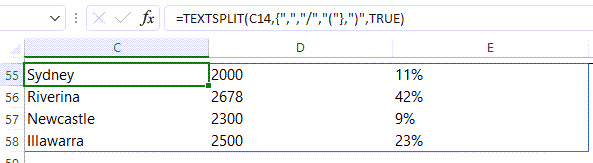
There are no doubt these three TEXT () functions will make our life easy.
Discover more from LR Virtual Classroom
Subscribe to get the latest posts sent to your email.
 LR Virtual Classroom