MS Teams which is the most commonly used platform in all the organizations that brings together everyone under one umbrella. Many not aware that this collaboration tool has lot many app integrations with plethora of benefits that can boost the efficiencey of the day-2-day tasks.
The tool itself has many features that can advance your team’s productivity. Refer the post on Managing the Project using MS Teams, where the key features and functionality in MS Teams are explained.
MS Teams Apps:
- Apps can be used in chat or within the channel.
- Use an app to insert content directly in the chat/message window.
- You can have personalized view and also pin them to the side of the Teams.
- Apps are really making a mark in the MS Teams.
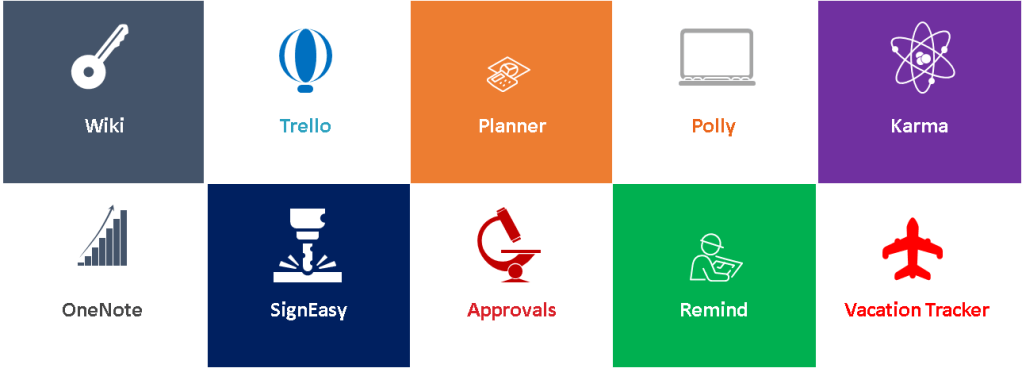
1. Uses of Wiki:
It is default app and it is included when you create a channel. But not many effective uses the app hence it is categorized a Must-use.
At times, even they tend to delete the app, however there are plethora of benefits using this app.
It can used as a dedicated space to keep notes for everyone on your project.
It can be used as How-to guide, share best practices, key features / notes about the project or like a onboarding manual/reference for your team.
2. Uses of Planner:
Microsoft Planner is the easiest and most useful app you’ll add to Microsoft Teams. As it is a Microsoft product, it offers a more seamless user-experience.
Team can create a plan and follow up with specific tasks. Plans and tasks can be organized into tabs. You can create multiple buckets like to do, Work in Progress, Testing & Completed & Verified.
Team members can track their tasks right in the MS Teams / channel. Also they can get notification when tasks are assigned to them.
3. Uses of Trello:
Just like the Planner, Trello also falls into the category of apps for Microsoft Teams that help to track your tasks or projects.
If an organization is already accustomed to Trello by subscription, then it might be easier to simply get this app as an add-on to Microsoft Teams.
Trello brings significant benefits to project management and project collaboration without leaving the Teams app
Trello has great User Interface and quite flexible to use by enabling the boards, cards, and lists can help you organize your projects.
Just like planner, you can add comments and attach files to the cards.
4. Uses of SignEasy:
SignEasy is an app that allows you to sign important documents and request critical signatures and within the MS teams itself. How cool it is right?
You can simply sign documents of all formats like text, PDF, Word, Excel, JPG, PNG, and many more, without running various tools.
When requesting a signature, easily add the recipients’ email addresses to specify the order and a personalized message to point out any important information.
This app is a perfect solution for all those documents / process review which needs an immediate signature as it reduces any paper-pen documentation and makes it instant.
5. Uses of OneNote:
This is my favorite app because, it eases communications and helps to organize all the project related information in one place in the structure of Sections and pages.
Interesting thing to note is that you can open an existing notebook using a link but it’s only supported for notebooks hosted in SharePoint or OneDrive for Business. You can create Onenote directly in the MS Teams.
Check out the post on Complete One note tutorial featuring 25 functionalities in OneNote.
6. Uses of Polly:
There has been many cases when you want to have consensus from your team for making decisions.
Polly helps you to make decisions, or come to an agreement.
Visualizing a question for feedback within the posts area of a Team channel can increase the number of responses that you receive.
7. Uses of Karma:
Karma is an app that allows you to give “kudos” to your team members.
You can give kudos or provide appreciation to a good reply in a thread or a particular post. That way, everyone is encouraged to work more efficiently and deliver faster.
It provides healthy competition environment to the project team. that boosts efficiency.
You can create dashboards which provides more inclusive and appreciative culture within the team.
8. Uses of Approvals:
This app basic approvals created from Microsoft Teams do not require an underlying flow and act as a way to quickly manually send approvals to users within Teams.
You can create separate channel for All approvals to have consolitated sectin.
You can create instant approval in the chat message or in channel conversation or in dedicated app entry point.
Once submitted the approvers are notified within Teams and can act on approval either from the chat directly using the Approvals card.
They can quickly review the details of the approval and provide instant approval/reject.
9. Uses of Vacation Tracker:
This is a leave-tracking calendar one can add to their team channels.
You can get instant updates about the employee vacation plan in one place.
This is a newly available integration.
10. Uses of Remind:
This app makes sure you never miss an important task, a meeting, or a teammate’s birthday. Convert Chat Messages Into Reminders instantly.
With Remind, simply set a personal reminder, group chat reminders, or channel reminders, anything and everything you wanted to set the reminder for.
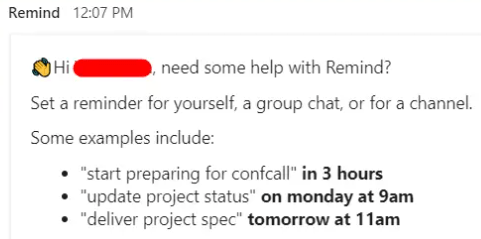
Chat with a bot directly or mention it in the chat or channel using the simple template as mentioned above.
You can even set a recurring reminder and have consolidated list of the all the reminders.
Once a reminder occurs, you can snooze (or re-snooze) it if you can’t address it immediately.
Voila….Whatt a list of the Apps to integrate with MS Teams. No doubt, Microsoft is truly providing out-of-the-box services to organizations.
Polly chat bot allows you to manage your channel polls in one place.
Discover more from LR Virtual Classroom
Subscribe to get the latest posts sent to your email.
 LR Virtual Classroom