MS Teams is the biggest recent technology that is ruling virtual meetings since COVID. Hence there are lot many features beyond the basic features. The tool is very intuitive and thought to share the learning with you.
Ib this post, sharing the key takeaway’s only and for the detailed training, refer the MS Teams portal where Microsoft has detailed course. Coffee in the cloud is also the best YouTube channel for MS Teams featured videos.
Summarizing the below features in MS Teams and understand the What’s and Why’s?. Hope this is helpful with the knowns & unknowns.
- Creating a team and channels
- Working with files
- Create a Planner board in a channel
- Connecting SharePoint lists and pages
- Taking notes – Add One Note to team Channel
- Working with Wiki
- Scheduling with Meetings
- Collecting feedback – MS Forms
- Take a poll with Polybot chat
- Keyboard shortcuts
Creating Teams:
- A team is a group of people working toward a common goal, such as a project.
- Teammates often collaborate quickly with each other, a process Microsoft calls high velocity teamwork.
- You can create new teams workspace or join the existing teams/channels.
- There are three types of teams like Private, Public or Org wide.
- Each type can hold up to 5000 members being added to the teams /channel.
- Ensure the team name is unique and short enough to derive.
- When you create the team, one channel is created by default called ” General”.
Creating Channels:
- Channel is an space for a specific topic to be discussed, files to be worked on together, and online meeting to take place.
- Every channel has a few tabs set up in the channel workspace
- Posts – Conversations by all the members of the teams.
- Files – For uploading the files to collaborate together
- Wiki – A space to capture general notes, For Eg: meeting notes, FAQ, reference links etc in your project. Create a wiki with Name “Read Me”.
- Set the permission to Standard or Private for the channels you create within the teams.
- The private channels has a padlock to indicate it is Private channel which can be accessed by certain members of the teams.
- Members can be added as either Guest (outside organization) or members (within organization). Guest cannot add, edit or delete channels.
- A team can have up to 200 channels created.
- Every channel has a few tabs set up in the channel workspace
- Best practice to have more than one member as the owner of the channel.
- Each Teams channels can have apps that can be used by the members.
- Each channel has specific settings – like channel notifications, extract email ids, add members to specific channel, member & guest permissions etc.
- Team code is the feature in the channel where members can join directly without any join request approval.
- Fun stuff is the feature in the channel to enable GIF’s, emojis, stickers & memes in the channel.
Managing files :
- Each channel comes with a pinned files tab – It is a folder of the SharePoint online site document library that is associated with the team.
- Files can be uploaded or created here and then organized within a folder structure.
- Either you can create new MS Office files directly in Teams channel or upload existing documents that reside in OneDrive or locally on your computer.
create new MS Office files
upload existing documents
- Generate a link to go directly to a file or copy a link that will take us directly to teams or to SharePoint where the file resides.
- You can move or copy the files from One drive to another channels.
- Search the file with any part of the name.
- Version history while being coauthored enables you to view the different versions of the document.
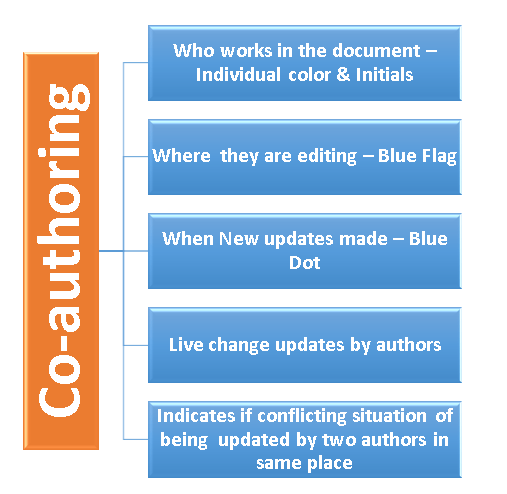
- CO-AUTHORING – One of the significant features of MS Teams integrating the SharePoint.
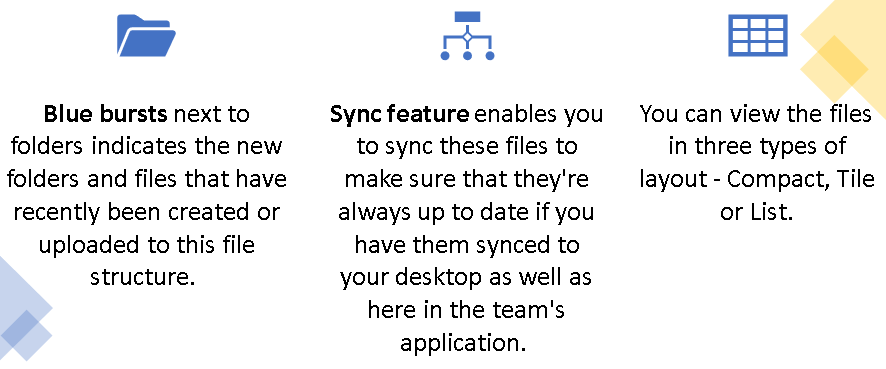
- Three additional features are
Create a Planner board in a channel:
Microsoft Teams is a great solution for smaller, less complex, Agile type projects. Planner is an App which you can add as part of the channel tab.
How to use MS Teams to make it a more collaborative work space for Agile and Scrum type projects?
Planner is an application that’s part of Office 365 and you can incorporate this in MS Teams to include a plan within a channel.
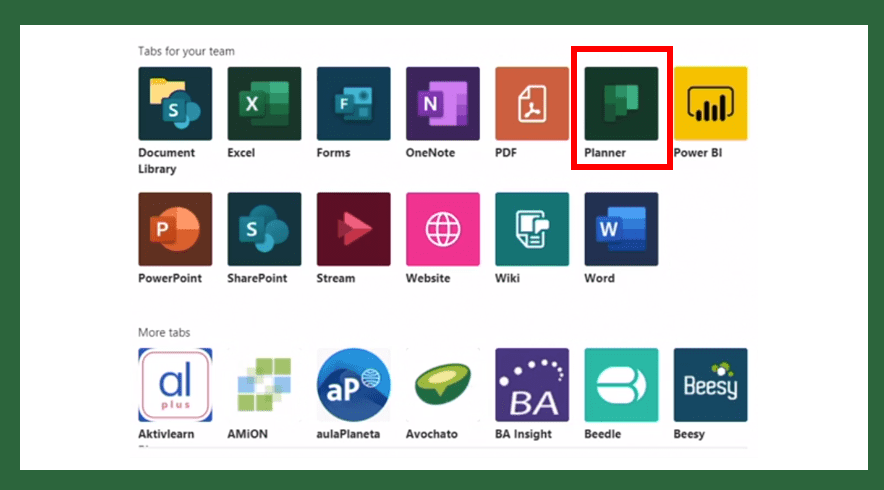
There are two types of way to add the Planner – Create new Planner within channel or use an existing plan from this team. Sample name can be WIP Board.
You can create multiple buckets like “To Do”, “WIP”, “To be Reviewed”, “Completed” in your plan.
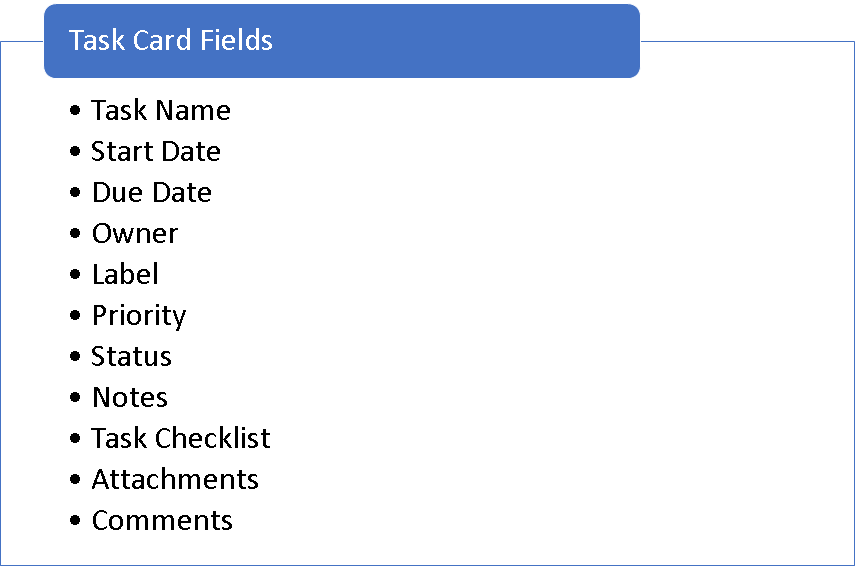
Add tasks to the bucket plan. Following is the list of Task fields you can update against a task card.
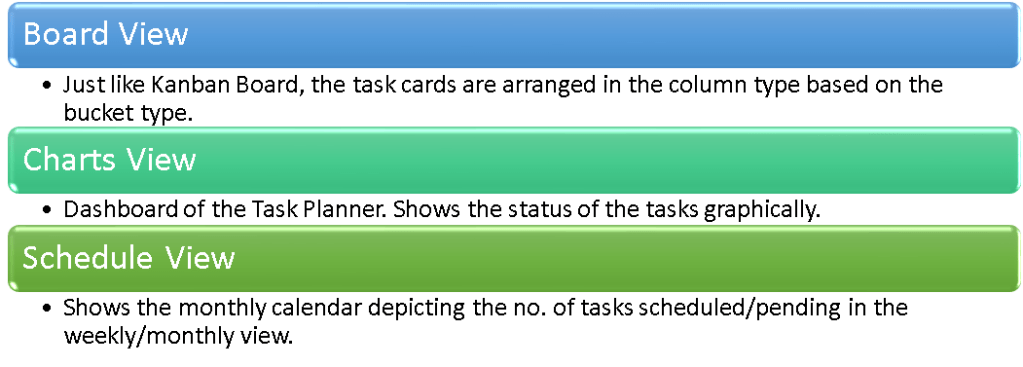
Managing and reporting on tasks: There are three different views in the Task Planner.
Connecting SharePoint lists and pages:
As the MS Teams integrates with SharePoint, it is very easy to navigate and access files within the teams. Let’s the What’s and Why’s of the SharePoint Lists and Pages. You can add SharePoint to the Team channel by adding the SharePoint tab.
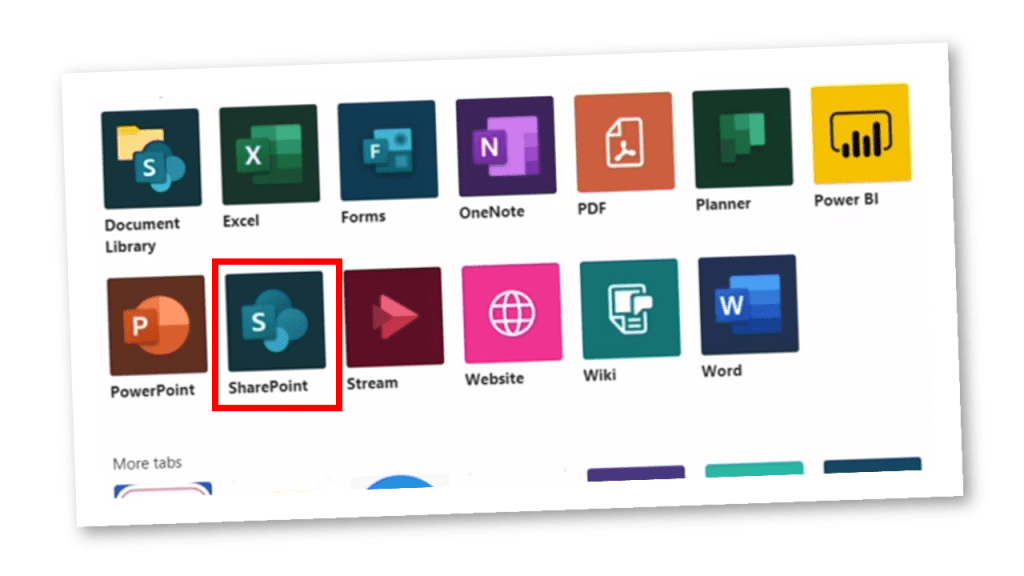
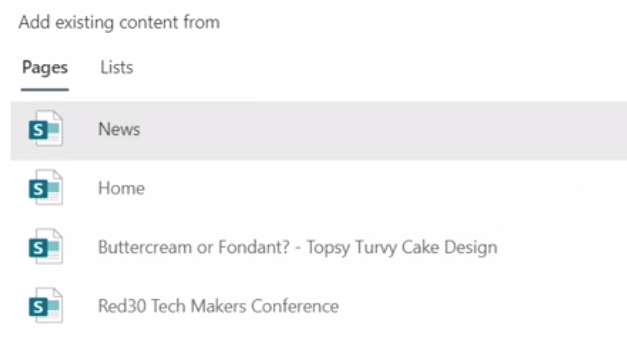
When you insert the SharePoint tab in your channel, you have two options as 1) Lists 2) Pages
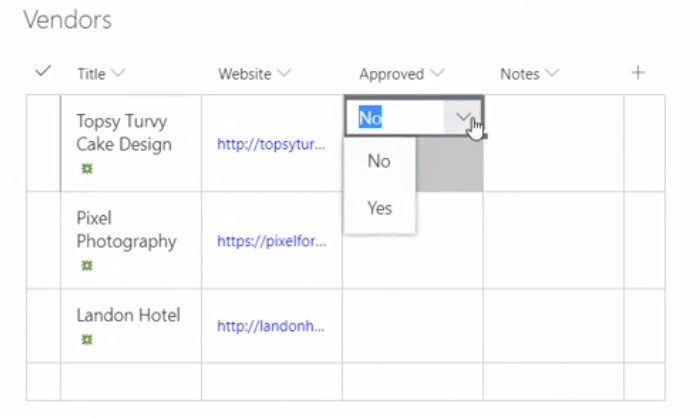
List – When you insert the SharePoint list, you can add new columns or edit the existing fields. The list is converted to editable table for quick edit as shown below.
Pages – Displays all of the pages that are part of that SharePoint site that can be connected as a pinned tab of the particular team channel.
Add a OneNote to a Teams channel:
OneNote is my most used application in MS Office. You can insert the Onenote tab in the teams channel.
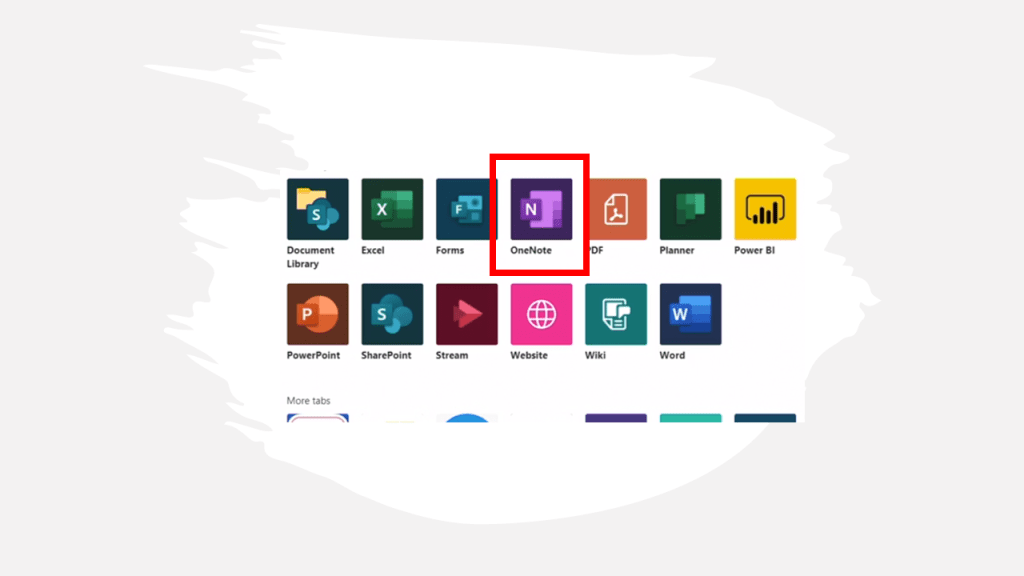
- You can add the onenote directly in the team channel or provide the link to insert.
- All the features in the OneNote are available to use.
- Check out the post on Complete OneNote Tutorial to know the 25+ features in the Onenote.
Working with Wiki:
Wiki is the key tab to use in every team channel. You can add pages and sections in the wiki page. All the formatting options are available. Use Wiki like a FAQ for your team channel. Name it as “Read me” to ensure the members read it when they get access.
It’s a great place for you to set the stage or the what this workspace is about in the Teams Channel. You can have answers to all the questions of Who, What, Why, Where of the details. You can add more than one wiki to your team channels.
Scheduling a Teams meeting:
Lets quickly know how to quickly schedule meetings within teams.
- Go to calendar tab and schedule a meeting just like you do in outlook. Either you can click 1) New Meeting or 2) Meet Now – This is impromptu private meeting.
- Team will automatically post the meeting details in the post tab.
- Every member of the team channel will also find this on their Outlook calendar.
- You can record the meeting and can find the recording in the Microsoft stream. Launch Stream tab in the Channel.
- Use Whiteboard if you want to use it for any annotations, discussions during the meeting.
- All the conversation during the meeting will be recorded and will be placed in the channel post.
Collecting Feedback:
Survey and Quizzes have become the key element during the meetings especially during this Covid season.
You can use Form tab to create survey form or initiate quiz. You can get responses and see the results.
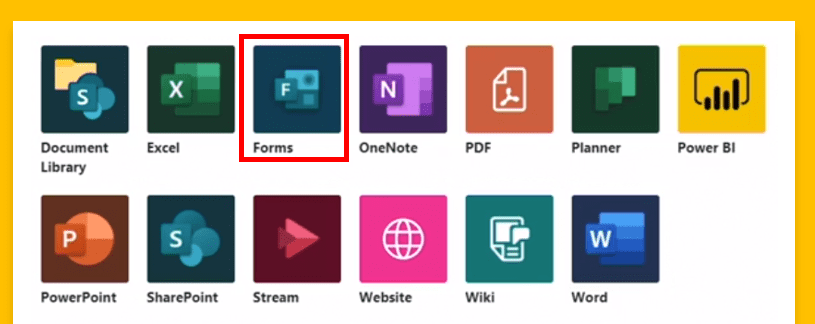
- Forms can have options text, rating, multiple choice, date, heart, file upload etc.
- You can create the form as per your requirement and collect responses.
- The responses tab will show the results and enable to export in excel as well.

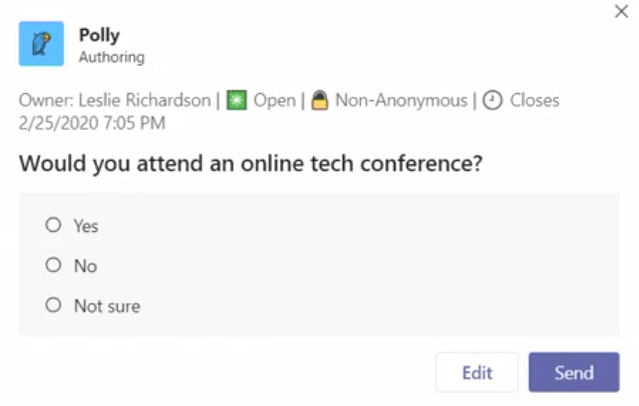
Take a poll with the Polly chatbot:
Visualizing a question for feedback within the posts area of a Team channel can increase the number of responses that you receive.
Polly chat bot allows you to manage your channel polls in one place.
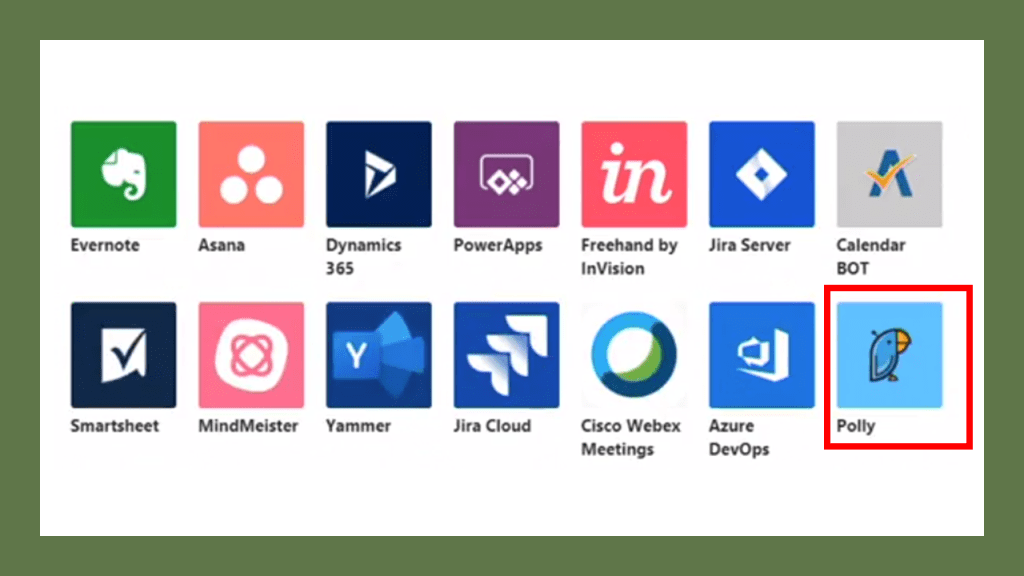
- It is very similar to Forms.
- You can conduct lot number of polls under Polly tab.
- You can choose the audience – Specific channel for whom you want to initiate the poll.
MS Teams – Keyboard shortcuts:
There are two important things to know about the Keyboard shortcuts.
You can find the keyboard shortcuts under the profile.
You can type ” / ” in the search bar to see different type of actions to do in Teams.
You can type ” @ ” to look for users or applications within Teams to start worm immediately.
Hope you find this helpful. Do share with your network.
Discover more from LR Virtual Classroom
Subscribe to get the latest posts sent to your email.
 LR Virtual Classroom