
During my time working on a complex project with multiple teams, I discovered the immense value of properly organizing Jira issues to meet our specific needs.
It wasn’t just about task tracking; it was about streamlining workflows and ensuring everyone was aligned. Through trial and error, I found that the project portfolio management tool, Structure for Jira, was indispensable.
Here, I’ll share my journey and insights on how to leverage Structure for Jira effectively.
Why a Project Portfolio Management Tool in Jira is Essential
From the outset, Jira Software impressed me with its robust task tracking and team management capabilities, especially for Agile processes. The built-in Scrum and Kanban boards were invaluable. However, the true power of Jira lies in its configurability—workflows, fields, and issue types can be tailored to fit any organization’s needs.
As our organization grew and our projects became more complex, managing multiple teams and aligning their efforts became a challenge. This is where project portfolio management (PPM) tools like Structure for Jira came into play. They provided a comprehensive view of all projects, helping us identify and address issues promptly. Among the various PPM tools available, Structure for Jira stood out for its flexibility and powerful features.
Introducing Structure for Jira: A Game Changer
One of the first things I appreciated about Structure for Jira was its ability to organize Jira issues in unlimited hierarchies on a spreadsheet-like canvas called ‘structures.’ These structures helped us visualize relationships among issues, such as Issue Links, Epic Links, and sub-tasks, or group issues by different fields.
With Structure, we could:
- Create project portfolio overviews
- Track progress across multiple teams and projects
- Organize test cases
- Groom backlogs
- Plan sprints and releases
Let’s delve into the core features that made Structure so versatile and effective in our project.
Key Features of Structure for Jira
1. Automation: Dynamic and Real-Time Structures
Automation became a cornerstone of our workflow. The Automation feature in Structure let us build dynamic structures based on Jira data.
For example,
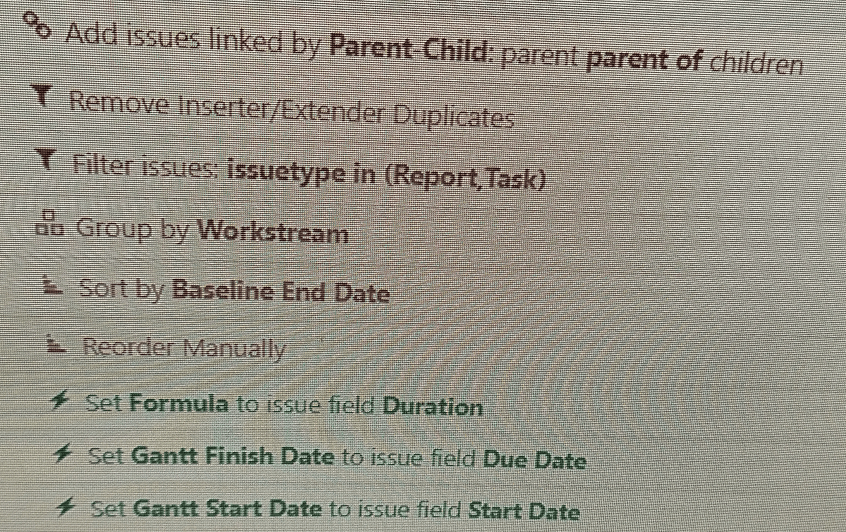
Using special rules called Generators, we could:
- Insert issues into the hierarchy from Agile boards or JQL queries
- Extend structures by adding child issues connected through various links
- Group issues by almost any field or link
- Filter issues using specific criteria
- Sort issues by Jira fields, Structure attributes, or Agile rank
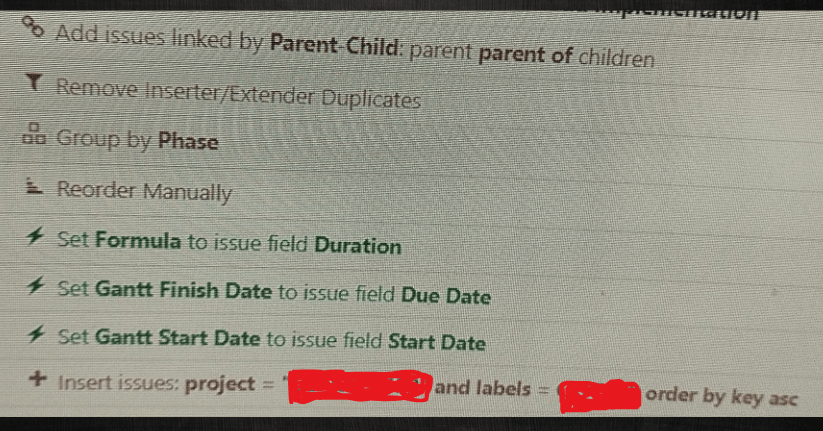
These generators kept our structures updated in real-time, ensuring we always had the most current view of our Jira instance.
GROUP BY FORMULAS / FIELD:
If you want to group the structure based on certain labels, then here you go.
IF(
SEARCH("AUTOMATED",labels), 'Automated',
SEARCH ("Manual", labels), "Manual",
"None"
)IF(
SEARCH("AUTOMATED",labels), 'Automated',
SEARCH ("Manual", labels), "Manual",
"None"
)
After you write the formula, use Group by Formula. You can also use “Config Tasks” instead of “None” in the above formula.
The structure will look like
Group 1
Automated Folder
Task 1
Manual Folder
Task 2
2. Columns: Customizable and Informative
In Structure, issues are displayed as rows, with information shown in columns. We utilized various column types, including:
- Jira fields and custom fields columns
- Progress columns to display combined progress of issues and sub-issues
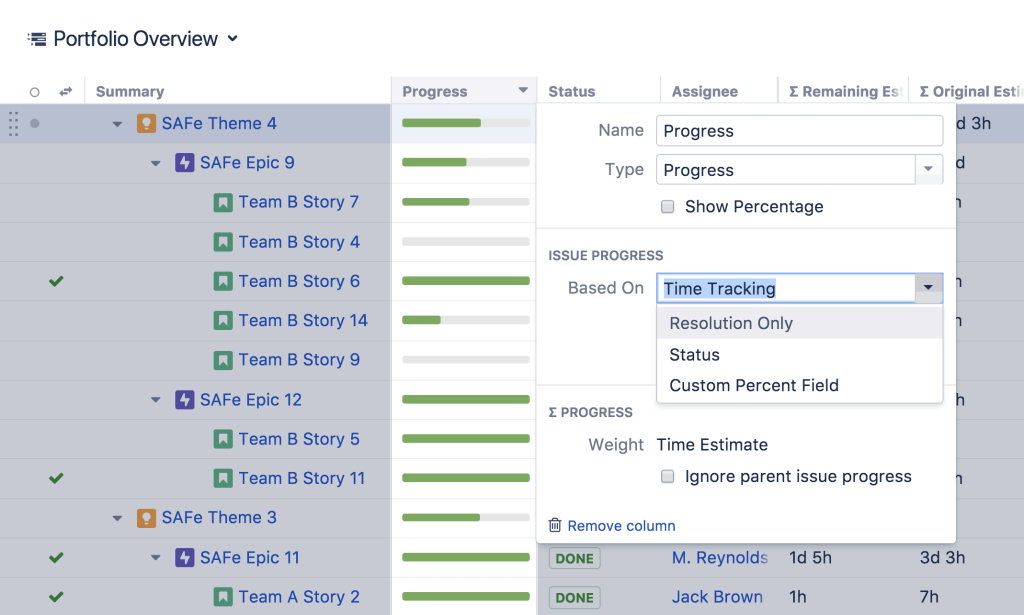
- Totals columns for numeric fields like Story Points or Time Spent
- Formula columns to calculate complex metrics and highlight key data.
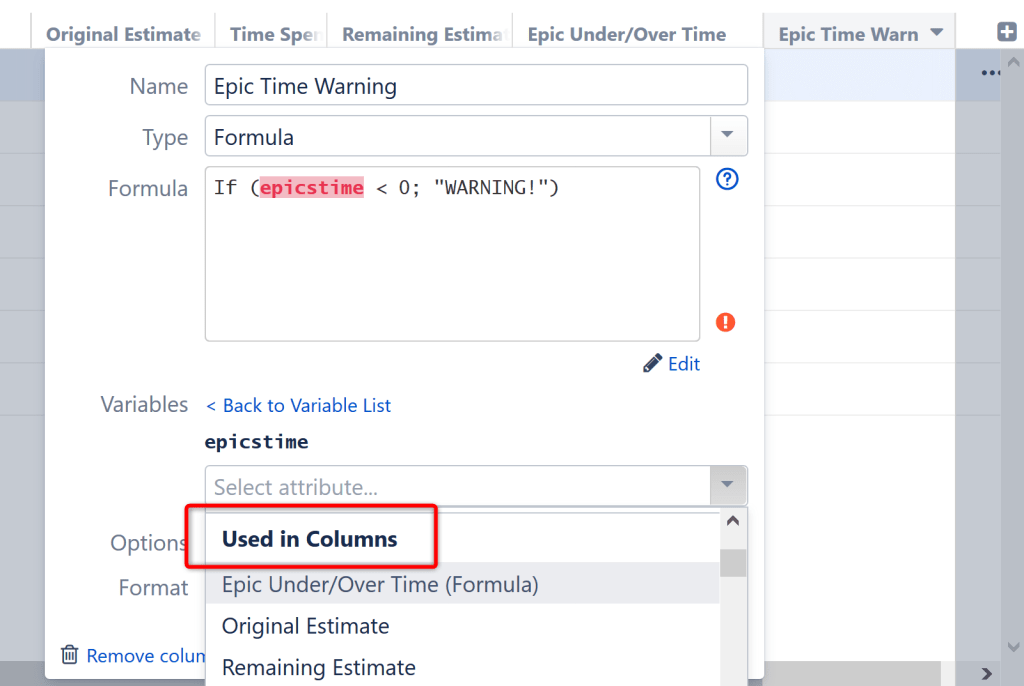
Columns as variables:
When using a formula, you can assign a variable to reference another column in the structure, including another formula column.
To assign a variable to another column, look for the Used in Columns section of the attribute selection drop-down.
Fetch the Values based on Fields:
IMPORTANT: MAINTAIN THE SAME NO OF CODES IN 3 LINES. The code (.FILTER) and (.MAP) should start in a new line.
The settings are
Type : “Formula”
Saved Column: Custom
Style – Date/Time
Format – 09/Jul/24
UNIQUE(issuelinks
.FILTER($.source = this AND $.destination.labels.FILTER($.MATCH("PrepFSD")))
.MAP($.destination.assignee.displayName))
UNIQUE(issuelinks
.FILTER($.source = this AND .destination.labels.FILTER($.MATCH("PrepFSD"))).MAP($.destination.actualcompletedate))UNIQUE(issuelinks.FILTER($.source = this AND $.destination.labels.FILTER($.MATCH("PrepFSD"))).MAP($.destination.baselineenddate))UNIQUE(issuelinks.FILTER($.source = this AND $.destination.labels.FILTER($.MATCH("PrepFSD"))).MAP($.destination.status))OverDue Alerts:
The spacing and caps are very important on these structure formulas.
Type: Formula
Saved column: Custom
Options: wiki markup
IF(statuscategory!= Done and baseline_end_date < today();
"{color:red}*Overdue*{color}")
IF(issueType = 'Inititative' or issuetype = 'Task',
IF(
statusCategory!= done and baseline_end_date < today();
"{color:red}*Overdue*{color}"
)
)
Status Alerts:
IF
(status!='completed' and baseline_end_date < today(); "{color:red} *Overdue*{color}";
JQL {statusCategory!= done and 'Baseline End Date' >= startOfWeek() and 'Baseline End Date' <= endOfWeek()};
"{color:orange}*Due this week*{color}";
status= 'Completed';"{color:green}*Completed*{color}"
)
IF(issueType = 'Initiative' or issuetype = 'Task',
IF
(status= 'Closed' or status = 'Completed';"{color:green}*Completed*{color}";
(status!= 'Closed' or status!= 'Completed') and baseline_end_date < today();"{color:red}*Overdue*{color}";
JQL {statusCategory!= done and 'Baseline End Date' >= startOfWeek() and 'Baseline End Date' <= endOfWeek()};
"{color:orange}*Due this week*{color}";
)
)Source: https://wiki.almworks.com/display/structure054/Formula+Columns
These columns could be saved as Views, which we shared with others, associated with structures, or set as defaults.
Bundled Formulas:
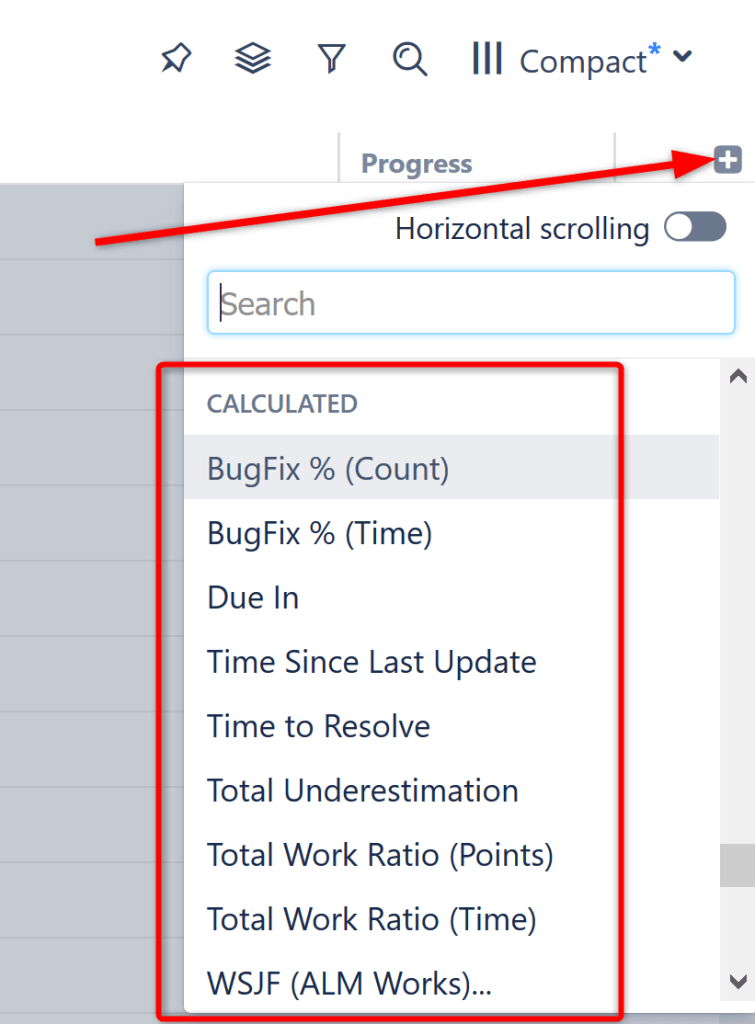
The simplest way to include formulas in a structure is to use one of Jira autocreated bundled formulas.
To add a bundled formula, click the + button to the right of the column header and scroll down until you locate the CALCULATED section.
3. Transformations: Personalized Quick Filters
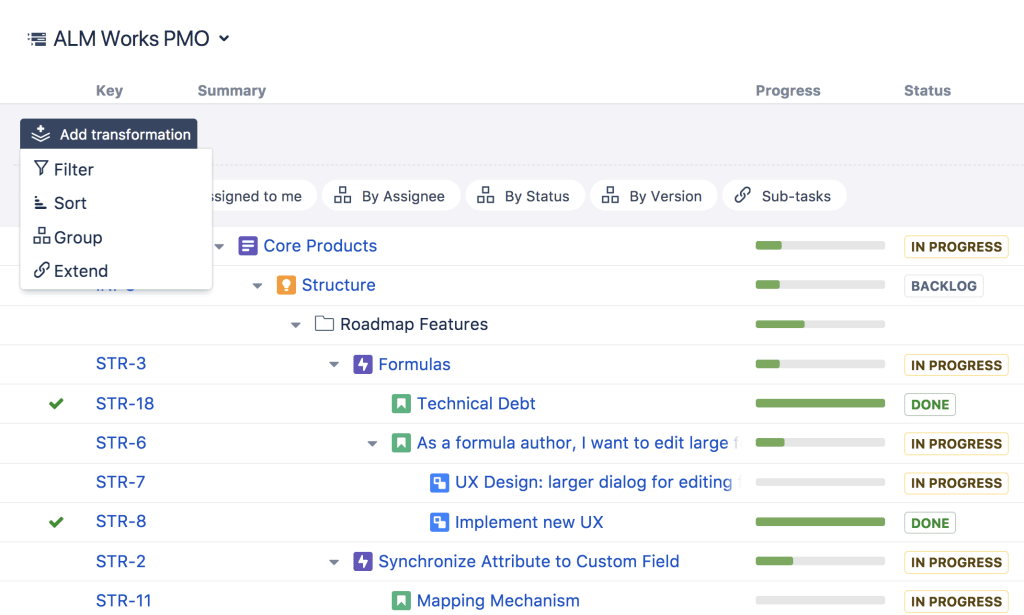
Transformations functioned like Quick Filters but offered more power. They allowed us to filter, sort, group, and extend issues without altering the structure for other users. Sharing our personalized view (Perspective) via a link or bookmarking it for future use made collaboration seamless.
Extend Structure for Jira with Powerful Extensions
Structure.Gantt
Structure.Gantt integrated Gantt charts into Jira, allowing project managers to visualize dependencies and timelines, manage resource allocation, and track Agile projects using sprint data. This extension was a game-changer for our project planning and management.
Conclusion: Streamline Your Jira Organization with Structure
Through my journey, I learned the immense value of organizing Jira effectively. Structure for Jira became an indispensable tool, helping us visualize, track, manage, and plan projects at scale.
Whether you’re using Jira Server, Jira Data Center, or Jira Cloud, I highly recommend exploring Structure for Jira.
They will undoubtedly enhance your project management capabilities and streamline your workflows, just as they did for us.
Discover more from LR Virtual Classroom
Subscribe to get the latest posts sent to your email.
 LR Virtual Classroom