
Sometimes, the smallest features bring out the best when using Excel. These 20 Excel hacks are worth not being missed. Let’s check out one by one. Next time, you do something in Excel, check if you can use any of these 20 Excel tricks that can make anyone an excel expert.
Excel Hack 1 – Angled text variations for variety and readability
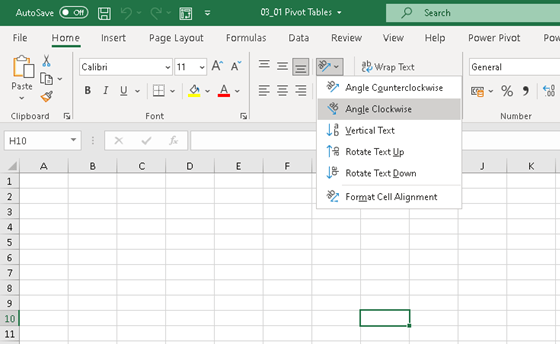
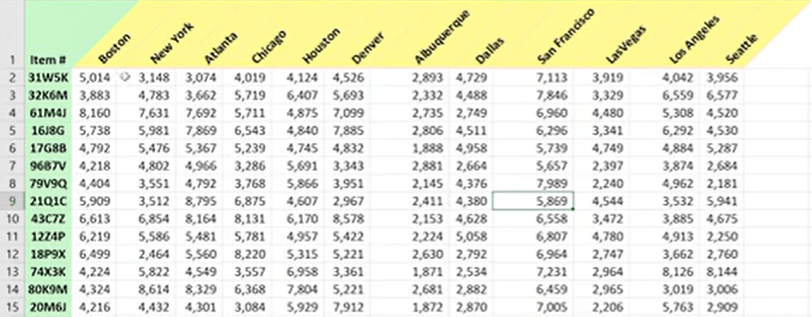
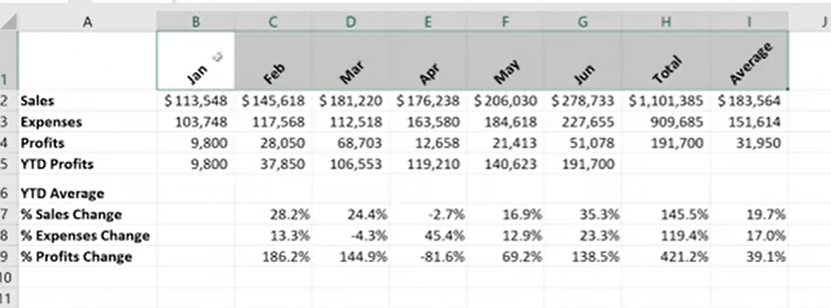
This feature is very simple but provides better visual interest in your financial reporting. It’s going to save us some space as well. Most commonly used here will be angle counterclockwise or rotate text up
Excel Hack 2 – Indent data and dollar signs
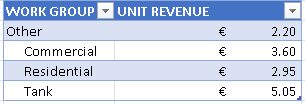
This simple hack often we forget. We use Indenting in word documents. But using Excel has more benefits as well. Check out the below sample picture of how data has better readability when Indenting is used. Also dragging across the columns and simply dragging any column helps to present the data effectively. And maybe we want to do this because we are going to be dealing with some larger numbers as well.
Excel Hack 3 – Use Wrap Text and Shrink to Fit to control titles and headings
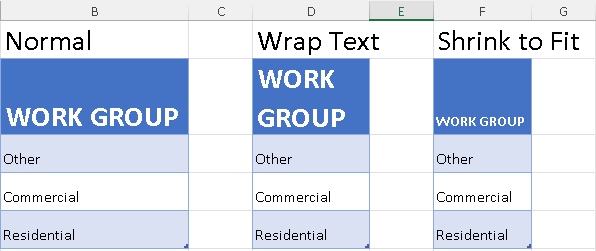
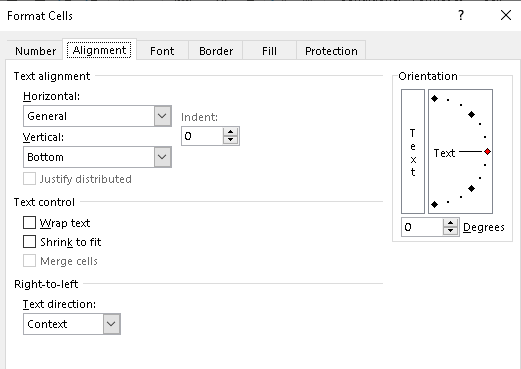
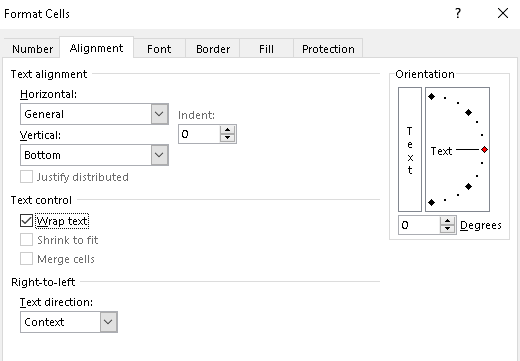
You usually use Merge and Center button to simplify title adjustments, arent you?. There is this feature in Excel called Wrap Text and Shrink to Fit. This can be found under the Format Cells dialog box. The shortcut for the Format cells window is Ctrl + 1.
Wrap Text – Will wrap the long text cell to the next line based on the cell width.
Shrink to Fit – Will reduce the size of the text to fit based on the cell width.
It is to be noted that both cannot be used at the same time. Excel automatically, disenables when one is used.
Excel Hack 4 – Build custom numeric formats
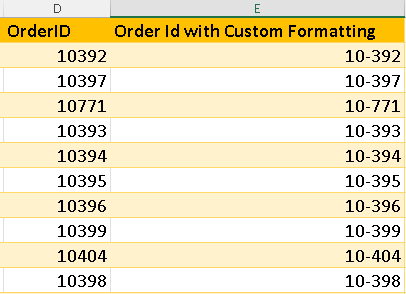
When you have Order Id, Phone no, you want to display it in the specific format. Excel custom formatting option will provide you the feature at the click of the button.
Quick Tip : The shortcut for the Format cells window is Ctrl + 1.
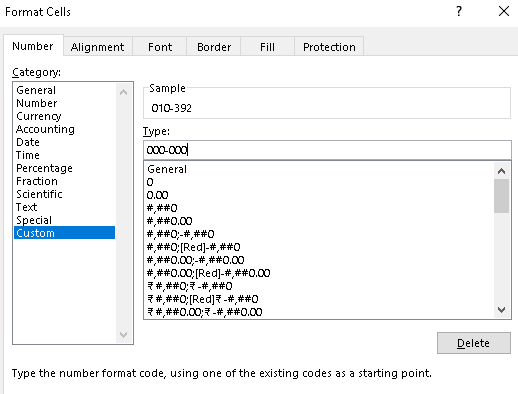
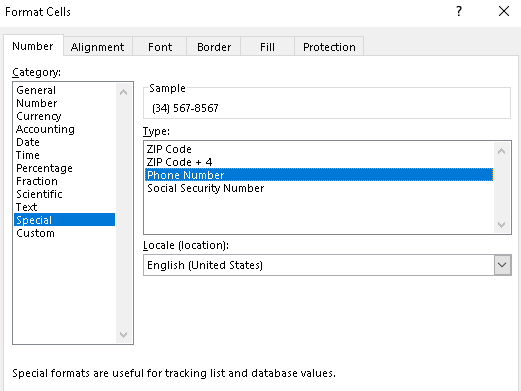
Excel Hack 5 – Create custom date formats
There are multiple ways, you can represent the date in excel. The first row in the sample pic, shows the format you need to use under Custom formatting.
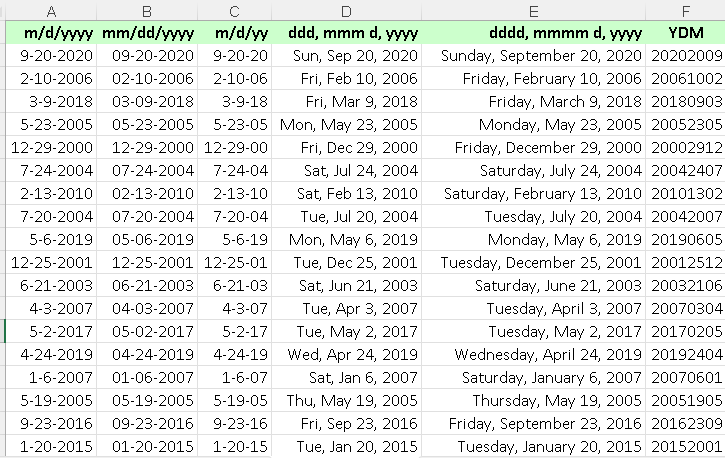
The text to Column feature also provides you options to convert the text to date format. Just select the green arrow in the cell, the dialog box opens up. Ensure to select the right date format you need and click Ok to close the wizard.
Excel Hack 6 – Use cell styles for consistent formatting
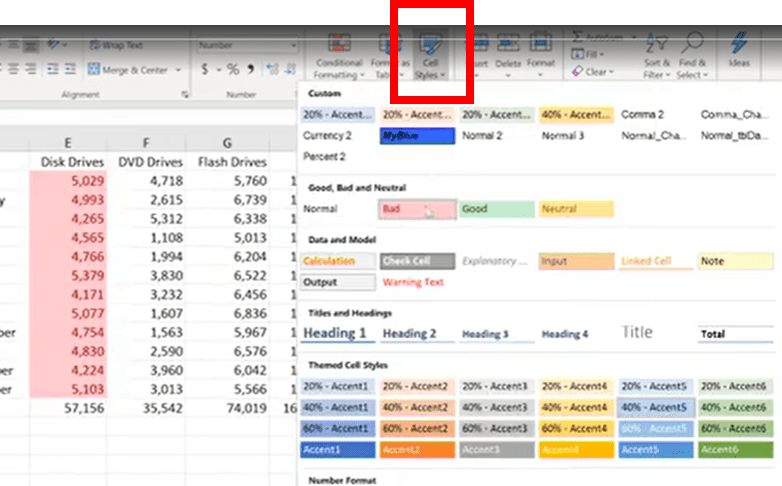
Usually one always remembers conditional formatting when it comes to differentiating the cell colors. But Excel has Cell styles under the Home tab as well as shown below.
Excel Hack 7 – Format Individual Characters In An Excel Cell
When you are reporting and instead of applying formatting to all the cells, you can format only specific text in a cell. This is a nice way to emphasize a point you are trying to make or jazz up a workbook, right?.

- Select the cells you want to format in the usual way
- Use the usual formatting controls to format your individual characters
Quick Tip: Shift F11 will automatically create a new worksheet to the left of the current one
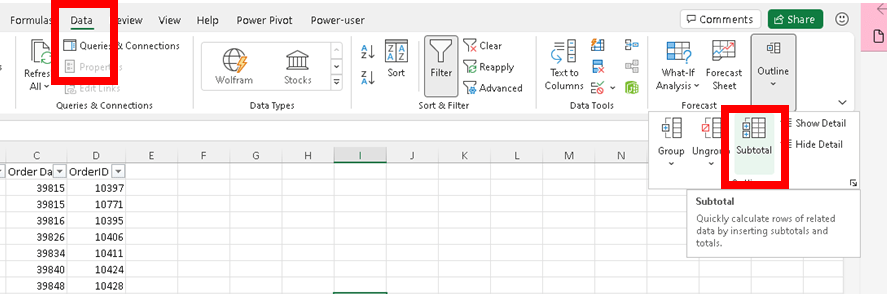
Excel Hack 8 – Subtotal in click of a button
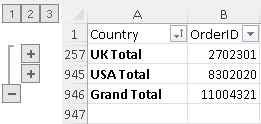
The SUBTOTAL function in Microsoft Excel returns the subtotal value from a range of cells. You can also do AVERAGE or COUNT, to find custom totals from a dataset.
Excel automatically creates the grouping based on the selection.
Excel Hack 9 – Format Sparklines for visual impact
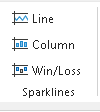
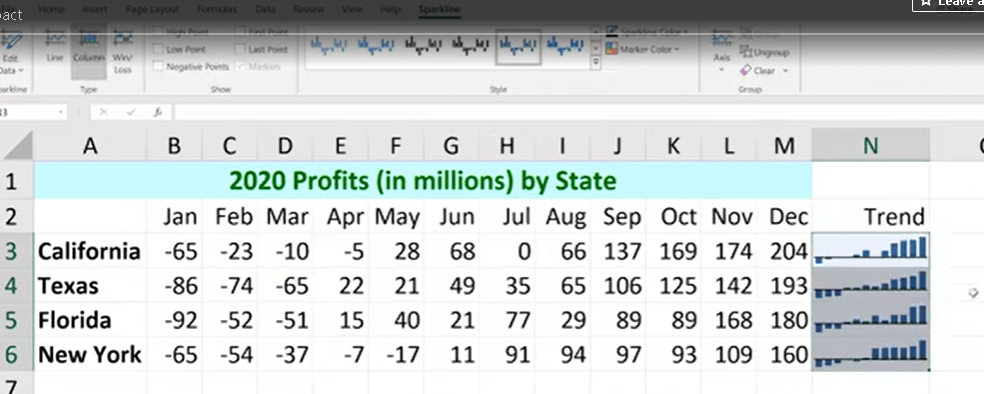
The sparklines capability is an alternate for charting. It’s faster, it’s easier and sometimes it gives us the big picture without much detail, and that’s just fine, much of the time.
You can find Sparklines in the Insert menu.
Excel Hack 10 – Use WordArt for formatted titles and headings
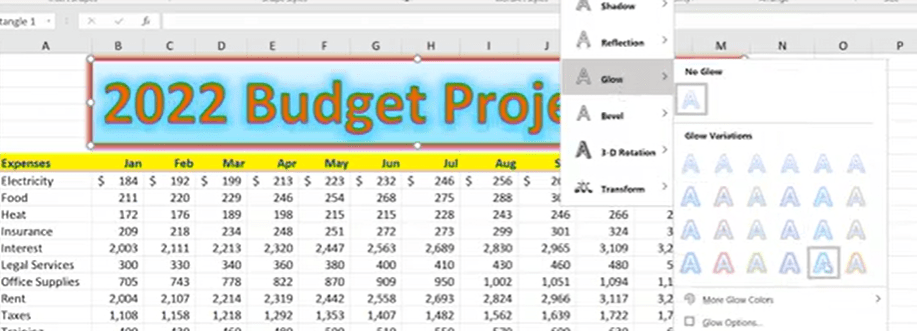
Simple but elegant trick. Avoid the usual formatting of Bold, font size for heading for your excel reporting. Next time, for a change, try using the word art.
Bonus Tip 1 – Restore missing title data in a column
Sometimes, you have huge data set where the values are missing in the column and you cannot copy-paste each value to all the cells right? There is a shortcut you can do these tedious tasks by using Got to Special command. First, select the column, click go to special from Find & Select menu, and then Select blanks.
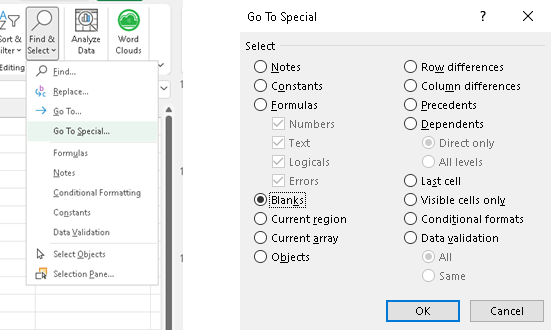
All the blanks in the column will be selected.
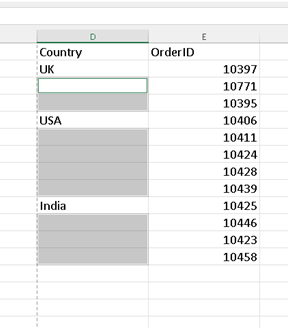
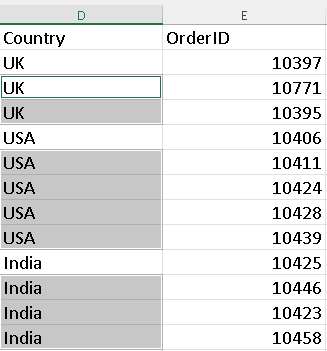
Then type in the formula bar as =D2 ( Data in my example is in D column). Then instead of just Enter, press Control + Enter, then see the magic happening.
Bonus Tip 2 – Try picture links in your reporting
When you’ve got rapidly changing data, you want information from one worksheet to be displayed on another one as the changes occur. So this technique of copying information and then pasting it as a picture link is a valuable tool for this kind of scenario. Let’s see an example.
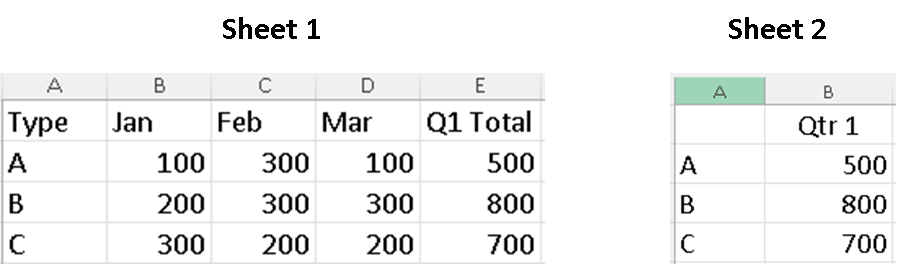
I have my month-wise data in sheet 1 and Qtr 1 data in Sheet 2. I’m going to copy the Sheet 2 data and paste as “Paste Link”.

The moment I change the value in Feb month, the values got changed in both the places – 1) where I have copied the Qtr data as paste link 2) Sheet 2 where actual Qtr data is there.
Try it out and let me know if it worked for you.

Bonus Tip 3 – Format column and row titles
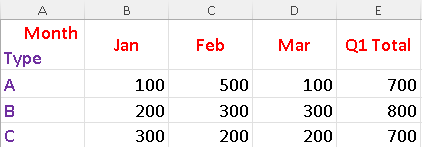
When you two types of data in the report, having in the title might be confusing. Alternatively, you can format as done below. You simply enter the two texts one below the other (Alt + Enter) will give a line break. Change the alignment and format. Vola, done.
Hope you found the post informative. Your valuable feedback, question, or comments about this post are always welcome by leaving me a message on the contact form is truly appreciated.
Discover more from LR Virtual Classroom
Subscribe to get the latest posts sent to your email.
 LR Virtual Classroom