Welcome to the world of Power BI – your gateway to unlocking the power of data visualization and analysis. Whether you’re just starting out in your professional journey or looking to level up your skills, diving into Power BI Administration can be a game-changer for your career.
As a newcomer to this dynamic tool, you might feel a tad overwhelmed by its vast capabilities and technical jargon. But fear not! We’re here to demystify the process and help you harness the full potential of the Power BI Admin Portal with ease.
1. With Power BI, there’s no need to move any data. As a business intelligence and analytics SaaS application, Power BI allows business users to access the data wherever it resides and gain actionable business insights
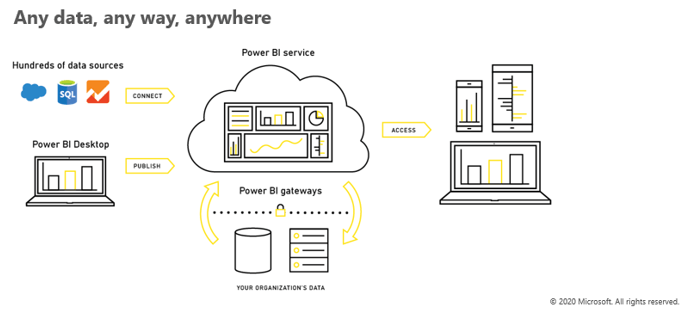
2. Power BI desktop
- Power Query Editor – The Power Query Editor is the primary data preparation experience, where you can connect to a wide range of data sources and apply hundreds of different data transformations by previewing data and selecting transformations from the UI. These data transformation capabilities are common across all data sources, regardless of the underlying data source limitations.
- Data modeling – Supports the process of creating a visual representation of a whole information system or parts of it to delineate connections between data points and structures.
- Visualization – After you have a data model, you can drag fields onto the report canvas to create visuals. A visual is a graphic representation of the data in your model. There are many different types of visuals to choose from in Power BI Desktop.
3. Power BI service
- Datasets – A source of data ready for reporting and visualization.
- Reports – Generate reports from the Power BI service from My Workspace or in a new workspace experience. You can also create reports from endorsed datasets. For details on creating reports, refer to this article.
- Dashboards – A single page, often called a canvas, that tells a story through visualizations. For an introduction to creating dashboards through Power BI, refer to this article.
- Workspaces (v1 and v2) – Workspaces are created on capacities. Essentially, they are containers for dashboards, reports, workbooks, datasets, and dataflows. There are two types of workspaces, My workspace and Workspaces. My workspace is the personal workspace for any Power BI customer to work with your own content. Workspaces are used to collaborate and share content with colleagues. For more information on workspaces, see this article.
- Dataflows – Reusable transformation logic that can be shared by many datasets and reports. For an introduction to dataflows, refer to this article.
4. Are you a steward or a captain?
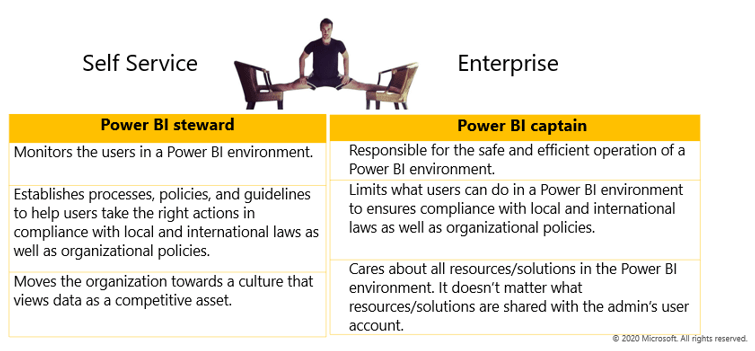
5. To administer Power BI for your organization, you must be in one of the following roles:
- Office 365 Global Administrator
- Power BI Service Administrator
- Microsoft Power Platform Service Administrator
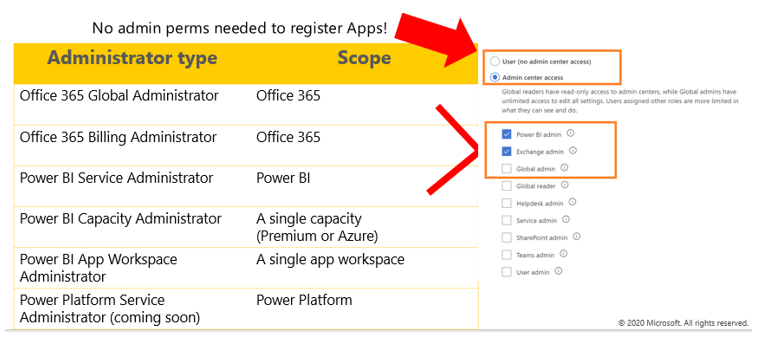
6. For the Power BI administrator, these tasks are:
- Controlling access – Control user access to record-level and task-based privileges.
- Controlling Power BI tenant features – Tenant settings are managed in the admin portal and can restrict capabilities and features to a limited set of users.
- Activity log – Knowing who is taking what action on which item in your Power BI tenant can be critical in helping your organization fulfill its requirements, like meeting regulatory compliance and records management. For additional information about tracking user activity, please refer to this article.
- Monitoring usage – Monitor how your dashboard and reports are being used. Views per day, unique users per day, views per user, and shares per day are a few of the metrics that can be reported on and monitored.
7. There are multiple portals and tools used by Power BI administrators. A list of the portals and tools most commonly used are:
Power BI admin portal – Used to manage a Power BI tenant, including the configuration of governance policies, usage monitoring, and provisioning of licenses, capacities, and organizational resources.
Power BI gateway management – Use Microsoft Power Platform admin center to view and manage on-premises data gateways. For more information about gateway administration and management, see this article.
Microsoft Power Platform admin center – Provides a unified portal for administrators to manage environments and settings for Power Apps, Power Automate, and customer engagement apps (Dynamics 365 Sales, Dynamics 365 Customer Service, Dynamics 365 Field Service, Dynamics 365 Customer Insights – Journeys, and Dynamics 365 Project Service Automation).
Microsoft 365 admin center – Here you’ll manage users and their license assignment and you can launch into many of the individual admin centers from here.
Security and compliance center – In addition to the general compliance tasks, administrators can come here to search the Audit log to see Power Automate audit events.
Azure Active Directory portal – Advanced Azure AD management tasks such as conditional access is managed here. If you support any developer application registration it’s also done here. This is also where you start setup of your on-premises gateways.
PowerShell – With PowerShell cmdlets for app creators and administrators, you can automate many of the monitoring and management tasks that are only possible manually today in Power Apps.
REST APIs – Automate common Power BI administrator tasks with REST APIs. Find existing REST APIs available for automating common Power BI administration tasks here.
8. Dataflows are reusable transformation logic that can be shared by many datasets and reports.
9. Office 365 global administrator has authority to access audit logs. The Power BI service administrator is a service administrator and doesn’t have access to items such as licensing, subscription, or audit logs.
10. Microsoft Power Platform service administrator is responsible for managing data gateways.
11. The Power BI service administrator is a role in Azure AD and manages the Power BI service environment.
12. The Microsoft 365 admin center is used to manage users and their license assignment. Admins can also launch into other individual admin centers from here.
13. The Power BI admin portal is used to manage a Power BI tenant, including the configuration of governance policies, usage monitoring, and provisioning of licenses, capacities, and organizational resources.
14. A Power BI tenant is an additional service subscription and a part of an Office 365 suite that is attached to a domain.
15. When setting up a Power BI environment, you need to understand in which Azure data store the Power BI tenant will be located. Tenant location is based on an organization’s Office 365 country;region or Azure Active Directory (AAD) data center.
16. To avoid latency or Azure Egress charges, the Power BI tenant should reside in the same Azure region as other O365 services the organization uses.
17. To find the region your tenant is in, follow these steps.
- In the Power BI service, in the top menu, select help (?) then About Power BI.
- Look for the value next to Your data is stored in. It’s the region where your tenant is located. The value is also the region where your data is stored unless you’re using capacities in different regions for your workspaces.
18. Power BI chooses a data region closest to your selection, which determines where data is stored for your tenant.You cannot change the country/region selection after you create the tenant.
19. Important points to remember –
- Power BI tenants are created in an Azure Data Center.
- Tenant location is based on Office 365 country/region or Azure Active Directory data center.
- Think about other Azure services the organization might be considering. Choosing the wrong location could result in Egress charges.
20. Power BI supports two types of accounts. User accounts are created in the Azure AD tenant. These users can consume content based on access level and license type.
21. Guest accounts are external to the organization. These accounts are part of Azure AD B2B and B2C, and enable users external to the organization to consume or even edit content. The B2C approach allows users with accounts like @gmail and @outlook to view Power BI content.
22. User accounts
- Exist within the organization
- Can create and consume content based on access and license
- Mobile app can be used
23. Guest accounts – The Power BI mobile app cannot be used for external content.
- External to the organization
- Part of Azure AD B2B & B2C
- Can consume content (or edit with appropriate permissions)
- Must have direct URL to shared content
- Can be consumer accounts such as @outlook.com or @gmail.com)
24. User License
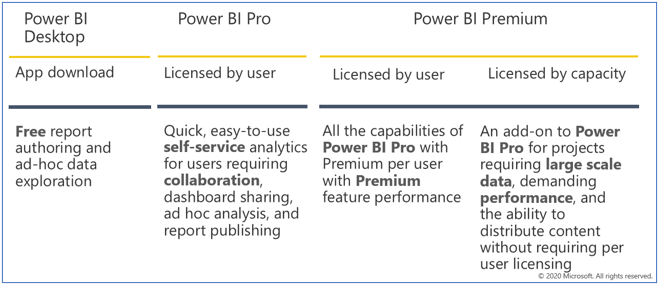
25. By default, workspaces, including personal workspaces, are created in the shared capacity. When you have Premium capacities, both My Workspaces and workspaces can be assigned to Premium capacities.
Capacity administrators automatically have their My workspaces assigned to Premium capacities.
26.
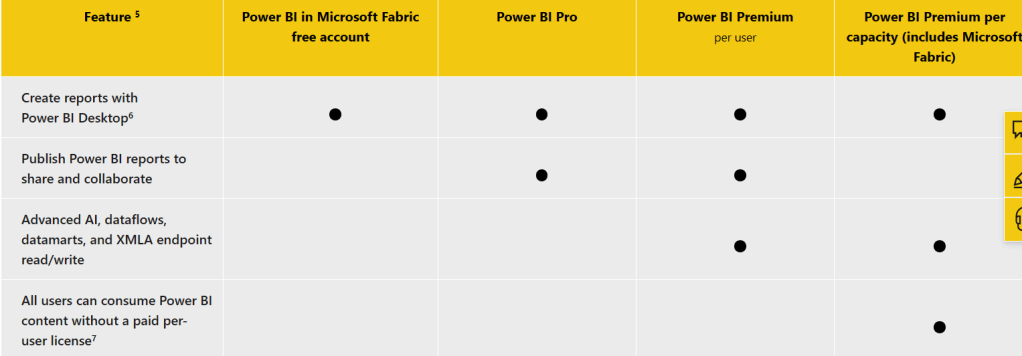
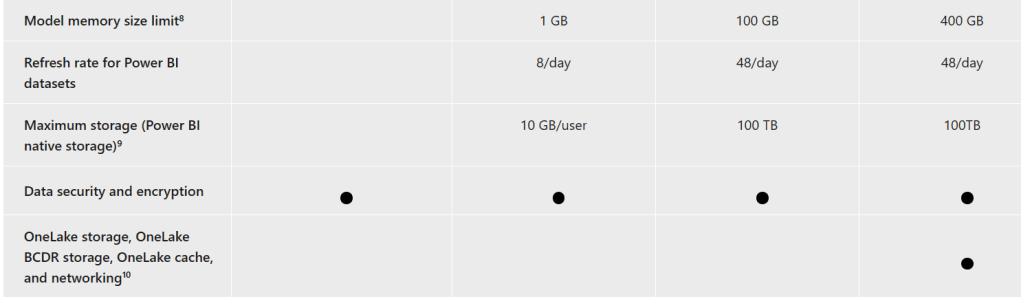
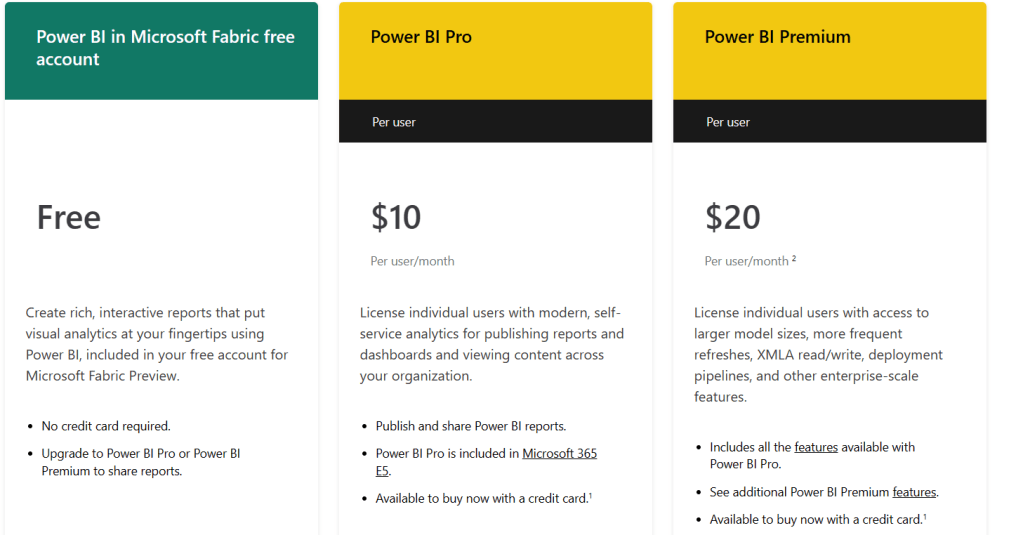
27. You must have a Microsoft 365 admin role to purchase or assign licenses for your organization.
28. All user-based, commercial licenses from Microsoft are based on Azure Active Directory identities. To use the Power BI service, users must sign in with an identity that Azure Active Directory supports for commercial licenses
29. You can add Power BI to any Microsoft license that uses Azure Active Directory for identity services. Some licenses, such as Microsoft 365 E5, include a Power BI Pro license, so no separate sign-up for Power BI is needed.
30. There are two kinds of Power BI licenses for organizations: standard and premium.
31. With a standard, self-service Power BI Pro license, Microsoft 365 admins assign per user licenses. There’s a per user monthly fee for Power BI Pro licenses. This license type enables collaboration, publishing, sharing, and ad-hoc analysis. Content is saved to shared storage capacity that is fully managed by Microsoft.
32. A Power BI Premium license allocates a capacity to an organization. Suitable for enterprise BI, big data analytics, and cloud and on-premises reporting, Premium provides advanced administration and deployment controls.
33. With Power BI premium licensing, Power BI end-users do not need any additional licensing to view Power BI resources.
34. The two types of licenses aren’t mutually exclusive. You can have both Power BI Premium and Power BI Pro. In this configuration, content stored in Premium capacity can be shared with all users and shared capacity is also available.
35. Azure Active Directory Business-to-business (Azure AD B2B) enables sharing with external guest users. The following prerequisites must be met to share with external users:
- The ability to share content with external users must be enabled
- The guest user must have the proper licensing in place to view the shared content
36. In the Power BI service, in the top menu, select help (?) then About Power BI. Look for the value next to Your data is stored in. It’s the region where the tenant is located. The value is also the region where an organization’s data is stored unless it uses capacities in different regions for workspaces.
37. It’s the region where the tenant is located. The value is also the region where an organization’s data is stored unless it uses capacities in different regions for workspaces. Tenant location is based on the country/region an organization is in and cannot be changed once it’s created.
38. All user-based, commercial licenses from Microsoft are based on Azure Active Directory identities. Users can consume content based on access level and license type.
39. Premium licenses are based on capacity, not named users.
40. A Power BI Premium license allocates a capacity to an organization. Suitable for enterprise BI, big data analytics, and cloud and on-premises reporting, Premium provides advanced administration and deployment controls.
41. Capacities are a core Power BI concept representing a set of resources used to host and deliver your Power BI content. Capacities are either shared or dedicated. A shared capacity is shared with other Microsoft customers, while a dedicated capacity is fully committed to a single customer. Dedicated capacities require a subscription. By default, workspaces are created on a shared capacity.
42. Apps are interactive, but consumers cannot edit them. App consumers, colleagues who have access to the apps, do not necessarily need Pro licenses.
43. While creating app in premium workspace, Add content -> Insert reports, dashboards, and workbooks directly from your workspace. You can also add website links.
Discover more from LR Virtual Classroom
Subscribe to get the latest posts sent to your email.
 LR Virtual Classroom