In a recent job, I got an opportunity to improvise an existing resource forecasting template in Excel. It is exhaustive financial report and hence I learnt a lot in the process.
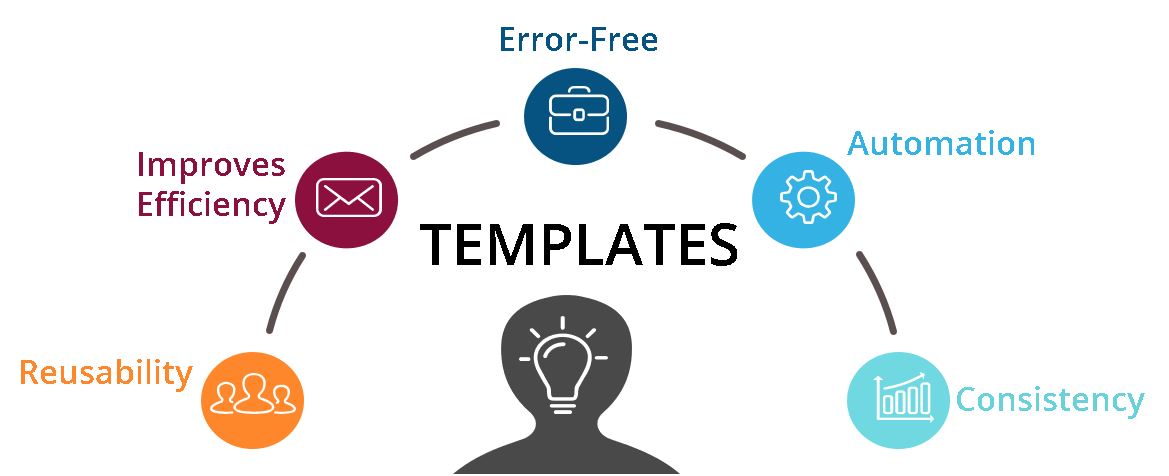
Templates are predesigned document you can reuse without repeating the tasks everytime.
- Reworking on the excel documents is a waste of time and effort.
- Templates improves the efficiency and ensures all the projects follows consistency.
- Templates removes the common errors made due to oversights, data errors, formula errors etc.
Hence, sharing my mistakes and learnings from them. This is like a checklist for me that I can refer to at any point in time. Hope it helps you as well.
In any monitoring of financials, it is important to remember the below points:
- Is your template clearly calls for underspend/overspend on a periodical basis?
- Is the increase/decrease in the monthly spending been able to support with the required information?
- The forecast should be in line with the expected spending.
Let’s get started.
Template Hack 1:
List out all the input and output variables.
For any excel templates when you begin, the first step is to list all the inputs and the outputs. For example, see below.
For a resource tracker, below are the input and outputs.
Inputs are – Name, Employee Id, Project Name, Project Code, Account, Team Name, Day Rate, Reporting Manager, Domain, Email id, Joining date, LWD, Employee Status, Country, Location, Work levels, Role, Designation etc.
Outputs are basically the summary view of your resource tracker. The total no of employees sliced and filtered based on location, manager, levels, roles, etc are all your outputs variable.
Both Inputs and Outputs go hand in hand in the process of data analysis as one helps to drive the other things.
So getting what you want to want in your dashboard helps in collating the input data and what kind of information you want to analyze, drives the output data.
Bonus Tip: If a variables has dropdown options, then clearly call out entire list. For example, resource location can be UK, USA, India etc. Employee Status can be Available, Resigned, Left, Backfill Hire, New Hire, Sabbatical etc.
Template Hack 2:
Identify the fields which are manual entries and involve automated calculations.
It is not that all the input fields are manual fields. you can automate the inputs as well. For example, inserting a dropdown down for users to select the options is one way of automating.
The lookup of the options based on another cell value is also one way of automating the input fields.
In a real-time example, based on the role selected in the dropdown in Column A, the job function like Engineering, Programme, Product, UX/UI can be automatically populated in Column B.
Template Hack 3:
Identify which are periodic changing variables and constant variables.
This is very key to identify in the initial stage of building your template. Not all the inputs are constant throughout the template.
Let’s take an example. Periodic changing variables can be as below:
- % of project allocation can change periodically.
- The Start and End of the resource in the project can change.
- The Day rate of the resource can change if the resource has a promotion
Basic resource details can be constant throughout the project finance tracker. Like the resource Id, Name etc.
This determines how you want to use your excel formulas.
Template Hack 4:
Use a separate sheet called “Reference sheet” to list all the common variables.
Don’t create data validation items like a drop-down lists within the same sheet. This limits the expand the list in the future.
Always add a reference sheet to call out the legends, references, thresholds, list of information etc.
Template Hack 5:
Understand what variables change periodically and list the monthly process to follow in the template.
It is important to know what steps you carry out every month in the templates. This is the deciding factor in building it right.
If you are going to update actuals and track the variance, then you add the details within the same sheet by giving a provision to enter the actuals.
If the forecast is replaced by actuals and you want to know the rolling over the forecast, then use the formulas to accumulate the values to compare with the budget.
So, understand and document the monthly process that you will follow in the template every month.
Template Hack 6:
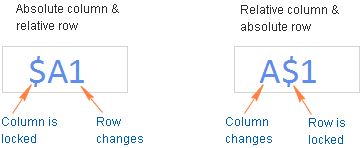
Ensure formulas are linked by using proper row and column references using “$”.
Since you are copying formulas from one cell to another or to another sheet, please ensure to use row and column references accordingly in all possible instances.
They are also called as absolute and relative cell references.

$C$1 – absolute cell reference that never changes no matter where the formula is copied.
A1 – relative cell reference that is adjusted for each row.
Template Hack 7:
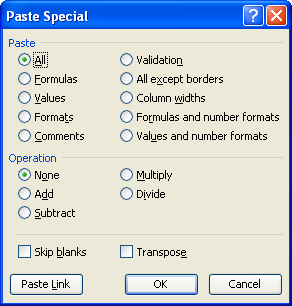
Use paste special type – Copy formulas from one row to other rows.
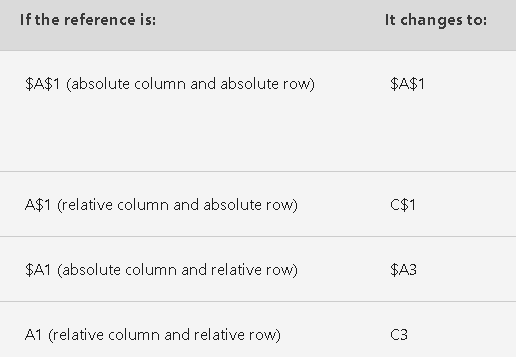
As the formulas change based on the cell values, it is important to use reference as said in the previous hack.
The below image shows the way the cells are copied based on the references.
Once you use the references, make sure you copy the formulas while paste to the another cell.
Template Hack 8:
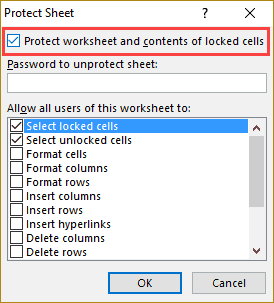
Lock the formula cells to avoid editing.
This is a simple and powerful hack to avoid someone making changes to the excel sheet.
Template Hack 9:
Don’t use any constant values in formulas. Call out as a reference cell.
In my experience, there was a situation when some team wanted in roundoff of 1 decimal whereas another team wanted without a roundoff.
So, it is learned in the process to use a cell reference with values of either 0 or 1 so that the data changes based on the selection.
Your template should be constant throughout the period.
Template Hack 10:
Use conditional formatting to create rules that determine the format of cells based on their values.
In order to draw easy insights, use conditional formatting to highlight. For example, if the start date is greater than the financial year start date, then use formatting to highlight.
This will automatically tell the audience that the resource has joined after the financial start of the year.
Template Hack 11:
Create as many as summary pages by linking all the important cells from various sheets.
In order to provide the summary of the data, please ensure to use as many summary sheets – may be for monthly data, quarterly and annual data.
This gives a clear view to the users of the template and they can easily drive insights.
Template Hack 12:
Follow the 4-eye principle to ensure the template is error-free.
Do read this blog post about the 4-eye principle. As a PMO insists on the review by one or more people to spot the oversight errors.
In reviewing and proofreading, neither individual might detect all errors, but certainly, two readers are likely to miss different things. But this collaboration will catch more mistakes.
The Four Eyes Principle (also the Two-man rule or two-person rule) is a widely used Internal Control mechanism.
It says that any activity by an individual within the organization that involves financial-related outputs, then it must be reviewed, and double-checked by a second individual that is independent and competent.
It is a risk control method where a set of 4 eyes (or 2 people) must check or approve before released to the wider audience.
Template Hack 13:
Create One sheet completely before Copying
If the template has to be copied for multiple projects within the same workbook, then create one template for one project, review, and test it. Then reuse the template sheets for creating multiple copies.
This will avoid the errors carried forward and multiple iterations.
Template Hack 14:
Use Change log
I cannot stress enough but you need to have a change log in the template. It will help to document the versions and improvements made in the template.
It can as detailed as possible for anyone to understand the changes made in the template.
Template Hack 15:
Test, Test & Test
Don’t be in hurry to complete and circulate the template.
Test with real data and follow the monthly process to update. You will be able to understand the grey areas and gaps in the template.
Before circulating, please ensure the template is checked with real-time data and the periodical process is tested to ensure consistency.
Bonus Tips:
- Make sure you baseline the data to know the variances.
- For resources planned at the beginning of the FY should be included right from the start.
- Variance is always Actuals – Budget for underspend and Overspend.
- Make sure you note the resource old and new day rates to know the variance in the future.
Hope you have benefitted from this Template Hack.
Discover more from LR Virtual Classroom
Subscribe to get the latest posts sent to your email.
 LR Virtual Classroom