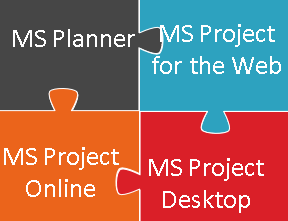
Microsoft is one of the organization, I truly admire for their products specifically for Project Management. This is not an affiliate post, just an opinion about the variety of products they have and how quickly they adopted to build multiple products for the organizations to scale their business. Right from MS Office suite to latest MS Teams, I truly adore Microsoft products.
In this post, lets learn together about the various tools in Microsoft for Project Management. Though, I haven’t got opportunity to work on the tools specially Project Online, sharing the learning with you. It was exciting journey to know about all the tools. Hope you find it useful.
- MS Planner
- MS Project for the Web
- MS Project Online
- MS Project Desktop
1. Microsoft Planner:
Introduction & Access:
MS Planner is very much easier to organize tasks and track status. It is highly recommended to use Planner for ad-hoc tasks. In MS Planner – each plan we create will have its own Kanban-style board. Imagine to be Kanban-style visual task management.
Access the Microsoft planner with below link – Microsoft Planner (office.com) Access to the plan is given to all the O365 users by default. The plan can be limited to public ( entire org) or private team alone. Even share access with people outside of your organization.
User Interface of Microsoft Planner:
Planner User interface is very intuitive that creating cards and tasks checklist is very easy and having resources update their tasks is as simple as clicking on the task.
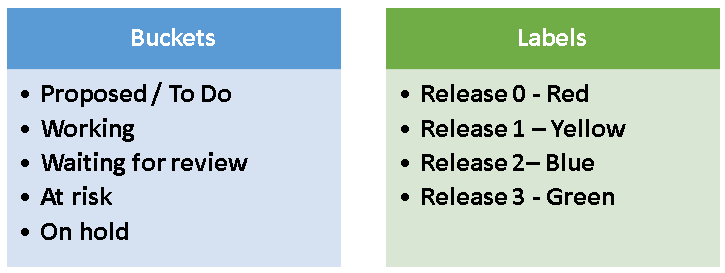
Planner helps to plan by using separate tasks and buckets – Each plan can have separate buckets structures, labels with unique colors to determine how the work can be categorized. The default bucket is To do.
Quickly filter between tasks to see open and closed tasks based on priority, due date or even team members.
Quickly group the tasks based on various fields for quick summary.
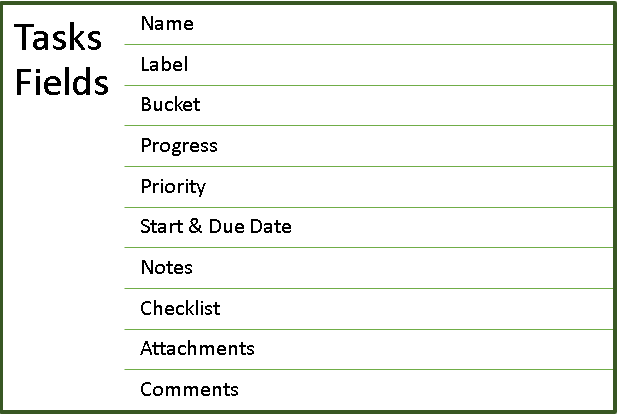
We can add the below details for each and every task in Planner. We can update the task by clicking on it or change the status by drag and drop.
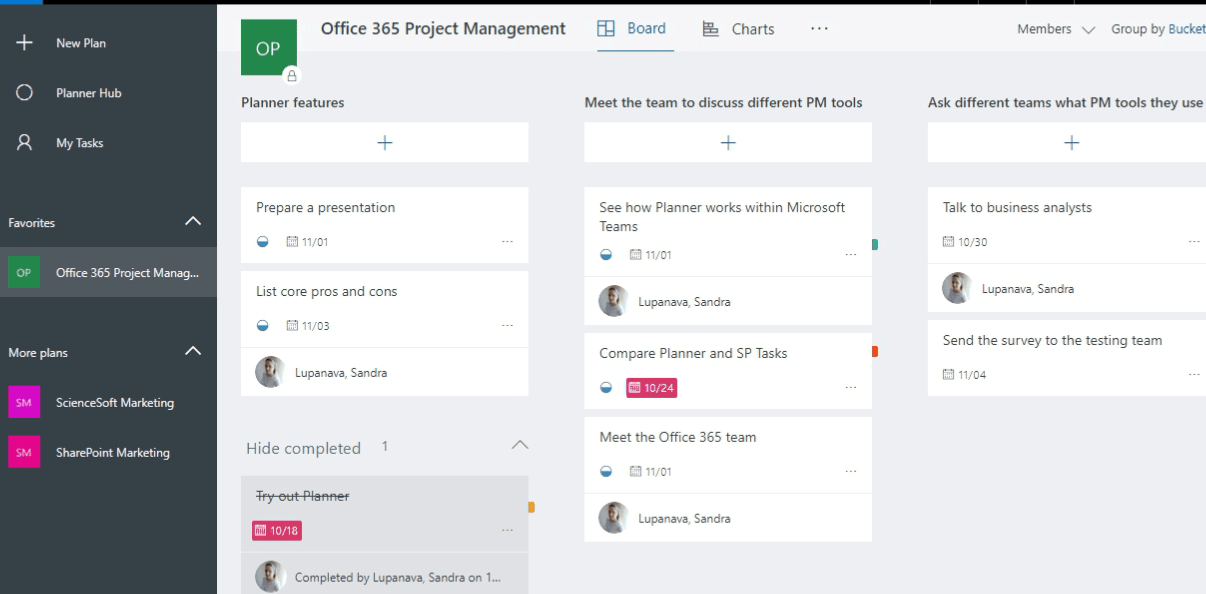
Must-Know Features of Microsoft Planner:
- Interestingly, we can add emoji’s to the task tiles.
- Copy a single task or a whole plan to any other plan with just single click – No need to recreate multiple times.
- We can either view it in Board form , Chart form or Calendar/schedule form for summarized information.
- We can export the plan to excel.
- Add plan to the outlook calendar.
- Make sure you view your tasks under “My tasks” that have been assigned to you across all the project plans.
Limitations in Microsoft Planner :
- Planner is the only tool that does not allow for dependencies between tasks.
- There are only 250 active tasks per plan (either in not started or in progress)
- Only 250 assigned tasks per user irrespective of the plans
- Planner UI has the limitation to display only 100 tasks per bucket.
- No official limit for the bucket limitation.
- Permissions are controlled by admin who can create a plan. Note that there is no classification of permissions within the plan.
- Checklist field within the plan is limited to 100 chars and 20 checkboxes.
- There is no @mention feature to send a message to a user unlike in Jira.
- When using Planner, we can show on a card both an attachment and a checklist at the same time.
2. Microsoft Project for the web:
Introduction & Access:
Next we are going to see in the Microsoft Project product family, Project for the web.
If we need more features or the next level in project management maturity, what was offered by Microsoft Planner, then Project for the web is the go to tool. It’s part of the Microsoft Project product family, which includes Cloud, and Desktop Client and Project Online, and On-Premise Project Server and Desktop.
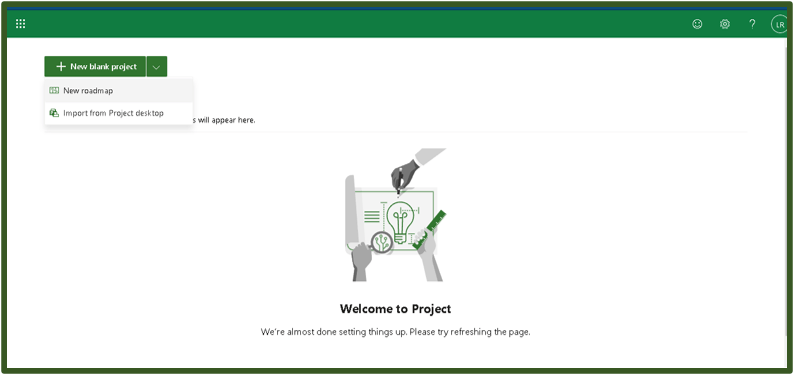
It’s built on the Microsoft Power platform and includes Project Home and Project Roadmap. Here’s the Project Home, and we can select Roadmap.
To use Project for the web, click the “Project” from the Office 365 suite. Alternatively, use https://project.microsoft.com/
We must have one of the following licenses: Project Plan One, Project Plan Three, or Project Plan Five. These were previously called Professional Edition and Premium Edition.
User Interface of the Project for the web:
The list of all the tasks in the project, the Assignments, comes from Azure. We can create your own project or roadmap as well.
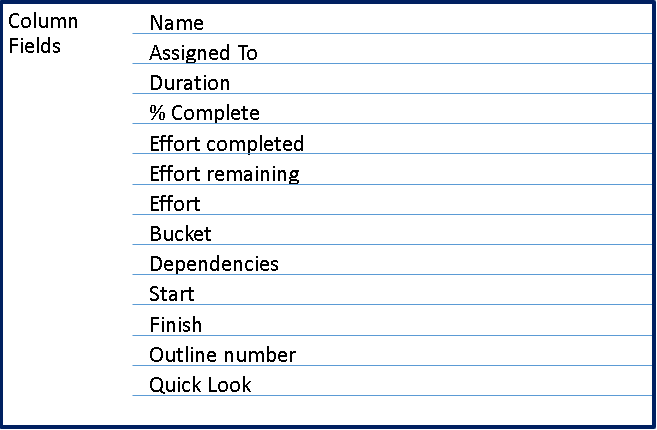
The columns included are as below:
Must-Know Features of Project for the Web:
There are three types of views – Grid, Board & Timeline.
Board is just like a card. Timeline view gives the Gantt-style view of the tasks. The important feature which is not in the Microsoft Planner is dependencies which we have to create between the key buckets. It is similar to the successor and predecessor.

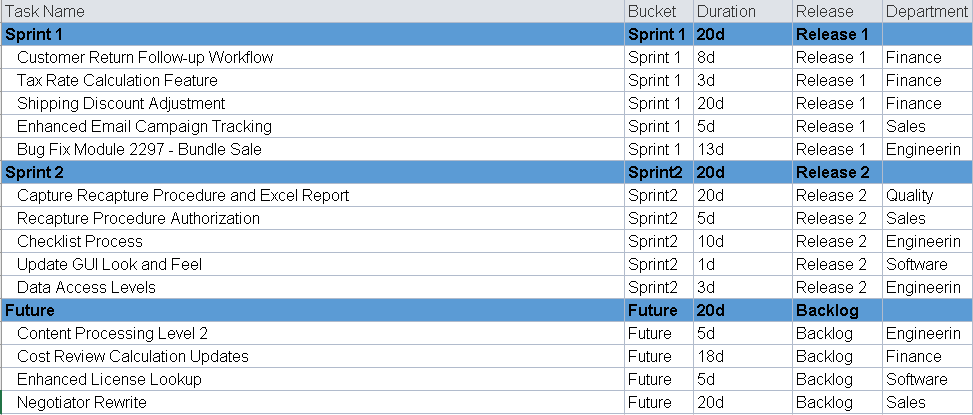
Like in Planner, we can copy project, export to excel or share the project through link. One can create a project like below with the dependency set to each sprints. So the tasks in sprint 2 will start after the sprint 1.
We can group the progress by buckets, assigned to, finish date.
One important feature in Project for the web is the ability to create roadmap. It lets us use the basic features in Project, and it gives us the ability to add in additional detail from Azure level boards and all these details will be updated if the dates change within the individual projects. Roadmap makes it possible to display Project Online tasks, Azure Board tasks or other key dates.
Limitations in Project for the web:
- There is no multi-project allocation view as in Planner. We can group only for the specific board of the project.
- 500 max total tasks for the project
- 3650 days (10 yrs ) max total duration for a project
- 150 max total resources for a project
- 600 max total links i.e. successor for a project.
- 10 max total custom fields for a project
- 10 max hierarchy levels
- 20 max links per task
- Baselines are not available
- No critical path is not available.
3. Microsoft Project Online:
Introduction & Access:
If we want to see resource allocations across various projects from common resource pool or work with a portfolio of projects or have Sharepoint site created as you create projects or add custom fields with conditional formatting, then one can work on Project Online.
An enterprise project type is a collection of information that allows one to have not only the site, but what custom fields in-built based on requirements.
Like Project for the web, Project Online is part of the Microsoft product family, which includes Project Online Desktop Client, Project Online Project Server and Project Desktop.
We need similar license as the project for the web.
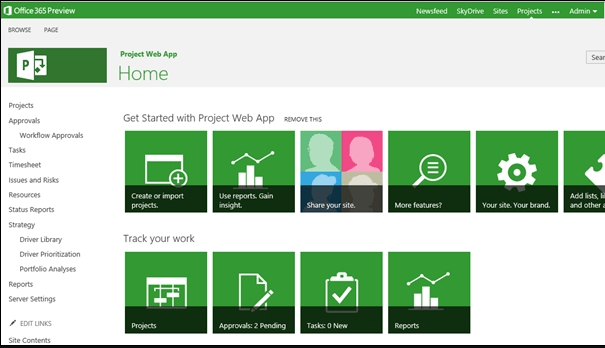
User Interface of the Project Online:
Project Online has two modes: SharePoint mode by default, or Project mode. If we go to the PWA Settings up in the gear in the right and select PWA Settings, and select Additional Server Settings, we can see what mode our instance is in. The settings in the both varies in both the models.
There is no notification mode in Sharepoint mode for alerts and reminders and you need to fix your instance in the beginning.
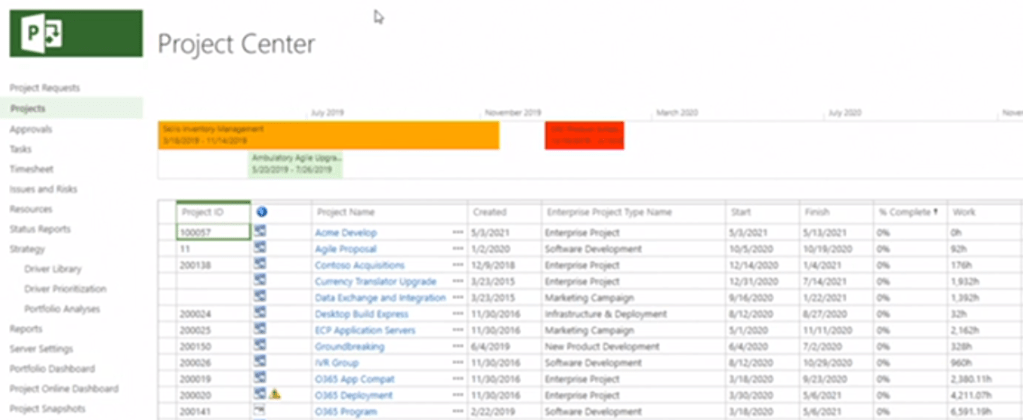
Project center provides the list of all the projects in the enterprise. It has scheduling engine In-built so we can create dependencies. If we logged in as the administrator, then we see everyone’s projects. Normally you see only the projects you’ve been either assigned to or that you’ve created. You can also change the views.
We can change the views how it displays the list of the projects in Project Online. Under the Summary dropdown, one can select different views, like Summary By Owner, Earned value, cost etc.
We can also apply custom filters to view the list of projects. We can select layout like a list of project view with Gantt chart or just the sheet.
Portfolio Management in Project Online:
If we want to look at resources, depending on again our security permissions, we’ll have access to the Resource Center where all resources are updated. Also one can look at the assignments or the capacity across all the projects within the portfolio for effective decision making. When Project Online adds a resource to an assignment it is always allocated at 100%.
We can also look at the portfolio analysis tab, and do what-if scenarios by project. You can run the portfolio analysis after you’ve set up your drivers and prioritization of projects and you can look at those particular costs or resource analysis for any projects that you might want to look in a what-if scenario.
It is important to note that, Enterprise resources should be tied to Azure accounts for login and notifications.
So by using Project Online, we have a single application that provides both the tactical project task resource views across the portfolio, along with strategic planning that some organizations might use to determine what-if scenarios.
Must-Know Features of Microsoft Project Online:
- There are various tabs like Project Information, Project Details, Schedule & Strategic impact.
- The schedule tab has the user layout just like in Stand-alone MS Project Desktop.
- One can use the Enterprise resource pool to allocate resources to the project tasks.
- It allows us the ability to have end users update their assignments directly and interact with the project documents, issues, and risks that might also be associated with the project management process.
- When your schedule is ready, you can publish that schedule to allow user to receive alerts and make tasks available for updating after you publish the plan. Basically, you are checking in the project like in Sharepoint.
The significant feature of Project Online is to create custom fields (PWA setting -> Enterprise Custom fields) like Schedule & Cost indicators with the formula using field, function and operators, just like in functions in excel. One can also use graphical indicators to display in the fields just like conditional formatting in excel.
There are lot of custom fields one can select and add to the project. Lookups table allow you to create a defined set of values that can be applied to a custom field. Moreover, one can create custom views by selecting the fields.
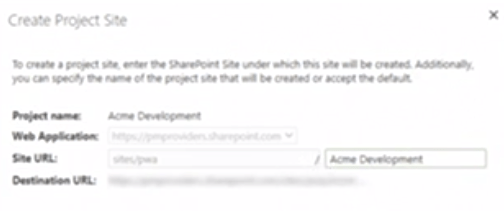
Also, one can create project sites for each projects in Project online. Once you create the site, you will have unique Classic Sharepoint URL with documents library for your specific project.
Tasks vs Timesheet Grid in Project Online:
The task grid, when we update a task, we’ll go directly back to the project manager.
The time sheet grid will go to the time sheet manager and the project manager at the same time.
By selecting the task grid, we’ll kind of see the list of all of the projects or you could go to the time sheet view, which allows you to look at not only the tasks as well as non project time, like sick time, vacation time, et cetera.
Selecting one of these for your particular organization prior to the implementation is important in the Project Online.
Limitations in Project Online:
- 30,000 max total projects per Project web app site.
- 2,000 max project sites in any one site collection.
- Sharepoint sites are supported in CLASSIC mode only and not Modern site.
- 450 max project fields and lookup tables.
- Excel export not more than 10MB cannot be refreshed.
- Changing the User Principle name” is not possible after adding the user.
- Enterprise resources should be tied to Azure accounts for login.
- Project Online is no longer in Microsoft roadmap for enhancements.
- Board is available in Planner, Project for the web, and Project Desktop but is not a part of Project Online.
4. Microsoft Project Desktop:
Introduction & Access:
Project Desktop application is also part of the Microsoft product family. It is feature rich product among all and all the information is stored in the cloud project online database.
You can open the projects from Project Online directly in the Project Desktop client for editing. But for the instance, you have to establish the connection.
We need the license to install MS Project to your PC and it is often considered to be pricey. But for the advantages it has in terms of developing a schedule, assigning resources to tasks, tracking progress, managing the budget, and analyzing workloads with options to have project and resource level calendar and lot more, it’s all worth it.
User Interface of the MS Project Desktop:
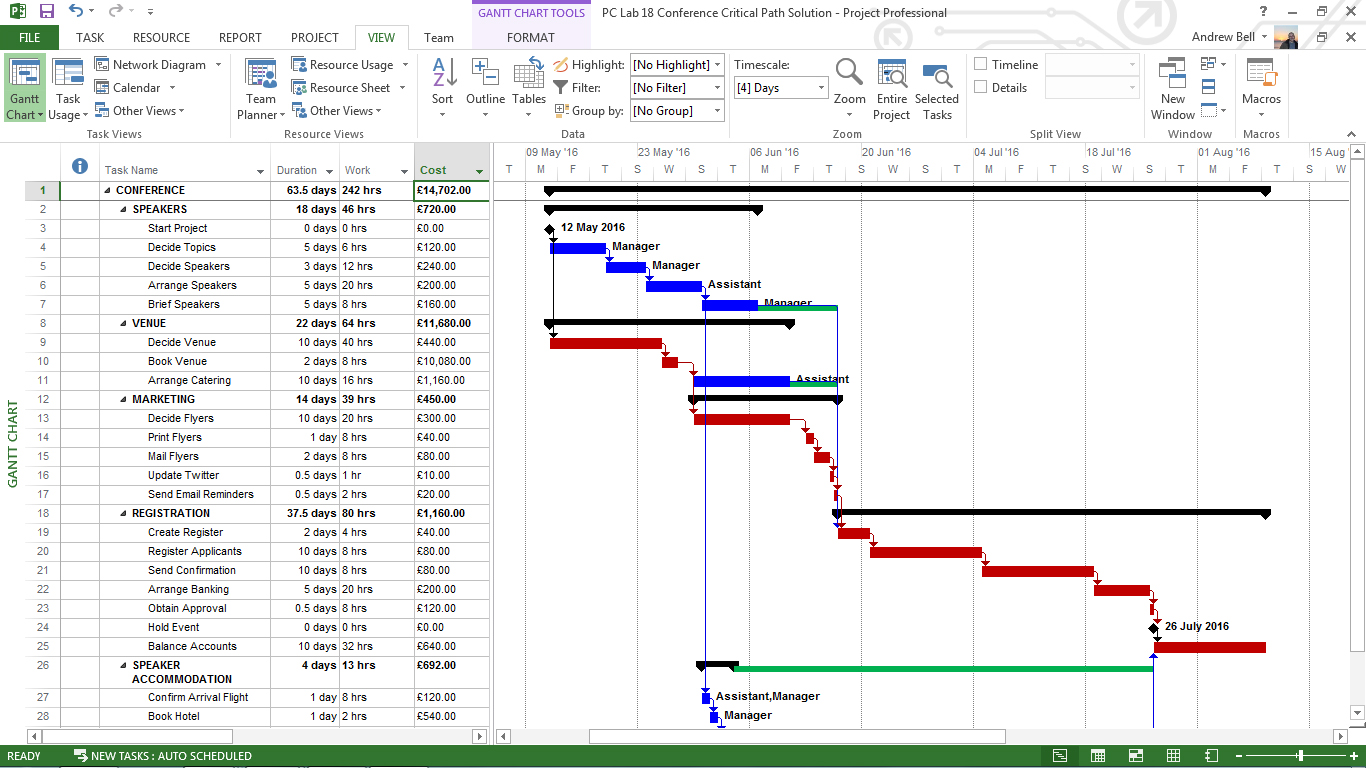
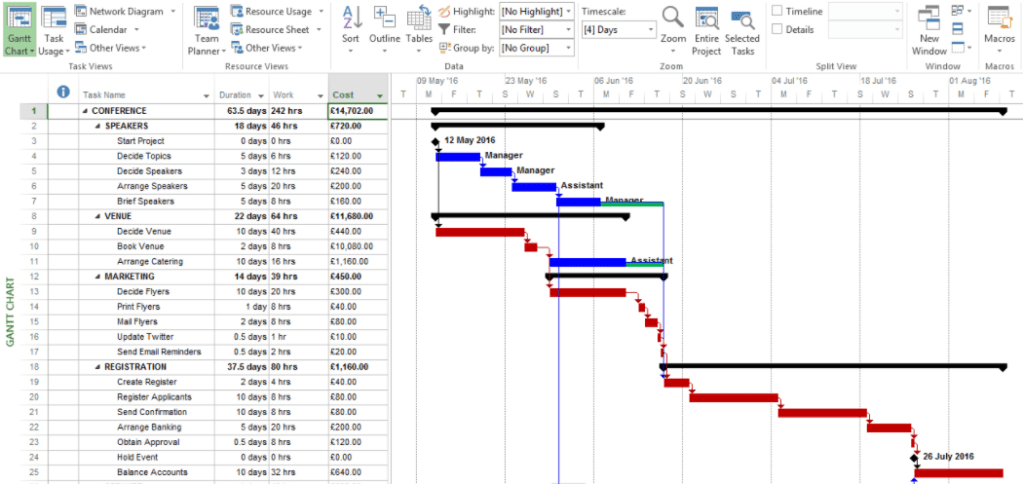
The user interface of MS Project is not so complicated as it looks like. It has well structured menu to display your schedule tasks, timelines, Gantt chart, resource usage etc.
The timeline view gives the bird’s eye view picture of the project with various formatting options like applying labels, changing colors of task bars, add milestone to timeline. It has the ability where you can include the timeline to your presentations as well.
There are multiple views & filters in MS Project Desktop including the custom ones which you can built based on your needs.
There are various in-built out of the box reports in MS Project Desktop version such as Project Overview, Dashboards, Cost & resources report, In Progress report and also a provision for you to build customs graphical reports using pivot table knowledge as well.
Robust solution of using Project Online & Desktop:
The ability to use the templates created using the desktop client and the resource names from the enterprise generic resources (Project Online), we can load them into the enterprise templates and make them available to all uses and simplify the schedule building process by following the vice-a versa process.
In Project Online, PWA settings type-> select Enterprise Project types and PWA settings-> Enterprise Custom field settings.
This robust combination helps you to set over the project for the web and planner.
Must-Know Features of Microsoft Project Online:
While MS Project has a ocean of features and functionality, listing few of them here for an overview.
- Ability to work on multiple projects on the same platform. Extremely beneficial as you are creating a master plan to combine all the subprojects for holistic view and with the timeline view.
- Provides great of flexibility when it comes to managing project local resources and availability. Even build team from enterprise resource pool with allocating costs and also analyze if they are are being overused, underused.
- Apply 12 baselines and apply Earned value management concepts.
- Apply the critical path concepts for effective project management.
- Unlike in Project online, you can allocate resources less than 100% for resources.
Limitations in MS Project Desktop:
- Requires access to the PC with the client application installed.
- Requires training the tool to get hand-on the features and functionality.
- Enterprise resource set up and setting up project templates need system admin support.
- Local and Enterprise fields needs to be coordinated not to create duplicates.
Hope you found this post useful. If you found the post informative, your valuable feedback, question, or comments about this post are always welcome by leaving me message on contact form is truly appreciated.
Discover more from LR Virtual Classroom
Subscribe to get the latest posts sent to your email.
 LR Virtual Classroom