You cannot find a dataset without the field “Date”. It can be created date, approved date, ordered date etc. All the data revolves around time. So it is important to create calendar table first as part of your dataset in Power BI.
You can use individual Date and Time functions in Power BI or use the custom block of code pre-written with DAX functions ( M-code) to create calendar table.
What you can do with this calendar Table?
It allows you to create relationship with your data source.
You can perform weekly, monthly, quarterly and yearly analysis in your report.
You can create charts with representations of various date fields – just like in excel functions that you have for Date and time.
Refer the future post on explaining the various Date & Time DAX functions.
Step by Step Procedure:
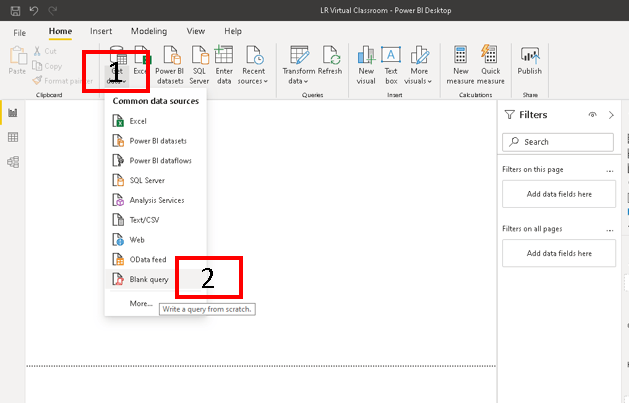
- First click on Get data and Blank query.
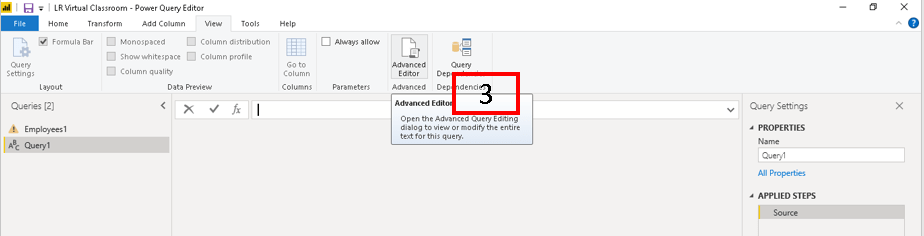
- Click Advanced Editor
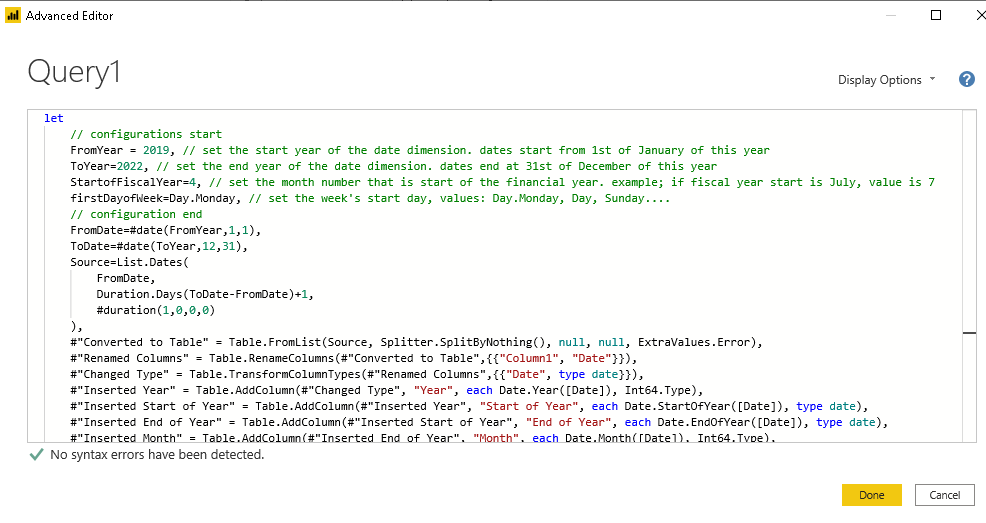
- Copy the code given below
- Change the name of the query to Calendar Table
- Click close and apply
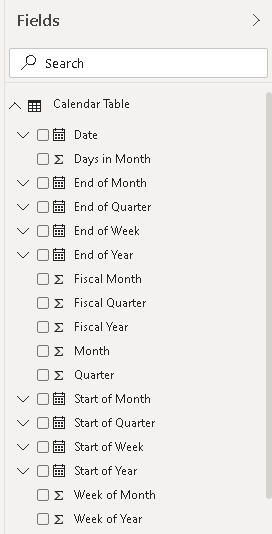
- Viola, calendar Table is ready to use.
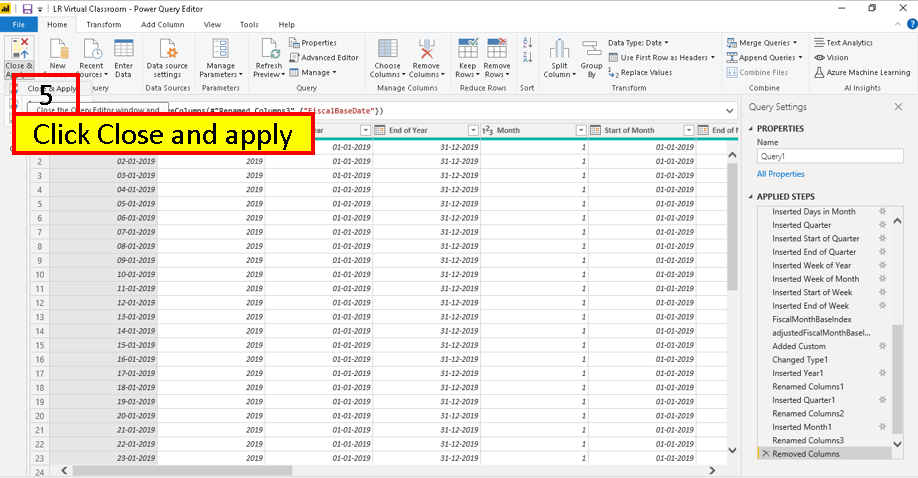
Calendar Table is Ready
let
    // configurations start
    FromYear = 2019, // set the start year of the date dimension. dates start from 1st of January of this year
    ToYear=2022, // set the end year of the date dimension. dates end at 31st of December of this year
    StartofFiscalYear=4, // set the month number that is start of the financial year. example; if fiscal year start is July, value is 7
    firstDayofWeek=Day.Monday, // set the week's start day, values: Day.Monday, Day, Sunday....
    // configuration end
    FromDate=#date(FromYear,1,1),
    ToDate=#date(ToYear,12,31),
    Source=List.Dates(
        FromDate,
        Duration.Days(ToDate-FromDate)+1,
        #duration(1,0,0,0)
    ),
    #"Converted to Table" = Table.FromList(Source, Splitter.SplitByNothing(), null, null, ExtraValues.Error),
    #"Renamed Columns" = Table.RenameColumns(#"Converted to Table",{{"Column1", "Date"}}),
    #"Changed Type" = Table.TransformColumnTypes(#"Renamed Columns",{{"Date", type date}}),
    #"Inserted Year" = Table.AddColumn(#"Changed Type", "Year", each Date.Year([Date]), Int64.Type),
    #"Inserted Start of Year" = Table.AddColumn(#"Inserted Year", "Start of Year", each Date.StartOfYear([Date]), type date),
    #"Inserted End of Year" = Table.AddColumn(#"Inserted Start of Year", "End of Year", each Date.EndOfYear([Date]), type date),
    #"Inserted Month" = Table.AddColumn(#"Inserted End of Year", "Month", each Date.Month([Date]), Int64.Type),
    #"Inserted Start of Month" = Table.AddColumn(#"Inserted Month", "Start of Month", each Date.StartOfMonth([Date]), type date),
    #"Inserted End of Month" = Table.AddColumn(#"Inserted Start of Month", "End of Month", each Date.EndOfMonth([Date]), type date),
    #"Inserted Days in Month" = Table.AddColumn(#"Inserted End of Month", "Days in Month", each Date.DaysInMonth([Date]), Int64.Type),
    #"Inserted Quarter" = Table.AddColumn(#"Inserted Days in Month", "Quarter", each Date.QuarterOfYear([Date]), Int64.Type),
    #"Inserted Start of Quarter" = Table.AddColumn(#"Inserted Quarter", "Start of Quarter", each Date.StartOfQuarter([Date]), type date),
    #"Inserted End of Quarter" = Table.AddColumn(#"Inserted Start of Quarter", "End of Quarter", each Date.EndOfQuarter([Date]), type date),
    #"Inserted Week of Year" = Table.AddColumn(#"Inserted End of Quarter", "Week of Year", each Date.WeekOfYear([Date],firstDayofWeek), Int64.Type),
    #"Inserted Week of Month" = Table.AddColumn(#"Inserted Week of Year", "Week of Month", each Date.WeekOfMonth([Date],firstDayofWeek), Int64.Type),
    #"Inserted Start of Week" = Table.AddColumn(#"Inserted Week of Month", "Start of Week", each Date.StartOfWeek([Date],firstDayofWeek), type date),
    #"Inserted End of Week" = Table.AddColumn(#"Inserted Start of Week", "End of Week", each Date.EndOfWeek([Date],firstDayofWeek), type date),
    FiscalMonthBaseIndex=13-StartofFiscalYear,
    adjustedFiscalMonthBaseIndex=if(FiscalMonthBaseIndex>=12 or FiscalMonthBaseIndex<0) then 0 else FiscalMonthBaseIndex,
    #"Added Custom" = Table.AddColumn(#"Inserted End of Week", "FiscalBaseDate", each Date.AddMonths([Date],adjustedFiscalMonthBaseIndex)),
    #"Changed Type1" = Table.TransformColumnTypes(#"Added Custom",{{"FiscalBaseDate", type date}}),
    #"Inserted Year1" = Table.AddColumn(#"Changed Type1", "Year.1", each Date.Year([FiscalBaseDate]), Int64.Type),
    #"Renamed Columns1" = Table.RenameColumns(#"Inserted Year1",{{"Year.1", "Fiscal Year"}}),
    #"Inserted Quarter1" = Table.AddColumn(#"Renamed Columns1", "Quarter.1", each Date.QuarterOfYear([FiscalBaseDate]), Int64.Type),
    #"Renamed Columns2" = Table.RenameColumns(#"Inserted Quarter1",{{"Quarter.1", "Fiscal Quarter"}}),
    #"Inserted Month1" = Table.AddColumn(#"Renamed Columns2", "Month.1", each Date.Month([FiscalBaseDate]), Int64.Type),
    #"Renamed Columns3" = Table.RenameColumns(#"Inserted Month1",{{"Month.1", "Fiscal Month"}}),
    #"Removed Columns" = Table.RemoveColumns(#"Renamed Columns3",{"FiscalBaseDate"})
in
    #"Removed Columns"
Here’s another way to create a dynamic calendar. This code will trigger the data entry form to enter the start and end dates.
let fnDateTable = (StartDate as date, EndDate as date, optional Culture as nullable text) as table =>
let
DayCount = Duration.Days(Duration.From(EndDate - StartDate))+1,
Source = List.Dates(StartDate,DayCount,#duration(1,0,0,0)),
TableFromList = Table.FromList(Source, Splitter.SplitByNothing()),
ChangedType = Table.TransformColumnTypes(TableFromList,{{"Column1", type date}}),
RenamedColumns = Table.RenameColumns(ChangedType,{{"Column1", "Date"}}),
InsertYear = Table.AddColumn(RenamedColumns, "Year", each Date.Year([Date]),type text),
InsertQuarterNum = Table.AddColumn(InsertYear, "Quarter Num", each Date.QuarterOfYear([Date])),
InsertQuarter = Table.AddColumn(InsertQuarterNum, "Quarter", each "Q" & Number.ToText([Quarter Num])),
InsertMonth = Table.AddColumn(InsertQuarter, "Month Num", each Date.Month([Date]), type text),
InsertStartOfMonth = Table.AddColumn(InsertMonth, "StartOfMonth", each Date.StartOfMonth([Date]), type date),
InsertEndOfMonth = Table.AddColumn(InsertStartOfMonth, "EndOfMonth", each Date.EndOfMonth([Date]), type date),
InsertDay = Table.AddColumn(InsertEndOfMonth, "DayOfMonth", each Date.Day([Date])),
InsertDayInt = Table.AddColumn(InsertDay, "DateInt", each [Year]*10000 + [Month Num]*100 + [DayOfMonth]),
InsertMonthName = Table.AddColumn(InsertDayInt, "Month", each Date.ToText([Date], "MMMM", Culture), type text),
InsertShortMonthName = Table.AddColumn(InsertMonthName, "Month short", each Date.ToText([Date], "MMM", Culture), type text),
InsertCalendarMonth = Table.AddColumn(InsertShortMonthName, "Month Year", each [Month short]& " " & Number.ToText([Year]),type text),
InsertCalendarQtr = Table.AddColumn(InsertCalendarMonth, "Quarter Year", each "Q" & Number.ToText([Quarter Num]) & " " & Number.ToText([Year]), type text),
InsertDayWeek = Table.AddColumn(InsertCalendarQtr, "Weekday Num", each Date.DayOfWeek([Date])),
InsertDayName = Table.AddColumn(InsertDayWeek, "Weekday", each Date.ToText([Date], "dddd", Culture), type text),
InsertShortDayName = Table.AddColumn(InsertDayName, "Weekday short", each Date.ToText([Date], "ddd", Culture), type text),
InsertWeekEnding = Table.AddColumn(InsertShortDayName , "EndOfWeek", each Date.EndOfWeek([Date]), type date),
InsertWeekNumber= Table.AddColumn(InsertWeekEnding, "Week Num", each Date.WeekOfYear([Date])),
InsertMonthWeekNumber= Table.AddColumn(InsertWeekNumber, "WeekOfMonth Num", each Date.WeekOfMonth([Date])),
InsertMonthnYear = Table.AddColumn(InsertMonthWeekNumber,"Month-YearOrder", each [Year]*10000 + [Month Num]*100),
InsertQuarternYear = Table.AddColumn(InsertMonthnYear,"Quarter-YearOrder", each [Year]*10000 + [Quarter Num]*100),
ChangedType1 = Table.TransformColumnTypes(InsertQuarternYear,{{"Quarter-YearOrder", Int64.Type},{"Week Num", Int64.Type},{"WeekOfMonth Num", Int64.Type},{"Quarter", type text},{"Year", type text},{"Month-YearOrder", Int64.Type}, {"DateInt", Int64.Type}, {"DayOfMonth", Int64.Type}, {"Month Num", Int64.Type}, {"Quarter Num", Int64.Type}, {"Weekday Num", Int64.Type}})
in
ChangedType1
in
fnDateTable
Hope you found the post informative. Your valuable feedback, question, or comments about this post are always welcome by leaving me message on contact form is truly appreciated.
Discover more from LR Virtual Classroom
Subscribe to get the latest posts sent to your email.
 LR Virtual Classroom