
Very late in my career, I realized something important: mastering Excel isn’t just about knowing formulas or building charts. It’s about understanding the right shortcuts, features, tools and techniques that can save hours of work, reduce errors, and make your reports more effective.
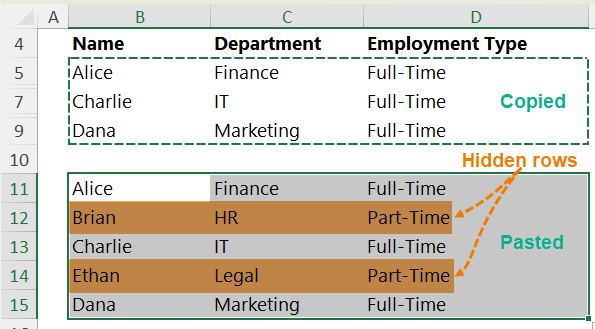
1. Copy Only Visible Cells
Issue: Hidden rows/columns get copied with filtered data.
Fix:
- Select your range
- Press
Alt + ;to select only visible cells - Copy and paste as usual
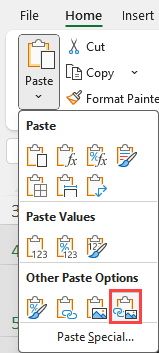
2. Live Snapshots (Linked Picture)
Steps:
- Copy your range (
Ctrl + C) - Go to another sheet: Home tab → Paste → Linked Picture
Alternative (Older Excel): Use Camera Tool
- Add via Quick Access Toolbar → “All Commands” → Add Camera
- Select range, click Camera, paste the live image
3. Remove Duplicates vs Unique Lists
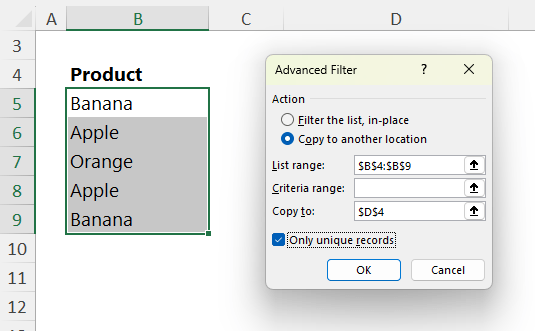
For a unique list without altering original data:
- Select data with headers → Data tab → Advanced
- Choose “Copy to another location”
- Check “Unique records only”
Dynamic formula version:
=SORT(UNIQUE(B5:B7))
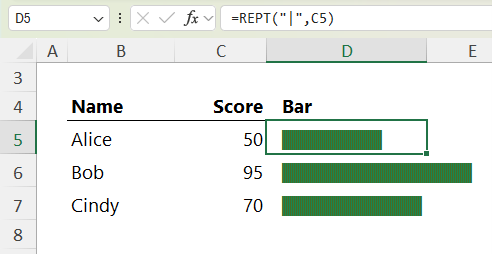
4. In-Cell Bar Charts
Use formula:
=REPT("|",C5)
- Set font to Playbill or any monospace
- Color to match theme
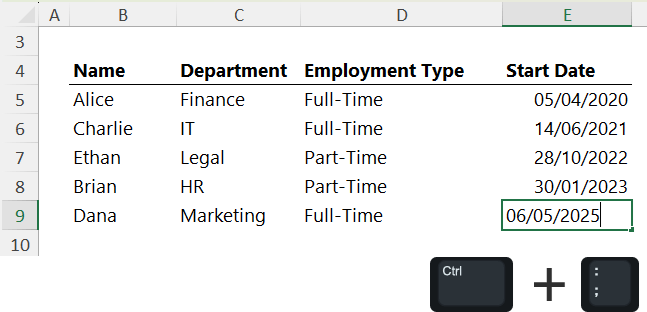
5. Insert Today’s Date Instantly
Press:Ctrl + ; → then Enter
6. Debug Formulas Like a Pro
While editing:
- Select part of the formula to see the result tooltip
- Press
F9to evaluate a portion manually - Press
EscorCtrl + Zto undo

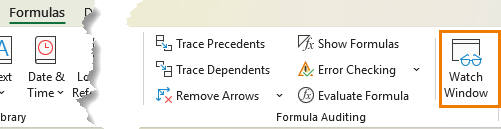
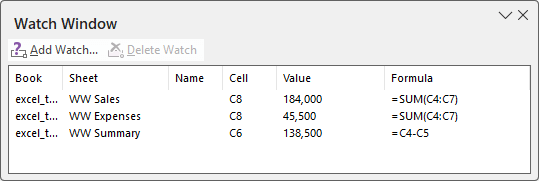
7. Use the Watch Window
Most of the time, you might wonder how to track values across multiple sheets in Excel?
- Go to Formulas → Watch Window
- Click “Add Watch” and choose cells to monitor
Docking tip: Drag the window to the bottom, side, or top until it docks.
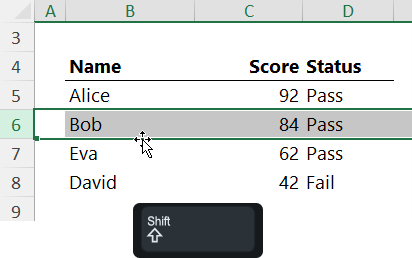
8. Move Rows/Columns Without Cut-Paste
- Select the row/column
- Hover edge until 4-arrow icon appears
- Hold Shift, then drag to move
(Ctrl + Shift = Copy instead)
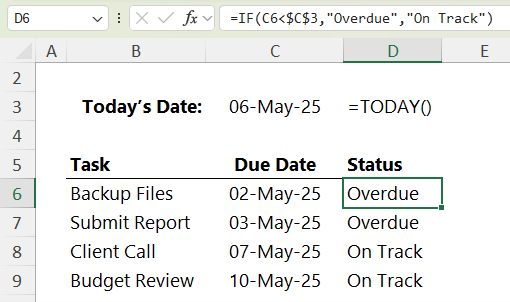
9. Auto-Update Dates with =TODAY()
=IF(C6<$C$3,"Overdue","On Track")Use =TODAY() to pull today’s date from system clock dynamically.
10. Hide Values with ;;;
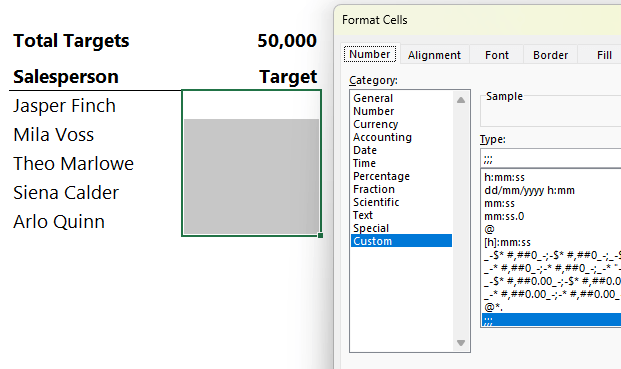
- Select cells → Press
Ctrl + 1→ Number → Custom - Enter
;;;as the custom format
Data is invisible on the sheet but still usable in formulas.
11. Fix Broken Percentage Formatting
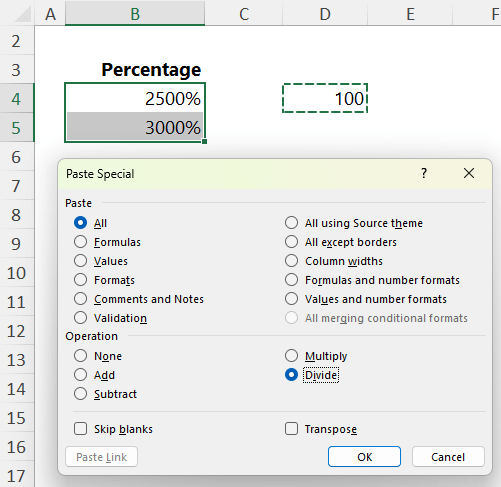
Problem: 25 shows as 2500%
Fix:
- Type 100 in an empty cell →
Ctrl + C - Select incorrect percentages
- Paste Special → Divide
12. Custom AutoFill Lists
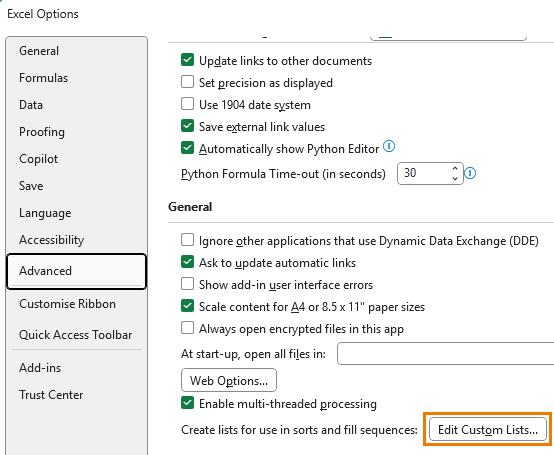
- Go to File → Options → Advanced → Edit Custom Lists
- Enter or import your list (e.g., department names)
After saving: type first item, drag to autofill the rest
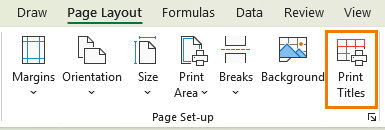
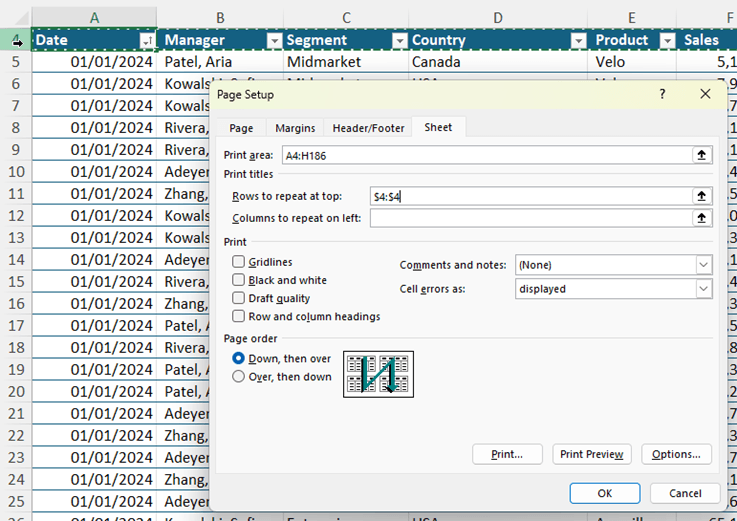
13. Repeat Table Headers When Printing
- Go to Page Layout → Print Titles
- Under “Rows to repeat at top”, select your header row
Optional: Set columns to repeat on the left.
References:
Discover more from LR Virtual Classroom
Subscribe to get the latest posts sent to your email.
 LR Virtual Classroom