
In project management, delays are inevitable. Understanding how to calculate the delay of one task relative to another and forecasting new completion dates is crucial for maintaining project timelines.
In this post, we’ll explore a methodical approach to calculate delays and forecast completion dates using Excel.
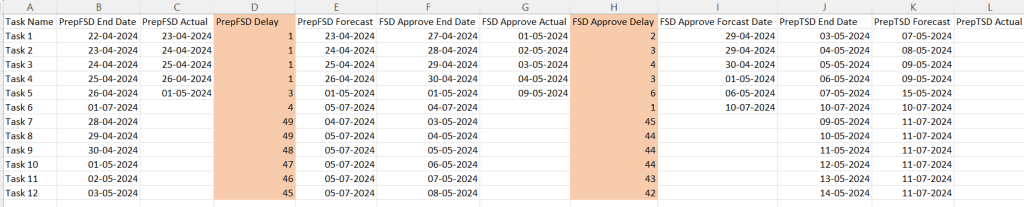
PrepFSD Delay =IF(C2="",IF(B2<TODAY(),NETWORKDAYS(B2,TODAY())-1,0),IF(NETWORKDAYS(B2,C2)<0,NETWORKDAYS(B2,C2)+1,NETWORKDAYS(B2,C2)-1))Let’s break down the formula:
=IF(E2="",IF(D2<TODAY(),NETWORKDAYS(D2,TODAY())-1,0),IF(NETWORKDAYS(D2,E2)<0,NETWORKDAYS(D2,E2)+1,NETWORKDAYS(D2,E2)-1))
This formula is used to calculate the number of working days between two dates, with specific conditions. Here’s what each part does:
- IF(E2=””, … , …):
- This checks if the actual end date (E2) is empty.
- If E2 is empty, it means the task is not yet completed, so it uses the current date (TODAY()) to calculate the delay.
- IF(D2<TODAY(),NETWORKDAYS(D2,TODAY())-1,0):
- D2<TODAY(): Checks if the planned end date (D2) is before today’s date.
- If the planned end date is before today, it calculates the number of working days between D2 and today using
NETWORKDAYS(D2, TODAY())-1.NETWORKDAYS(start_date, end_date): This function returns the number of working days between two dates, excluding weekends and optionally specified holidays.- The
-1is used to exclude the start date from the count.
- If the planned end date is not before today, it returns 0, indicating no delay.
- IF(NETWORKDAYS(D2,E2)<0,NETWORKDAYS(D2,E2)+1,NETWORKDAYS(D2,E2)-1):
- If E2 (actual end date) is not empty, it calculates the number of working days between D2 and E2.
- NETWORKDAYS(D2,E2)<0: Checks if the result of
NETWORKDAYS(D2,E2)is negative, which would indicate an error since the end date should not be before the start date.- If the result is negative, it adds 1 to the count to adjust it.
- Otherwise, it subtracts 1 to exclude the start date from the count.
PrepFSD Forecast =IF(OR(B2>TODAY(),B2+D2<B2),B2,WORKDAY(B2,D2))Let’s break down the formula again with the correct context:
=IF(OR(B2>TODAY(),B2+D2<B2),B2,WORKDAY(B2,D2))
Here, B2 represents the end date, and D2 represents the number of delay days.
Explanation of the Formula
- OR(B2>TODAY(),B2+D2<B2):
- B2>TODAY(): Checks if the end date (B2) is in the future relative to today’s date.
- B2+D2<B2: Checks if adding the number of delay days (D2) to the end date (B2) results in a date before the end date, which is effectively checking if D2 is negative.
- IF(OR(…), B2, WORKDAY(B2,D2)):
- IF(OR(B2>TODAY(),B2+D2<B2), B2, …):
- If either of the conditions within the
ORfunction is true (the end date is in the future or the delay is negative), the formula returns the end date (B2).
- If either of the conditions within the
- WORKDAY(B2,D2):
- If neither condition is true, it calculates a new date by adding the delay days (D2) to the end date (B2) using the
WORKDAYfunction. WORKDAY(start_date, days): This function returns a date that is the specified number of working days after the start date, excluding weekends and optionally specified holidays.
- If neither condition is true, it calculates a new date by adding the delay days (D2) to the end date (B2) using the
- IF(OR(B2>TODAY(),B2+D2<B2), B2, …):
Detailed Breakdown with Examples
- End Date is in the Future:
- End Date (B2): August 1, 2024
- Today’s Date: July 7, 2024
- Delay Days (D2): 10 days
- Formula:
=IF(OR(B2>TODAY(),B2+D2<B2),B2,WORKDAY(B2,D2)) - Since B2 is greater than TODAY(), the formula returns B2:
August 1, 2024.
- Delay Days is Negative:
- End Date (B2): July 1, 2024
- Today’s Date: July 7, 2024
- Delay Days (D2): -5 days
- Formula:
=IF(OR(B2>TODAY(),B2+D2<B2),B2,WORKDAY(B2,D2)) - Since B2 + D2 (July 1, 2024 + (-5 days) = June 26, 2024) is less than B2, the formula returns B2:
July 1, 2024.
- Normal Scenario:
- End Date (B2): July 1, 2024
- Today’s Date: July 7, 2024
- Delay Days (D2): 10 days
- Formula:
=IF(OR(B2>TODAY(),B2+D2<B2),B2,WORKDAY(B2,D2)) - Neither B2 > TODAY() nor B2 + D2 < B2 is true, so the formula calculates the working day 10 days after the end date using
WORKDAY(B2, D2). - If there are no holidays, the formula returns
July 15, 2024(10 working days after July 1, 2024).
This formula ensures that if the end date is in the future or if the delay days are negative, the end date remains unchanged. Otherwise, it calculates the forecast date by adding the delay days to the end date, ensuring the result falls on a working day. This helps in accurately forecasting task completion dates while considering only working days.
FSD Approve Delay =IF(G2="",IF(F2<TODAY(),NETWORKDAYS(F2,TODAY())-1,0),IF(NETWORKDAYS(F2,G2)<0,NETWORKDAYS(F2,G2)+1,NETWORKDAYS(F2,G2)-1))PrepTSD Forecast =IF(OR(J2>TODAY(),J2+H2<J2),J2,WORKDAY(J2,H2))Let’s break down the formula with the context that J represents the end date and H represents the previous task delay:
PrepTSD Forecast =IF(OR(J2>TODAY(),J2+H2<J2),J2,WORKDAY(J2,H2))
Explanation of the Formula
- OR(J2>TODAY(),J2+H2<J2):
- J2>TODAY(): Checks if the end date (J2) is in the future relative to today’s date.
- J2+H2<J2: Checks if adding the previous task delay (H2) to the end date (J2) results in a date before the end date, effectively checking if H2 is negative.
- IF(OR(…), J2, WORKDAY(J2,H2)):
- IF(OR(J2>TODAY(),J2+H2<J2), J2, …):
- If either of the conditions within the
ORfunction is true (the end date is in the future or the delay is negative), the formula returns the end date (J2).
- If either of the conditions within the
- WORKDAY(J2,H2):
- If neither condition is true, it calculates a new date by adding the previous task delay (H2) to the end date (J2) using the
WORKDAYfunction. WORKDAY(start_date, days): This function returns a date that is the specified number of working days after the start date, excluding weekends and optionally specified holidays.
- If neither condition is true, it calculates a new date by adding the previous task delay (H2) to the end date (J2) using the
- IF(OR(J2>TODAY(),J2+H2<J2), J2, …):
Detailed Breakdown with Examples
- End Date is in the Future:
- End Date (J2): August 1, 2024
- Today’s Date: July 7, 2024
- Previous Task Delay (H2): 10 days
- Formula:
=IF(OR(J2>TODAY(),J2+H2<J2),J2,WORKDAY(J2,H2)) - Since J2 is greater than TODAY(), the formula returns J2:
August 1, 2024.
- Previous Task Delay is Negative:
- End Date (J2): July 1, 2024
- Today’s Date: July 7, 2024
- Previous Task Delay (H2): -5 days
- Formula:
=IF(OR(J2>TODAY(),J2+H2<J2),J2,WORKDAY(J2,H2)) - Since J2 + H2 (July 1, 2024 + (-5 days) = June 26, 2024) is less than J2, the formula returns J2:
July 1, 2024.
- Normal Scenario:
- End Date (J2): July 1, 2024
- Today’s Date: July 7, 2024
- Previous Task Delay (H2): 10 days
- Formula:
=IF(OR(J2>TODAY(),J2+H2<J2),J2,WORKDAY(J2,H2)) - Neither J2 > TODAY() nor J2 + H2 < J2 is true, so the formula calculates the working day 10 days after the end date using
WORKDAY(J2, H2). - If there are no holidays, the formula returns
July 15, 2024(10 working days after July 1, 2024).
This formula ensures that if the end date is in the future or if the previous task delay is negative, the end date remains unchanged. Otherwise, it calculates the forecast date by adding the delay days to the end date, ensuring the result falls on a working day. This approach helps in accurately forecasting task start dates while considering only working days.
Refer the sheet for more details. You can carry forward the delays from the predecessor to the successor.
Understanding how to accurately forecast task start dates and manage delays is essential for effective project management.
By leveraging Excel formulas, such as the one we’ve discussed, you can ensure that your task timelines are realistic and account for working days only.
This approach not only helps in maintaining project schedules but also in identifying potential bottlenecks early on.
Discover more from LR Virtual Classroom
Subscribe to get the latest posts sent to your email.
 LR Virtual Classroom