
Recently, I can across amazing Excel tips on LinkedIn which are worth sharing. You will be amazed by these shortcuts.
I started to learn how Google Sheets works as well. As a first step, thought to document and share them with you all for ease of reference.
Stay tuned for top features in Google Sheets which you cannot find in Excel.
Excel Hack 1 – Flash Fill
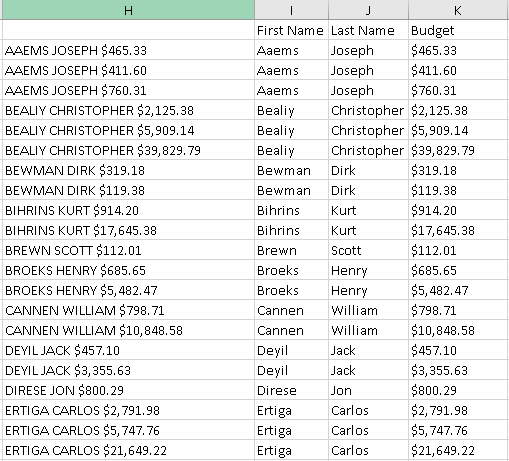
When you have data like below, you can get the split done in just 10 secs.
Just type the format in the first cell and press Ctrl+E for the magic. This feature is available in both Excel and Google Sheets.
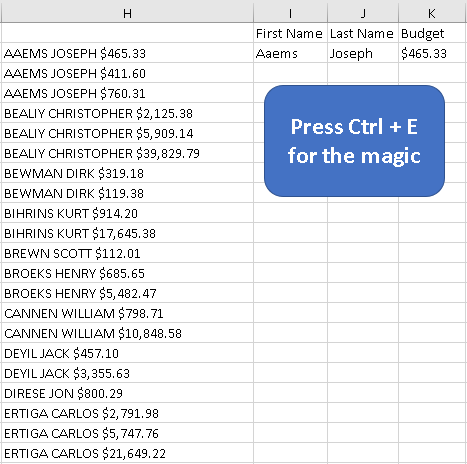
See yourself the magic in 10 secs.
Google Sheet Hack 2 – Google Translate
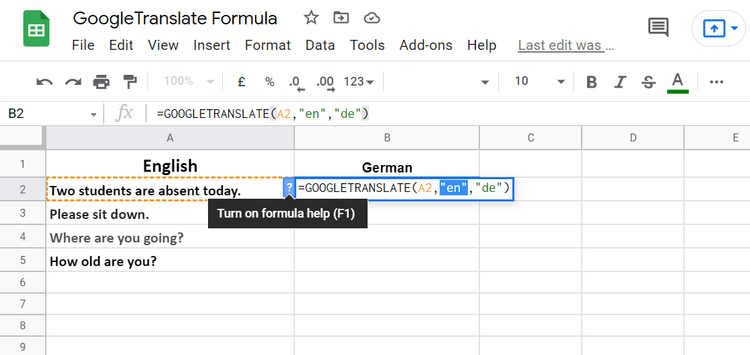
This Google Translate function is available easily in Google sheets. In Excel, we need to follow the steps to add a small code in our Visual Basic editor.
=GOOGLETRANSLATE(text, [source_language, target_language])
With just click of a button, you get translated in any languages you name it.
Google Sheet Hack 3 – Split Function
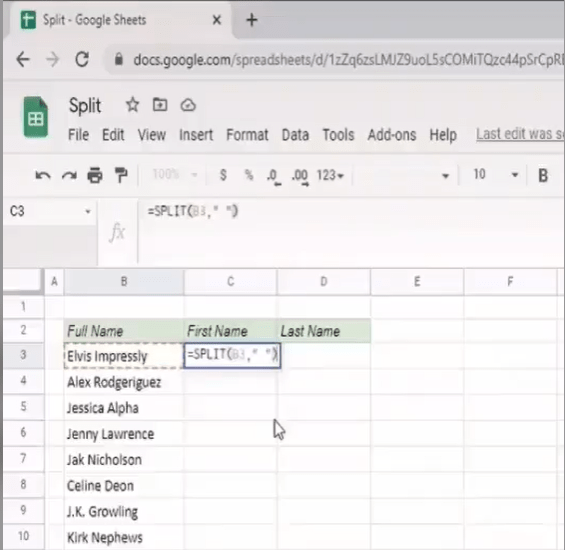
Again, this function is not available in Excel. When you write your SPLIT function in a cell, it puts each fragment into a separate cell in the row.
So it returns the output across the cells on the right side. Make sure to keep plenty of empty columns to the right of your function!
=SPLIT(text, delimiter, split_by_each, remove_empty_text)
=the equal sign is how we start just about any function in Google Sheets.textis the text we want to divide.delimiteris the character or characters we use to split text. By default, each character in the delimiter is considered individually. For example, if the delimiter is “the”, then the text is divided around the characters “t”, “h”, and “e”. If you don’t want this behaviour, setsplit_by_eachto FALSE.split_by_eachis an optional argument which is TRUE by default. As I mentioned, we can define whether we want to divide the text around each character of the delimiter or consider the delimiter as a whole.remove_empty_textis another optional argument, TRUE by default. It indicates whether or not to remove empty text fragments from the split results. So when there are two or more delimiters next to each other, the default behavior is to them as one (if TRUE). If FALSE, empty cells are added between the consecutive delimiters.
Excel Sheet Hack 4 – Emojis in Cells
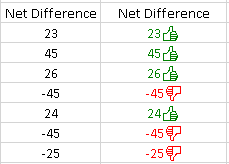
Do you want to represent data like below. It can be done with just one formula.
Update the below formula under Custom formula under Format Cells.
The shortcut for the Format cells dialog box is Ctrl + 1
Good news is that this can be used in Excel as well.
[Color10]0👍;[Color3]-0👎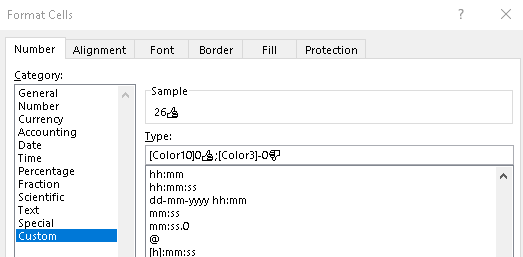
Excel Sheet Hack 5 – Remove blank spaces
This is commonly known to all. Remove the space with just two function.
All clean data just in minutes.
=TRIM(PROPER(Q2))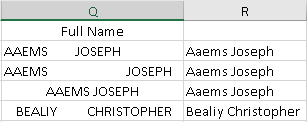
Excel Hack 6 – Remove blank Rows
If you have data like below with lot of blank rows, with just few clicks, you can clean the data.
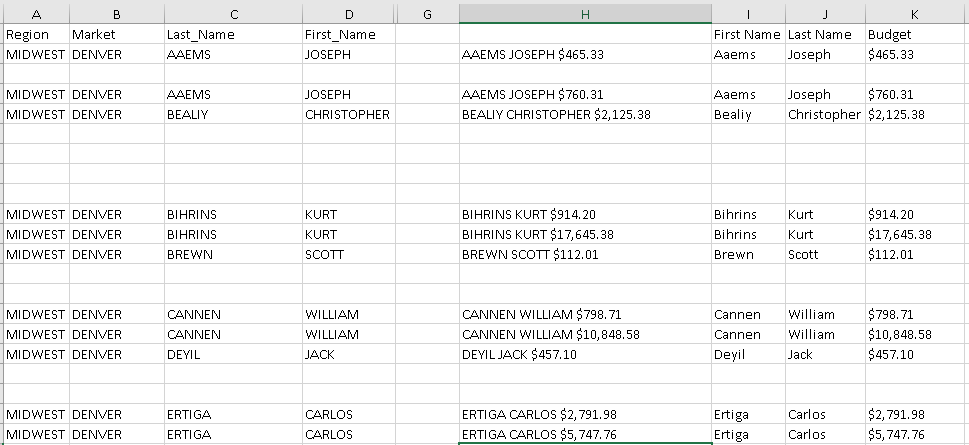
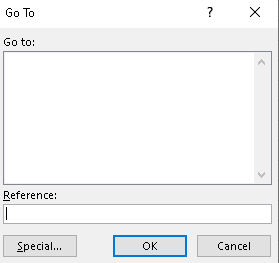
First, press F5 for Go To dialog box. Then click “Special”. then again select “Blanks”
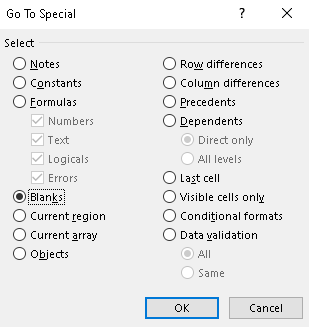
All the blank cells will be selected. Now to delete, just press Ctrl + “-“
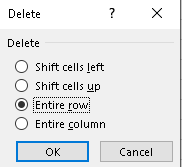
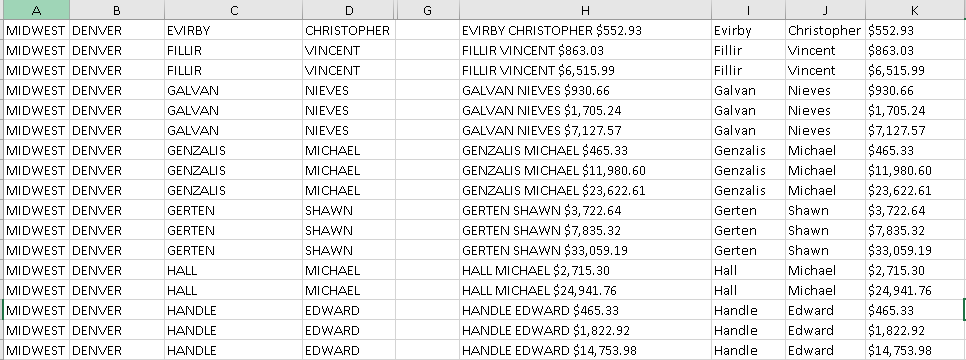
Voila, all the blank cells are deleted.
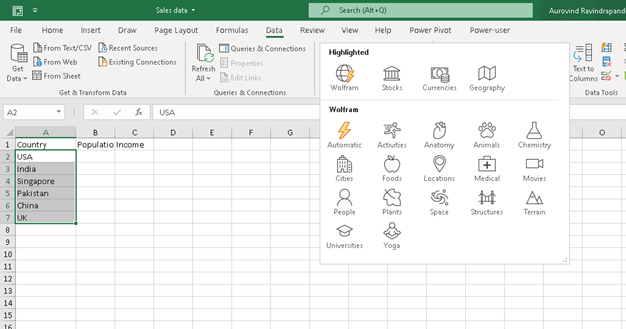
Google Sheet Hack 7 – Data Types
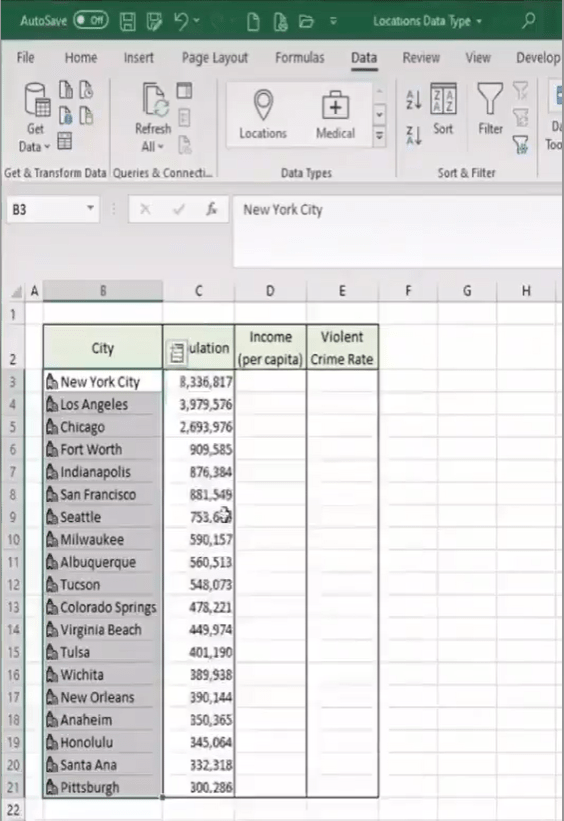
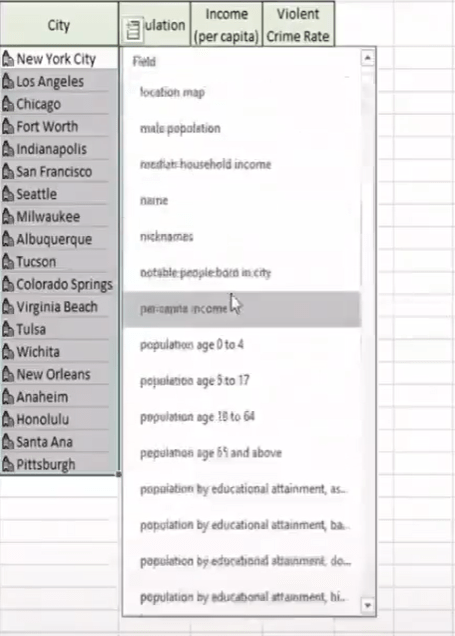
This is not just data types like numbers, text etc.
Say for example, you have country names. Under Data menu, you have various kind of information which you can collect.
Hope you found the post informative. Your valuable feedback, question, or comments about this post are always welcome by leaving me message on contact form is truly appreciated.
Discover more from LR Virtual Classroom
Subscribe to get the latest posts sent to your email.
 LR Virtual Classroom