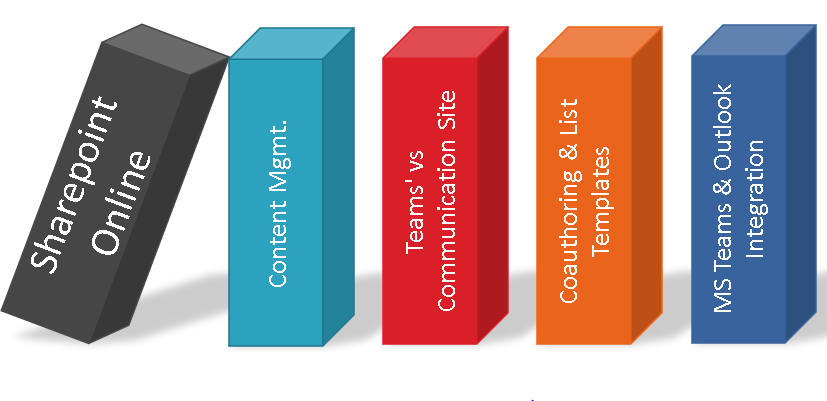
The UI of the Sharepoint online was so easy to make navigation and achieving simple tasks easy. It is easy on the eyes. Out of curiosity, summarizing the learnings about the key features here to enable your checklist as well. Hope you find it useful.
Office 365 SharePoint Trial Version:
Frist of all, lets know about the trail version of the Sharepoint. You can use Office 365 version of SharePoint for trail of one month.
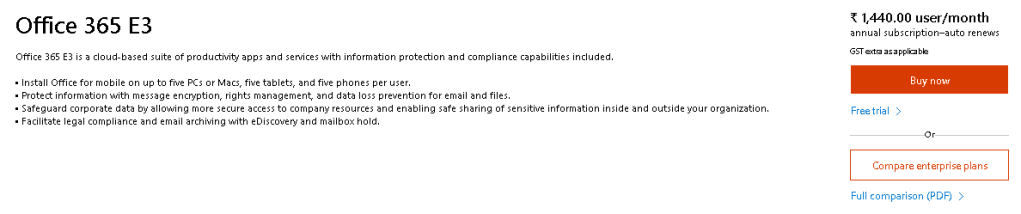
Try Office sign up for an Office 365 Enterprise E3 trial.
If you will sign up for Office 365 enterprise E3, you will get below things:
It will allow you to create up to 25 users (25 licenses you can assign to users)
• 30 Days trial
• Unlimited personal cloud storage
• Email hosting with 100 GB mailbox
• Online & desktop versions of Office applications
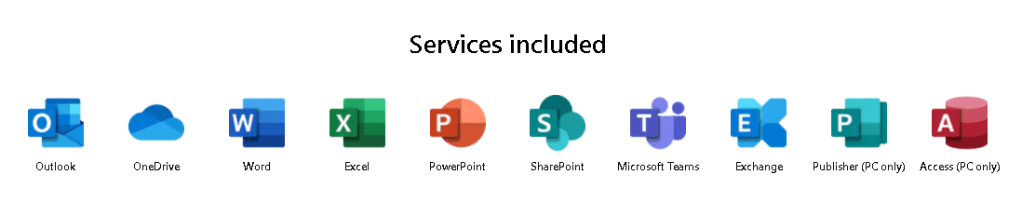
• Services like Word, Excel, PowerPoint, Outlook, SharePoint, Yammer, Teams, etc.
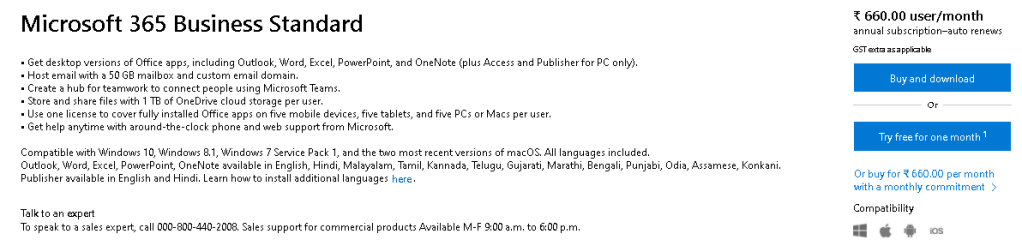
Microsoft 365 Business Standard
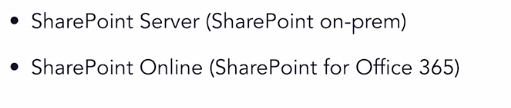
There are two types of Sharepoint most common.
Why Sharepoint Online :
SharePoint Online isn’t an application like word or Excel or even a suite of applications like Outlook or Office. SharePoint Online is a platform that organizations use to create powerful websites, from organizational websites to websites for departments, for work groups, and project teams.
Initially what started as storage file system, it has lot of enriched features for content and information management.
- Document Libraries
- Lists
- File sharing
- Retention
- Versioning
- Broader Search
- Collaboration
- Information Management
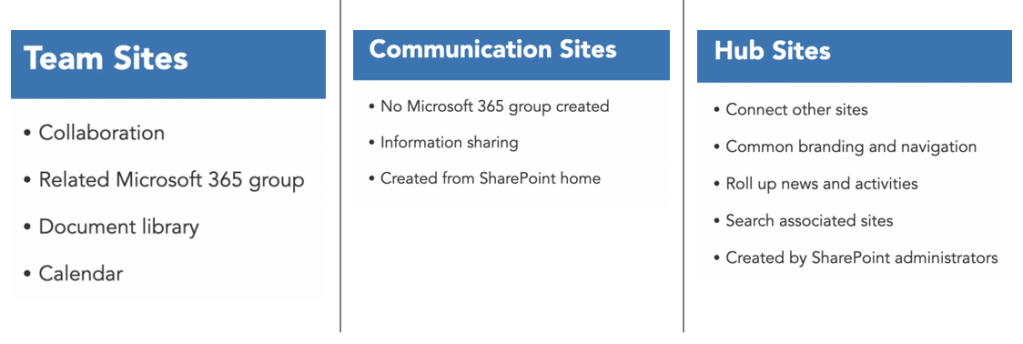
SharePoint includes Team sites where groups of users can collaborate on documents and data and share news. Communication sites which are used for organizational messaging.
Features of Sharepoint Online:
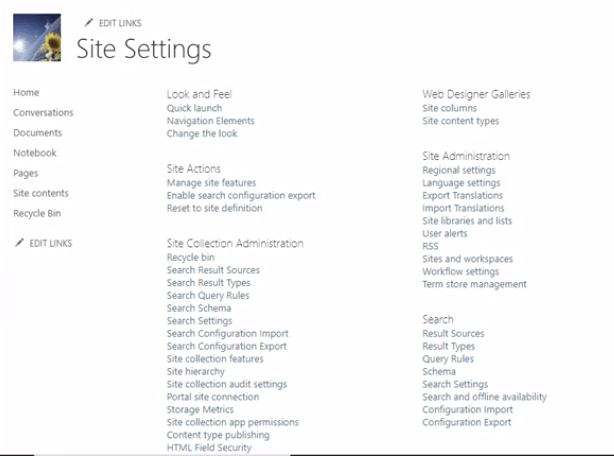
Its very important to know what’s in store for the Site contents and site settings.
Feature – 1: Power Automate
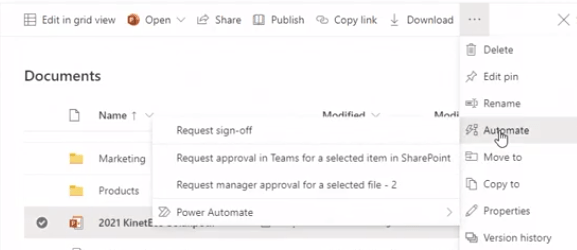
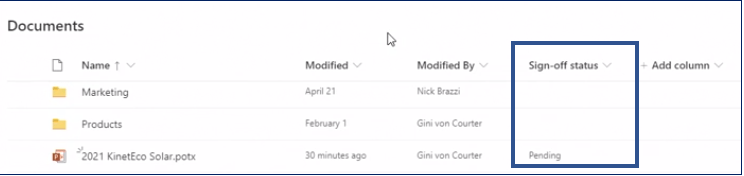
A workflow is a process that proceeds through a sequence of activities until it reaches completion. If you want to send a document to someone else and have them review it and sign off on it, then you can do that easily in one step from SharePoint using the power of Microsoft Power Automate, earlier it is called as Microsoft Flow.
Click on the document, you can fine Automate option. Under Automate, there are three options.
- Create flows
- See your flows
- Configure flows
Feature -2 : Broader Search Options
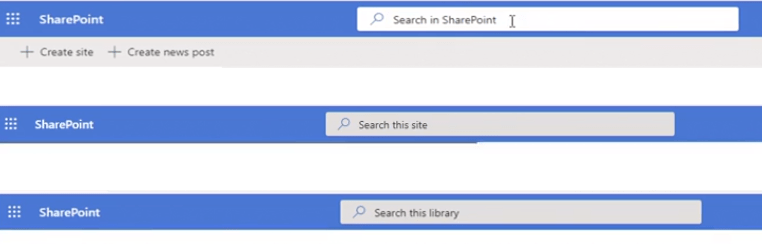
Sharepoint online has a broader search options and you can search now within a library, particular site or entire Sharepoint.
Feature -3 : Coauthoring a Document
Co-authoring is one of the slicker features that we get with SharePoint Online. Coauthoring as the name says, multiple people can edit the document at the same time. The edits and username is known by indication.
Also, one can use Comments to have a conversation with each other about what it is being edited and what is required by another person to update in the document. Proofing of the document can be done simultaneously.
Ensure you edit a PowerPoint document in a desktop version rather than opening the document in Office 365 online because Office 365 online does not provide the full suite of editing options.
Feature – 4: List Templates
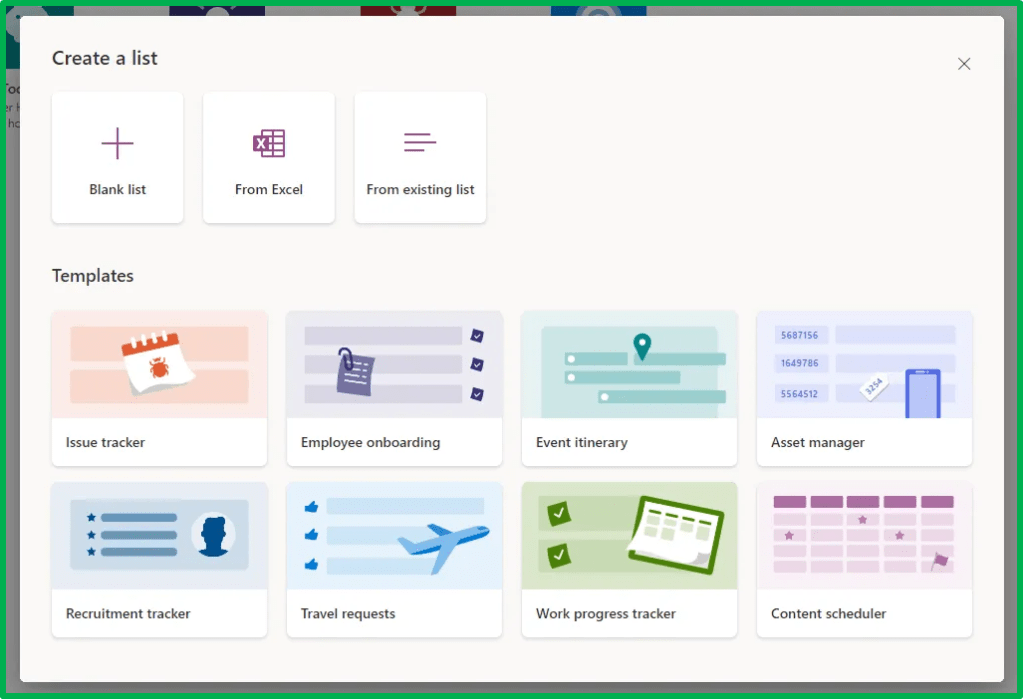
Sharepoint List is one of the most commonly used. Ensure you use some of the in-built list templates. These ready-made List templates designed to make it easy for tracking and managing the data.
Problem: Do note that if you share a list items with members of the other teams, those members gain access to your entire team site. If you share the list, it will allow access to your team site.
Solution: You can export the list to Excel and then send the Excel file to the other teams. If you share the list, others can access the entire site. This way, they will not be accessing the site to see the Excel file.
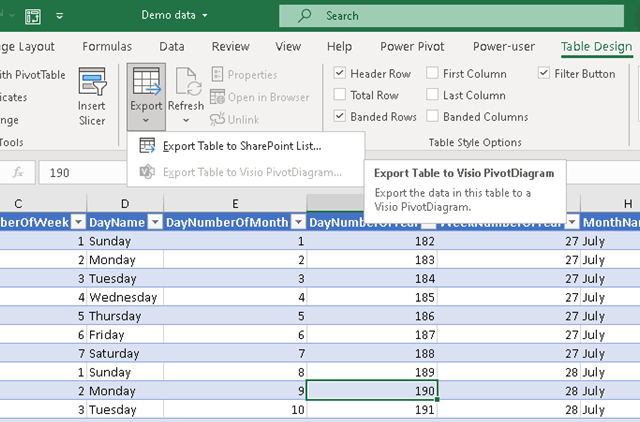
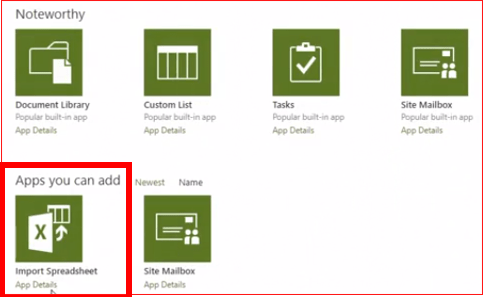
Feature – 5: Create a new custom list from Excel
This is most important feature to know while working with List. You can establish read-only connection to the excel list.
The only precondition is the data in the excel should be formatted as Table. Simply press Crtl+T to create a table around your data.
Feature – 6: Apply conditional formatting to a view
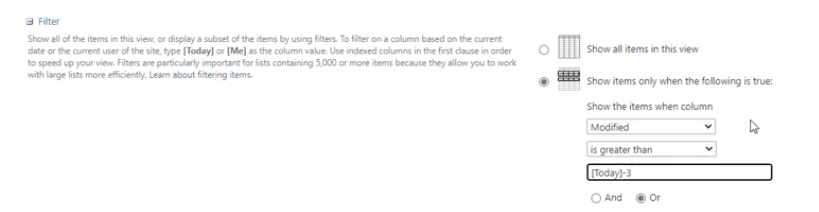
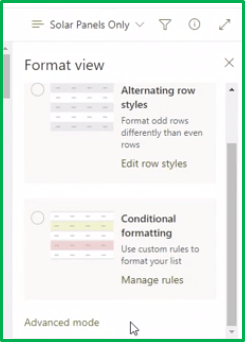
As we all know the basis of sorting, filtering and creating views in SharePoint Online in a list or a library. In fact you can also Create a dynamic view. Additionally, there are two things you can do in the list.
- Simply change the formatting as alternate rows of highlighting for ease of visualization.
- Or use custom list of rules to format your list.
Feature -7: Integrate SharePoint calendar with Outlook
If I have a calendar that a team has created and they keep it in SharePoint and created it using the SharePoint Calendar List app, I can then pull that calendar right in here to Microsoft Outlook. This is a calendar that we can use to track when people are out of the office and days that are holiday days.
I’m going to go to the calendar, click the Calendar tab, and choose Connect to Outlook. So if a new event is added to this calendar here in SharePoint, within a very short length of time, that modification will make its way here to the synchronized calendar in your own Outlook.

Feature -8: Add the Teams experience to SharePoint
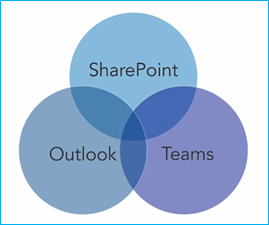
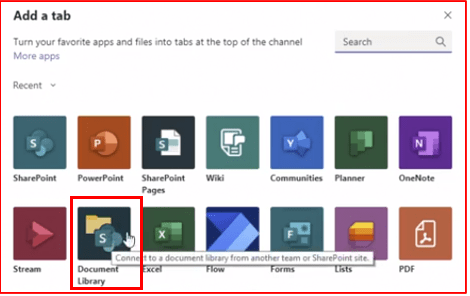
When a new team is created in Microsoft Teams, it gets a SharePoint site and each of its channels gets a document library. The storage mechanism for Microsoft Teams is Microsoft SharePoint Online. I can connect other content from Microsoft SharePoint to Microsoft Teams. I have a mechanism for sharing an entire page from SharePoint right here in Teams
Feature -9: Use a communication site
All of the features as of now shown have one thing in common: They have all been team sites; sites that are created for collaboration by a group of users. But there’s another type of site we can create in SharePoint online that’s meant not for collaboration, but for sharing or disseminating information. And that type of site is called a Communication Site.
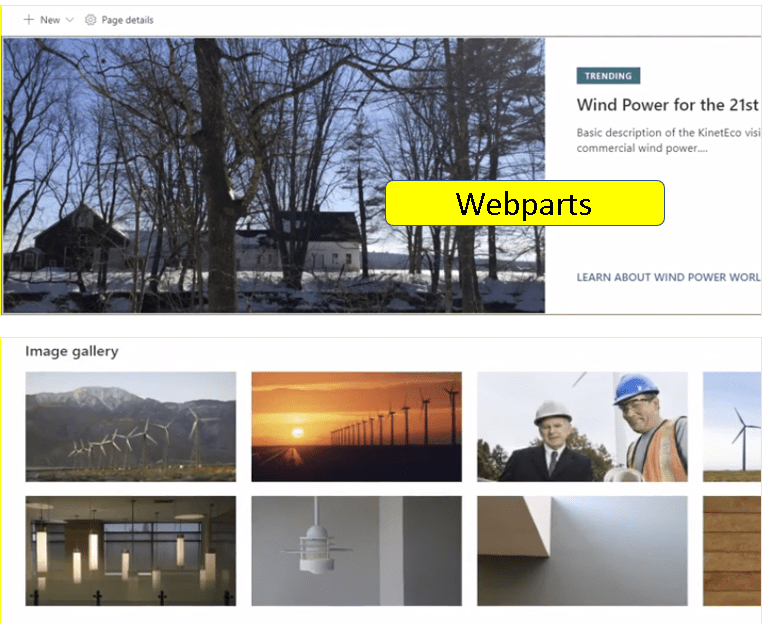
Communication site can have text, images, and even a video.
You have the ability to edit the individual web parts. Edit in much the same way that you would edit a news post. Promote news posts via Email as below.
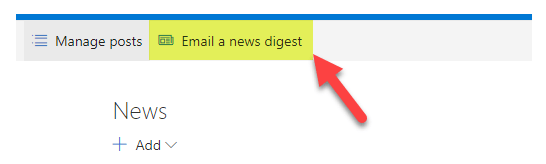
It is important to note that for every newsletter/posts, it creates a separate page in the Site Pages library. Also note that it is a permanent page which is great source as you can use this as a catalog of all the newsletters you sent out.
Make sure your communication site has mega menus in different hierarchy level to provide a easy navigation to the users.
In addition to this splashy homepage, communication sites, also include a document library, a pages library, where the pages in the site are stored. Also additionally, one can have a FAQ or a Wiki etc.
Feature -10: Understand your permissions
Though it is common, make sure you Understand your permissions in the Sharepoint. We can very precisely control access to sites and content. full control, design, edit, contribute, read, limited access and view only are built-in permission roles.
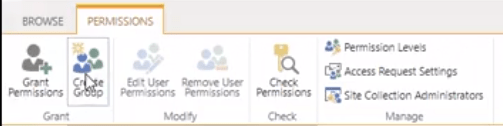
A) Permission Tweaks
- Create a new group
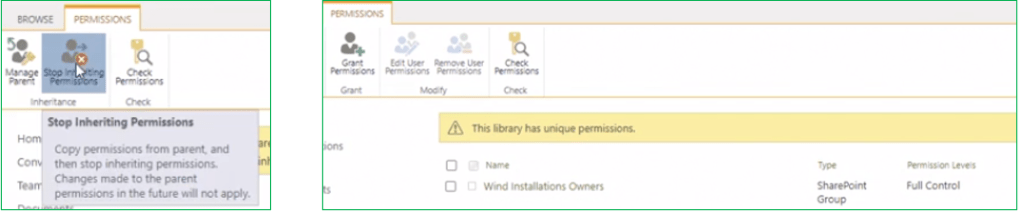
- Set unique permissions for a library or folder
- Set access request
C) Permission Roles:
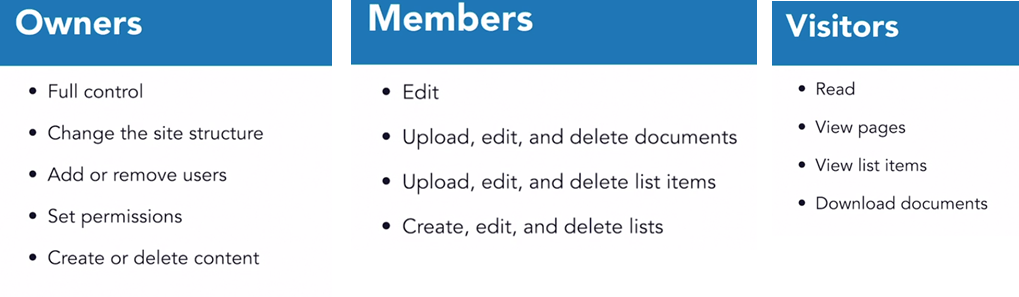
- Design — view, add, update, delete, approve, and customize
- Contribute — add, edit, and delete list items and documents but cannot add, edit, or delete lists or libraries
- View — view but not download site contents
D) Set unique permissions for a library:
Ensure you set unique permissions for a library.
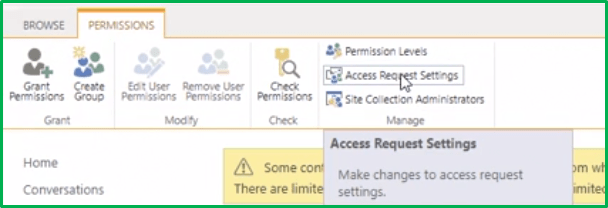
E) Set access request for a site:
Ensure you set the access request for a site so that the request for the site is directed to the particular person. It also enables to trigger the mail alert as soon as the request is raised.
Bonus Feature – Add a SharePoint app to your site:
There are lot many apps available within the Sharepoint site as listed below which you can insert as part of your site. Various apps like
- Contacts
- Announcements
- Links
- Calendar
- Promoted Links
- Discussion Board
- Tasks
- Issue Tracking
- Wiki page
- Picture Library
- Site mailbox
- Custom List
Hope you found the post informative. Your valuable feedback, question, or comments about this post are always welcome by leaving me message on contact form is truly appreciated.
Discover more from LR Virtual Classroom
Subscribe to get the latest posts sent to your email.
 LR Virtual Classroom